Published: June 5, 2026
Last Updated: October 1, 2026
Most small business owners don’t have a productivity problem. They have a repetition problem.
It’s the same invoice going out manually every month. The same appointment reminder sent by hand. The same data copied from one spreadsheet into another tool that should already have it. Add those tasks up across a week, and many small teams report losing roughly 8–12 hours to repetitive admin — time that well‑designed automations can reclaim for higher‑value work (based on aggregated community case studies and user reports, 2024–2026).
That‘s what office automation for small firms is really about. Not robots. Not costly enterprise systems. Simply the right software, configured correctly, that takes the low-value routine work away so your people don‘t have to.
This step-by-step walkthrough will show you what to automate first, determining what tools you can really afford on such a small team, and then how to roll it out incrementally without the whole process falling apart.
What Office Automation Actually Means for a Small Business
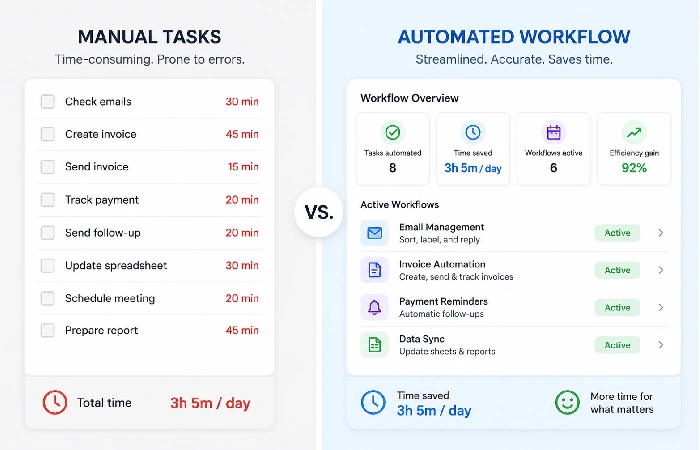
Office automation would be the utilisation of software tools to make routinely performed business activities automatic. In the case of a small business, this could be related to scheduling, invoicing, email follow-ups, data entry, approval of documents, and customer communication activities.
It‘s not the same as simply “using software.” That is an important difference.
You can use accounting software and still manually enter every transaction. You can use a CRM and still send every follow-up email yourself. Automation is when the software takes those actions automatically based on triggers — a new inquiry comes in, a follow-up goes out. An invoice due date arrives, and a reminder sends itself. A form gets filled out, the data populates your spreadsheet, and notifies the right person.
According to research from McKinsey Global Institute, analysis of workplace tasks (2017), about 45% of work activities could be automated with available technology, and later industry analyses show the share is higher for routine administrative tasks common in small offices.
The difference between automation and just using software
Using software speeds up manual work. Automation removes it.
If you’re creating the invoice, printing it from your accounting software, and emailing it yourself, then it‘s software. If your accounting software creates an automatic batch of invoices every month and emails them out, that is automation. The output is the same. The human time involved is not.
For small businesses with lean teams, that gap is where hours go.
Why small businesses are uniquely positioned to benefit
Here’s something most coverage misses: small businesses often benefit more from automation than large ones.
Large companies have teams whose jobs are built around repetitive processes. Automating those processes creates organisational disruption — role changes, retraining, resistance. In a five-person business, one person wearing four hats can immediately redirect two hours a day the moment a handful of tasks get automated. No politics. No restructuring. Just time back.
That said, small businesses also have less margin for choosing the wrong tool. Getting locked into something that doesn’t integrate with your existing stack wastes money and time you don’t have. Which is why the starting point matters.
Which Office Tasks Should You Automate First?
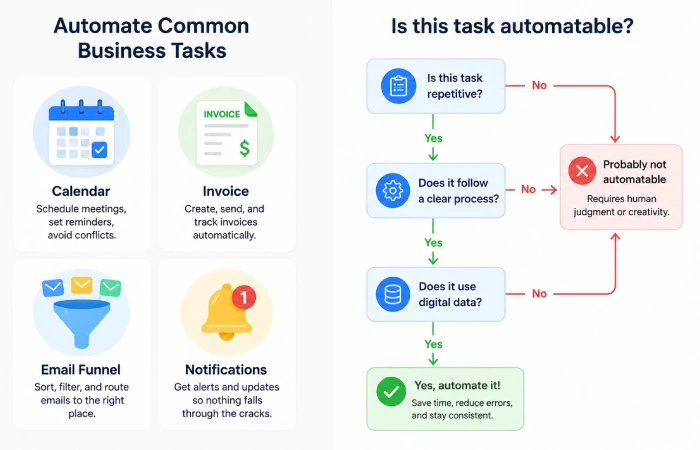
Not every task is worth automating. Some take more time to set up than they’ll ever save. Some have such high risk (payroll, legal documents, client-facing communication) that total automation would still not be appropriate.
The appropriateness of the candidates for automation is their (1) some repetition, (2) rule-based and (3) the safety-net once automation fails.
A quick checklist to evaluate candidates:
- (1) Frequency — occurs weekly or more
- (2) Predictability — same steps >80% of the time
- (3) Impact of error — low financial/regulatory risk
- (4) Setup ROI — estimated setup time <6 weeks relative to expected time saved.
The four task categories worth targeting immediately
-
Appointments scheduling/reminders. If there are too many back-and-forth scheduling e-mails, it is a time drain. Tools like Calendly or TidyCal eliminate the entire exchange. Automated reminders have been reported to reduce no‑shows by roughly 20–30% in platform user studies and vendor reports (examples: Calendly and other booking platforms; results vary by industry and reminder cadence).
- Invoice creation & follow-up on payments. Recurring invoices, reminders to pay, etc., can be automated. For a lot of service businesses, this alone will save 2-4 hours each week. Lead capture & initial follow-up.
- Lead capture and initial follow-up. The moment that a visitor completes a contact form or resource download doesn‘t require a human response. Automated acknowledgments, qualifying questions, and drip sequences attend to the early stages of the relationship so your team can work on qualified conversations.
- Internal alerts and task assignment. Someone needs to be notified when a new order is received, a form is submitted, or a project reaches a milestone. Automation takes care of those notifications and may also create tasks in your project management system.
Explore the full range of workflow automation tools available for small teams if you want a deeper breakdown by category.
How to spot a bad automation candidate
Some tasks look automatable but aren’t. Watch out for:
- Tasks that vary significantly each time (custom proposals, complex client communication)
- Tasks that require human judgment at each step
- Tasks where an error has serious financial or legal consequences
- Tasks that happen so rarely, the setup time doesn’t pay off
A good indicator: you should be able to write a well‑defined operating procedure for a new hire without judgment calls. If you seem to have to explain “it depends” more than a paragraph, automating it is probably not worth it.
The Start Small Stack — A Phased Approach for Teams Under 20
This is the section most automation guides skip.
They give you a list of 50 tools and leave you to figure out where to start. That’s not useful. What a small business actually needs is a sequenced rollout — start where the time savings are highest, and the setup is simplest, then build from there.
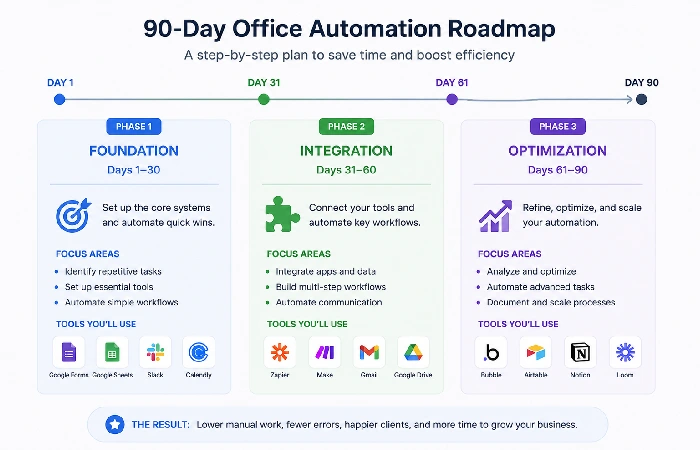
This is a 3-phase framework designed for teams of between 2 and 20 people, and a software budget of less than $150 a month.
Phase 1 — Quick wins (Week 1–2)
Begin with the two or three actions that your team regularly and predictably performs repeatedly.
For most small businesses, that means:
Total setup time: usually 3 to 5 hours each for all three. Average weekly time saving: 4 to 8 hours.
Never start Phase 2 until you‘ve stabilised the Phase 1 team, and you‘ve seen them actually trying to use it.
Phase 2 — Communication and follow-up automation (Week 3–6)
Once the quick wins are running, move into communication workflows.
This is when ready-made workflow connectors like Zapier, Make (ex-Integromat), or self-hosted ones like n8n are helpful to connect your CRM, your email platform, and your project tools. You‘re now connecting your current tools, your CRM, your email platform, your project management tool, and making triggers between them.
Examples:
- New submission of contact form -> makes a contact in your CRM -> covers it with an email template -> pings the proper person in a Slack team
- Payment received → marks the project complete in your PM tool → sends a thank-you email
If you haven’t explored AI in office automation yet, this is typically where AI-enhanced tools start adding meaningful value — particularly in email drafting, classification, and smart routing.
Phase 3 — Reporting and integration automation (Month 2–3)
Within two or three months, you‘ll have a better idea of where you‘re still wasting time. Phase 3 is the link between the data.
This might mean:
- Automating weekly performance reports that pull from multiple sources
- Setting up dashboards that update without manual data entry
- Integrating your e-commerce platform, accounting tool, and CRM so that records sync automatically
By this stage, most companies realise they want a more powerful automation platform. Which is a good thing. It means you completed the earlier phases.
Best Office Automation Quick SOP (copy‑paste):
- 1) Week 0 — run a 1‑week task audit and pick the top 3 automations
- 2) Week 1–2 — configure scheduling + invoicing automations, document workflows;
- 3) Week 3–6 — add connector workflows (CRM → email → PM);
- 4) Week 7–12 — build reporting dashboards and test cross‑tool syncs;
- 5) Monthly — check automations, review error logs, and update mapping.
Best Office Automation Tools for Small Businesses in 2026
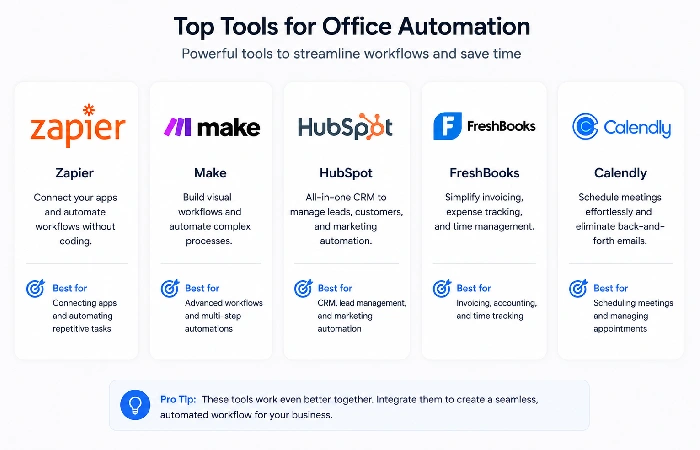
This table contains the “best of the best” in the major classes of automation as voted by the community, confirmed user reviews through late 2025/early 2026, and their overall availability in India/UK/US markets.
| Tool |
Category |
Best For |
Free Tier? |
Paid Plan From |
| Calendly |
Scheduling |
Appointment booking, reminders |
Yes |
$10/user/mo |
| Zapier |
Workflow integration |
Connecting apps without code |
Yes (free tier with limits) |
paid plans start around $19.99/month (pricing varies by plan and region) |
| Make (Integromat) |
Workflow automation |
Complex multi-step workflows |
Yes |
$9/mo |
| FreshBooks |
Invoicing |
Recurring invoices, payment follow-ups |
No |
$17/mo |
| Wave |
Invoicing / Accounting |
Small teams, freelancers, budget-focused |
Yes |
Free |
| HubSpot CRM |
CRM + email automation |
Lead capture, follow-up sequences |
Yes |
$15/user/mo |
| Notion + Automations |
Project management |
Internal task triggers, templates |
Yes |
$10/user/mo |
| DocuSign / PandaDoc |
Document signing |
Contracts, approval workflows |
Limited |
$15/mo |
| Need |
Recommended Tools |
| Simple scheduling |
Calendly / Cal.com |
| Cross-app automation without coding |
Zapier / Make |
| Accounting and invoicing |
QuickBooks / Zoho Books / Wave (verify local tax compliance for your region) |
| Electronic signatures |
PandaDoc / DocuSign |
Note: Zapier is popular for its ease of setup and very wide integrations, but can become pricey for higher operation volume (a platform like Make or n8n can potentially be lower in cost per operation, or self-hosted control, whichever best fits your needs). Make offers more powerful for less money if your team is willing to spend a bit more time on setup. For businesses in India, both are widely accessible, though Wave’s invoicing features don’t fully support GST out of the box — something to factor in.
For a more detailed breakdown of these tools by feature and use case, the office automation software guide covers this in full.
How Much Does Office Automation Cost for a Small Business?
This is the query that most search for and do not really find a definitive response to.
Short version: a working automation stack will cost between $0 and $150/month, depending on business volume and number of existing tools.
Example budget scenarios:
- (A) Solo/freelancer — $0–$20/mo (Zapier free, Calendly free, HubSpot free)
- (B) Small team (3–8) — $30–75/mo (starter plans for Zapier/Make, basic CRM, invoicing)
- (C) Growing team (10–20) — $75–150/mo (expanded automation ops, paid CRM seats)
These ranges reflect common pricing in 2025–2026 and will vary by vendor and discounts.
Free tier options that are genuinely useful
Several tools have free tiers that are legitimately useful at a small scale — not just crippled demos:
- Wave — offers free invoicing and accounting features for small businesses in select markets, though payment processing and payroll are paid add‑ons; verify country support and tax features on https://www.waveapps.com
- HubSpot CRM — free forever, includes basic email automation
- Calendly — free tier handles one event type, which is enough for most solopreneurs
- Zapier — 100 tasks/month free, enough to test your first few workflows
- Make — 1,000 operations/month free, more generous than Zapier at the entry level
If you’re just starting, you could run an effective basic stack for £0 / $0 / ₹0 for the first six months.
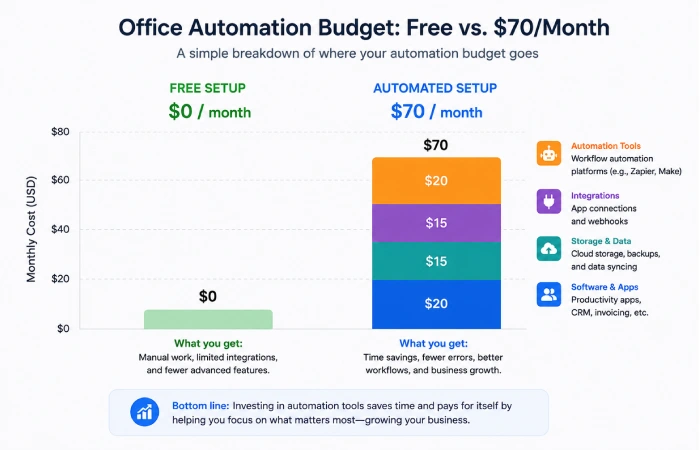
A realistic $50–$150/month budget breakdown
Once you grow past free tiers, here’s a sensible paid allocation:
| Tool |
Monthly Cost (est.) |
What It Covers |
| Make (Basic) |
$9 |
Workflow automation, integrations |
| Calendly (Standard) |
$10 |
Multi-event scheduling, team access |
| FreshBooks (Lite) |
$17 |
Invoicing, payment follow-ups |
| HubSpot (Starter) |
$15 |
CRM, email sequences |
| PandaDoc (Essentials) |
$19 |
Document signing, contracts |
| Total |
~$70/mo |
Core SMB automation stack |
That’s a complete, connected automation stack for under $1,000 a year. According to the U.S. Small Business Administration, labour is usually the most expensive running cost for small businesses, so saving time is perhaps one of the most maximizing use of resources that a small business can make.
It is worth mentioning that if your stack is too automated, you are also heavily dependent on it working. One broken integration can cause a lot of missed tasks. That’s a real risk, and it’s why we recommend keeping your Phase 1 tools simple before building complexity in Phase 3.
Common Mistakes Small Businesses Make When Automating
Most businesses that “tried automation and gave up” hit one of two problems.
Over-automating too early
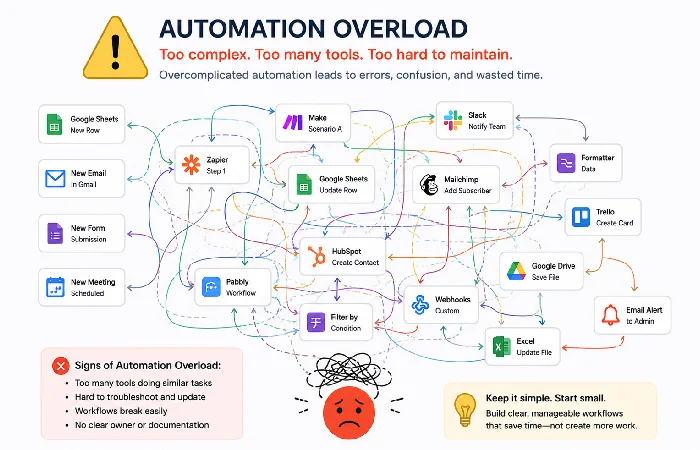
It’s tempting to automate everything once you see the potential. Don’t.
Every automation you create becomes a system on which you must continually watch, manage, and troubleshoot. A company automating 20 processes over its first month may find itself spending more billable hours resolving broken automations than gaining them.
Start with three automations max. Run them for four to six weeks. Then add more.
Choosing tools that don’t integrate
This is likely to be one of the most common(and expensive) mistakes. A business could select a fantastic scheduling application, a fantastic invoicing application, and a fantastic CRM, and all of them are incompatible. Data sits in its own corner, and someone has to move it around.
Before selecting a new tool, see if it has native integrations and is in the Zapier or Make connector library. If it doesn‘t connect with your current stack, just select another.
Gartner‘s survey on SMB technology usage reveals that integration incompatibility ranks as one of the three most common reasons organizations stop using a new piece of software within 90 days.
Your mileage will vary based on your existing tools, but it’s a pattern worth taking seriously.
What to Expect in the First 90 Days
Here’s a realistic timeline based on how the Start Small Stack tends to play out.
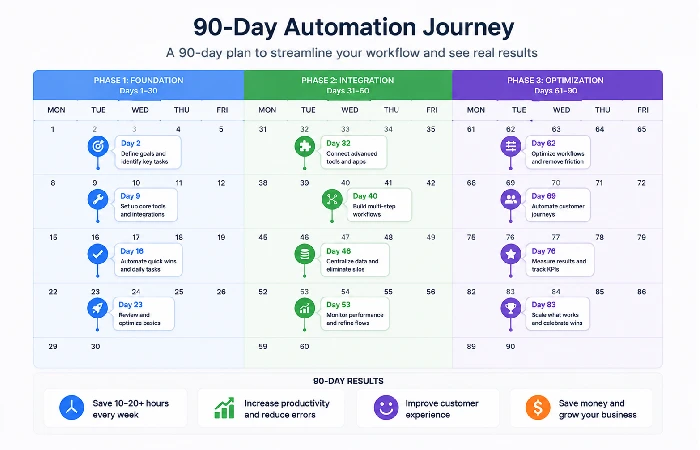
- Days 1 14 (Phase 1): You establish automation for scheduling and invoicing. It seems a little awkward initially because you‘re still pre-programmed to do it manually. Stick with it — the habit-breaking takes about a week.
- Days 15–45 (Phase 2): You’ve got your first Zap or Make scenario running. The first time a lead form submission automatically creates a CRM contact and sends a follow-up email without you touching it, it clicks. This is usually the moment teams become believers.
- Days 45–90 (Phase 3): You start noticing new bottlenecks — usually in reporting or cross-tool data syncing. Phase 3 addresses those. By this point, many small teams report saving roughly 6–12 hours per week after implementing phased automations, based on community case studies and user surveys (results vary by workflow and team size).
That‘s not a small efficiency saving. For a five-person team, that‘s 30-60 hours a month of working time that can now be spent (effectively) doing work rather than admin.
The wider view of office automation, what it is, how it‘s changing, and where it is going, is interesting to know as your stack matures and it starts to look ahead to emerging capabilities.
Frequently Asked Questions About Office Automation for Small Business
1Q: What is office automation for small businesses?
A: Office automation for small firms involves automating administrative activities that are repetitive through software so that such activities like appointments, invoices, emails, updates in the records, etc., are performed by the software without the interruption of a human worker. However, the tasks are performed according to a set of rules and procedures.
2Q: Is office automation affordable for small businesses?
A: Sure. Several of the most powerful automation packages have free levels of service that work well for a small group. These allow you to set up a working system, scheduling, invoicing, customer management, and flow in/flow out integration for $50–150/month.
3Q: What tasks should a small business automate first?
A: Begin with the activities that your team performs repeatedly and are predictable, rote activities. Planning and scheduling appointments, tendering for repeat invoices, initial prospect follow-up, and internal task notifications are excellent low-hanging fruits for most small firms.
4Q: Do I need technical skills to set up office automation?
A: Not in the case of most of today’s automation tools. All of the three established players, Zapier, Make, and HubSpot, were created for people who do not want to program, with a user-friendly, drag-and-drop scheme. Small entrepreneurs could launch their initial automations without writing a single line of code.
5Q: What’s the difference between office automation and workflow automation?
A: Workflow automation typically refers to multi-step workflows involving various integrated applications, whereas office automation can be any, even simple, automation involving any sort of software tools. Workflow automation is more multi-step and diverse in its applications.
6Q: Can office automation replace employees in a small business?
A: No, and that is not the point. Automation removes the boring, toil-y rule-based bits, so that your current folks can do more value-added work. For a small business it more about gaining some additional bandwidth by utilizing you current folks than having to lay off some people.
7Q: How long does it take to see results from office automation?
A: Most of the small companies that implement a time savings program observe measurable time savings of 2 weeks to 4 weeks, the majority of that time coming after firms implement the scheduling automation and invoicing automation. The entire automation stack will generally pay for itself in a time savings span of approximately 60 to 90 days.
Methodology note: this guide is a distillation of public sources and community source reports to June 2026 on the subject of office automation. Please consult vendor sites before buying for current pricing and features.