Published: May 26, 2026
Last Updated: October 1, 2026
As of mid‑2020s research on workplace productivity, many knowledge‑work teams still spend a large share of their day on repetitive tasks a machine could handle – often several hours per person – filing documents, scheduling meetings, chasing approvals, and forwarding emails to the right person. None of that routine work needs a human brain, and yet people are doing it every single day. That’s the gap office automation fills. And in 2026, the tools available to close that gap are genuinely impressive.
I’ve spent the better part of last year testing different automation setups for teams ranging from 3-person startups to mid-size companies with 200+ employees. What I found surprised me. The biggest wins don’t come from the flashiest AI features. They come from boring stuff done well.
The page covers the main areas of office automation with enough background to help you determine where to begin and what can be spared. For every subject, I will direct you to a more comprehensive guide if you desire the whole explanation.
What is Office Automation?
Office Automation in Simple Terms
Office automation is software, hardware, and connected systems performing routine business activities automatically. It is like flight mode for your routine jobs.
That covers a wide range. Document management. Email routing. Appointment scheduling. Expense tracking. Data entry. Report generation. Basically, if a task follows a predictable pattern and doesn’t need creative judgment, it’s a candidate for automation.
Here’s the thing. Office automation has been a phrase since the late ‘70‘s. What it meant then is completely different from, say, the information age. In the 70‘s, it meant fax machines and electric typewriters.
Now it means AI assistants that draft your meeting summaries and smart sensors that adjust your office lighting based on who’s in the room.
Big shift.
How It’s Changed Since 2020

The pandemic demanded a reset. In 3 years from 2020 – 23, companies felt they needed to deploy more automation than they had in the prior ten years. WFH created the demand. And the proof was in the pudding.
Today, 2025, ai empowered automation is not a luxury; it is a MUST, especially in a fully digitalised team on a complex, highly distributed workflow. It was mature in May 2026 so that a (5-member) team can install the automation locally without any specialists.
Key Takeaways:
- Office automation is for routine, rules-driven work.
- Covers software (apps, platforms) and hardware (smart devices, IoT)
- This acceleration after 2020 made these instruments available to every business size
Benefits of Office Automation Systems
You probably already have a general sense of why automation helps. But the actual numbers are worth looking at.
Time and Cost Savings
According to McKinsey’s research on automation potential in the global economy, roughly 60% of occupations include at least 30% of activities that could be automated with existing or near‑term technology. In an office context, that translates to roughly 2-3 hours per employee, per day, freed up for work that actually requires thinking.
The cost side matters too. One mid-size logistics company I spoke with cut their document processing costs by 62% after switching to an automated invoice system. They didn’t fire anyone. They just stopped hiring temps every quarter.

Fewer Human Errors
Manual data entry has an error rate somewhere between 1% and 4%, depending on the study you look at. In well‑designed systems, automated data capture can reduce error rates to a small fraction of manual entry for structured documents, especially when combined with validation checks and human review of exceptions.
That’s not a small difference when you’re processing thousands of invoices or customer records each month.
Better Employee Experience
Now here‘s some data that is often forgotten. ‘People hate mundane, boring tasks. This is always a surprise. The boring chaos that is dulled by automation methods that, in 2024-2025 surveys and case studies, maintain ‘a rise in engagement scores’ and productivity reduced ‘bored frustration with admin’.
Not because the tools are exciting. Because the work that’s left over is more interesting.
Key Takeaways:
- Automation can reclaim 2-3 hours per employee daily
- Error rates in data-heavy tasks drop significantly
- Employee satisfaction often improves (counterintuitive but consistent)
AI and Smart Workplace Technology
This is where things get genuinely interesting. And a little overhyped. Let me separate the real from the noise — for the full breakdown, see our deeper dive on AI in office automation.
Where AI Fits in Your Office
AI in the office isn’t one thing. It’s a bunch of different capabilities layered into tools you might already use. Your email client probably has AI-powered sorting. Your calendar app likely suggests meeting times. Your CRM might score leads automatically.
However, the true strength is when these features combine, for example, an AI assistant that scans your email, detects action items, creates tasks in your project management tool, and blocks time on your calendar.
That kind of chain is what “smart workplace technology” actually means in practice. For example, on a 10‑person marketing team, we’ve run setups where an AI assistant reads inbound client emails each morning, drafts suggested responses, creates follow‑up tasks in ClickUp, and blocks focused time on the account manager’s calendar – cutting manual triage time from about an hour to 15 minutes.
But fair warning: most “AI-powered” labels on products are marketing fluff. A basic rules engine isn’t AI. Ask what the tool actually does before you pay for the premium tier.
If the AI you are promoting for a product is a little bit lacking, ask for very specific examples for your workflows (your invoices/tickets) that compare against or are short of some of the generic demos. That makes it easier to spot when “AI‑powered” really just means basic rules or templates.
Real Examples of AI Office Tools
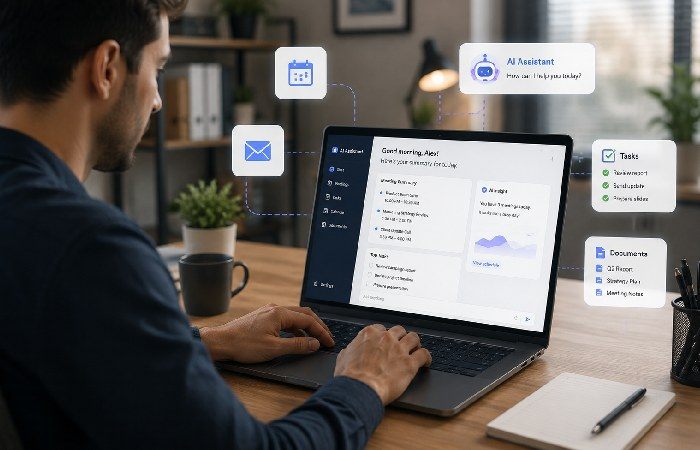
- Meeting summaries generators. Tools like Otter.ai and Microsoft Co-Pilot produce meeting notes and action points automatically.
- Smart scheduling, Reclaim.ai, and Clockwise prioritise blocks based on your priorities.
- Document processing, reading, classification, and extraction of information from invoices, contracts, and forms by ‘AI’.
- Predictive analytics Dashboards that call attention to emerging issues before they escalate.
Many of these will save you 20 minutes a day, and others will save you 20 hours a week. Completely depends on what role you are in and the amount of work you do in a week. If you want to go deeper on how these tools actually work under the hood, our guide to AI in office automation covers it in detail.
Key Takeaways:
- AI is most effective as a layer across a variety of tools, not an isolated offering
- Meeting summarisation and smart scheduling are the top two with the fastest ROI
- Be suspicious of marketing hype like “AI-powered.”
Workflow Automation Solutions
What Workflow Automation Looks Like
Workflow automation is the process of designing triggers and actions so that work flows from step to step automatically. You may have come across it in simple applications such as an automated email response or a submitted form that generates a ticket in your helpdesk system.
However, modern workflow automation can do a lot more. For instance, a new employee submits an onboarding form. This causes the system to automatically create accounts in five different platforms, send a welcome email, block out five training courses, alert the employee‘s manager, and set up a week-one follow-up meeting. And no one has to do anything manually.
Common Workflows You Can Automate Today

Here’s a quick rundown of workflows most businesses can automate today — no fancy tech needed, just existing tools that do the heavy lifting.
- Expense approvals — Employee submits receipt → manager gets notification → auto-approved if under threshold → finance logs it
- Lead routing — New form submission → CRM entry → assigned to sales rep based on region → follow-up email sent
- Content publishing — Draft approved → formatted → scheduled → social media posts generated
- IT requests — Ticket submitted → categorized by AI → routed to the correct team → SLA timer starts
A quick way to choose your first workflow is to look for tasks that are:
- High volume (happens many times per week).
- Predictable and rules‑based.
- Spread across multiple people or tools.
- Low risk if something goes wrong.
If a workflow ticks all four boxes, it’s usually a strong candidate for your first automation project.
Many teams say, ‘We have tried automation; it got messy.’ That‘s because they tend to automate everything at a time. Try to automate only one workflow. Make it perfect. Then, you can always extend it.
Key Takeaways:
- Workflow automation connects the ‘steps’ of a process so that work can automatically move through the sequence.
- Begin with a single high-volume, low-complexity workflow.
- Expense approvals and lead routing are the easiest first wins
Cloud-Based Office Systems
Why the Cloud Wins for Offices
On-premises software is definitely still alive. However, for most of the offices, the cloud is the wisest option by 2026: You are not in charge of servers anymore; there is a patch-by-patch automatic update; your groups can access the data from anywhere; and the billing model (monthly-based, as opposed to one-license-to-rule-them-all) fits better a scaling company‘s needs.
Forecasts from Gartner of Cloud show worldwide spending on public Cloud services will reach hundreds of billions of dollars a year by 2026. That gives you a sense of where the industry is headed. Not that the Cloud is fashionable, it‘s just a real solution to infrastructure pain.
Top Cloud Platforms for Teams
You’ve got three main ecosystems:
| Platform |
Best For |
Starting Price (per user/month) |
| Microsoft 365 |
Enterprises, document-heavy teams |
~$6 |
| Google Workspace |
Startups, collaboration-first teams |
~$7 |
| Zoho Workplace |
Budget-conscious SMBs, especially in India |
~$3 |

All three platforms support email, file storage, video calls, and collaborating on documents. The distinctions between them come in integrations, controls for administering the platform, and how well it works with the rest of your tools.
Quick aside: from a US enterprise perspective, if you‘re managing a team over in India, Zoho‘s cost is pretty compelling, and local support is pretty appealing. If you‘re based in the US, and everything‘s /mostly/ Windows, 365 is still the default.
Key Takeaways:
- Cloud computing reduces IT complexity and offers better remote accessibility.
- Microsoft 365, Google Workspace, and Zoho cover most needs.
- Select depending on the size of your team, budget, and current set of tools.
Office Automation for Small Businesses
Here’s where I push back on most guides. They act like office automation is only for companies with 500+ employees and a six-figure tech budget.
That’s wrong.
Affordable Tools That Actually Work
A 10‑person team can often automate a surprising amount of its work for roughly $200/month or less in software spend, especially if you rely on free tiers for lighter‑use tools. Here’s a realistic stack:
- Project management: Notion or ClickUp (free plans are pretty robust).
- Workflow automation: (free for low volume, through Zapier or Make)
- Email + docs: Google Workspace ($7/user/month)
- Making appointments: Calendly (free on the basic level)
- Accounting: Wave (free) or Zoho Books (~$15/month)

You don’t need enterprise tools. You need the right combination of small tools that talk to each other.
Where to Start If You’re a Small Team
Three steps. Seriously, just three:
- List your team’s top 5 time-wasting tasks — ask everyone, not just management
- Pick the single most painful one — the one people complain about most
- Find a tool that fixes it — don’t overbuild, just solve that one problem
Once you see the result, the next automation project sells itself to the team.
In my experience, small businesses get the biggest percentage gains from automation. A large company might save 5% of total hours. A small team might save 25% since each manual task will have a bigger impact on a small team.
Key Takeaways:
- Office automation doesn’t require a big budget
- Free and low-cost tools can automate most small business workflows
- Start with one painful task and build from there
Data Security in Automated Offices
Automation creates efficiency. It also creates new attack surfaces. When you connect ten platforms, and data flows between them automatically, each connection point is a potential vulnerability.
The Real Risks
The biggest risks aren’t exotic cyberattacks. They’re boring stuff:
- Over-permissioned integrations — giving an automation tool admin access when it only needs read access
- Unmonitored data flows — not knowing where customer data actually goes after it leaves your CRM
- Shadow IT — employees setting up their own automations without IT’s knowledge (this is more common than you think)
- Stale credentials — automated connections using API keys that haven’t been rotated in two years
A common pattern in many organisations is connecting a CRM to a spreadsheet or reporting tool with full admin credentials “just to get it working,” then forgetting about it. Months later, that unused connection can still have broad access to customer data with no monitoring or credential rotation in place.
Quick Security Wins

You don’t have to launch into a full security audit right away. Start small—these five steps will help you tackle the easiest wins first.
- Review all third-party app permissions quarterly
- Single sign-on ( SSO) use if possible
-
Turn on multi-factor authentication on all the services you can after all providers support it.
- Limit automation tool permissions to the minimum required
- Set up alerts for unusual data access patterns
The best way to deploy it, according to the NIST Cybersecurity Framework, is through the layered controls, not just one tool. Think that way, for your automated office.
Key Takeaways:
Considering the important security implications, it is recommended to verify with your internal security team or a third party before starting large-scale automation processing of sensitive data.
Smart Office Devices and IoT
Devices Worth the Investment
Smart office devices have moved from a gimmick to some genuinely useful tools. However, not all of them are actually worthwhile. Here are the best smart office devices to buy in 2026:
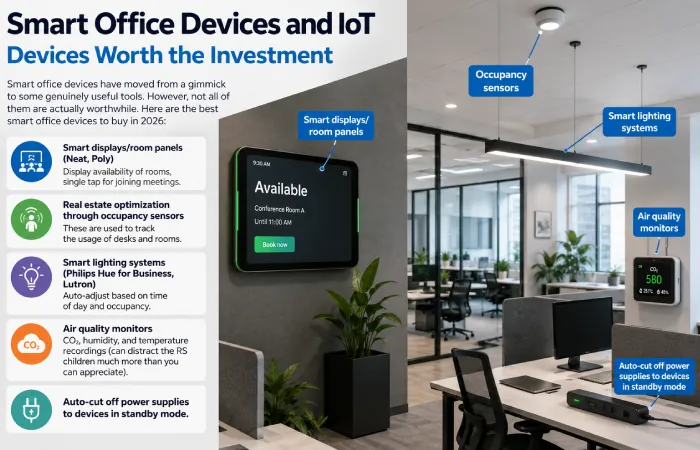
Skip the smart coffee machines. Honestly.
How IoT Connects Your Workspace
This is how it works in an office reality, in real terms, ‘all of your devices in an office talk to each other and work together’. So for instance, ‘if your occupancy sensor detects that there‘s nobody in Conference Room B, then it will turn off the lights, drop the HVAC and set the status of the room to available in your booking system.
This coordination economizes and sensitises the physical environment. With a defrost system or Smart building technologies, energy consumption can be 10-30% reduced. (
U. S. Department of Energy)
Key Takeaways:
Future Trends in Workplace Automation
What‘s Ahead for 2026 and Beyond
I‘m going to stay grounded. Quite a bit of overselling in all these “future of work” stories will date very quickly.
Here‘s what‘s actually happening right now and will accelerate:
- AI agents are supplementing simpler task management. Not “A I doing your job” rather “A I managing the assistant infrastructure around your job”. Scheduling, summarising, filing and reminding. By the end of 2026 it seems probable that the majority of the biggest productivity software will have brought out some sort of embedded AI agent for lightweight productivity when considering what is scheduled on their product roadmaps today.
- Voice-first interfaces in meeting rooms. (Here already, in early stages). Starting a meeting by voice saying “Start recording and invite the remote team’ instead of clicking through 3 apps. Also here already, and improving rapidly.
- Hybrid workspace orchestration. An application that oversees the kinds of days employees spend in the office (home, remote, office), assigns desk allocations, and shifts resources as necessary. This is an area that is growing since for most knowledge workers, hybrid working is now indeterminate.
-
Automation as a service for SMBs. Packaged automation, subscription sales, and monthly delivery. Choose your industry (cost accounting shop, marketing agency, surgeon), and it can‘t be a packaged automation stack. Earliest (beta) versions to be released late 2025.
Preparing Your Office Now

Don’t attempt to future proof everything. Instead:
Key Takeaways:
- AI agents and voice interfaces are the nearest big shifts
- Hybrid workspace management is becoming its own software category
- Flexibility (open APIs, short contracts) matters more than picking the “right” tool
Best Office Automation Software
Software by Category
Rather than ranking “the best” (because best depends on your situation), here’s what’s leading in each category as of 2026:
| Category |
Top Picks |
Best For |
| Workflow Automation |
Zapier, Make, Power Automate |
Integrate the app and automate multi-step processes |
| Project Management |
Monday.com, Asana, ClickUp |
Task and team management, and time deadline control. |
| Document Management |
DocuSign, PandaDoc, Google Drive |
Signing, storing, and organizing documents |
| Communication |
Slack, Microsoft Teams, Zoom |
Team messaging, video calls, async updates |
| AI Assistants |
Microsoft Copilot, Gemini for Workspace, Notion AI |
Drafting, summarizing, and data analysis |
| IT Automation |
ServiceNow, Jira Service Management |
Ticket routing, SLA tracking, asset management |
| HR Automation |
BambooHR, Rippling, Zoho People |
Onboarding, leave tracking, payroll |
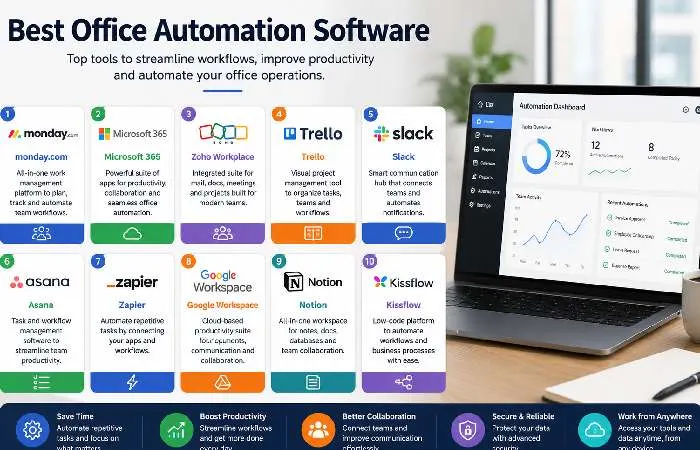
How to Pick the Right Platform
Three questions. That’s all you need:
- What is your team already using? New opportunities that give you a way to plug into your existing stack are adopted faster.
- Precisely what bottleneck do you want to fix first? Don‘t buy a suit when you need a scalpel.
- And what‘s your real budget per user per month? Level with us before you start shopping.
When you shortlist tools, run each one through a quick check:
- Does it integrate well with your core stack (email, docs, project tool)?
- Is it usable by non-technical team members operating independently?
- Does the supplier provide comprehensible information on security and compliance?
- Is there a simple way to output your data if you move away?
The majority of teams should go without these “all-in-one” platforms, unless you‘re beginning absolutely from scratch. For the majority of the configurations, our experience shows that it is more efficient, practically, to “combine” the best-in-class tools with a layer of automation (Zapier or Make).
Key Takeaways:
Common Mistakes with Office Automation
Automating the Wrong Things
The number 1 mistake. People automate the things that are easier to automate, not the difficult tasks, which are a pain to do manually.
Let‘s not forget: if it‘s a 2-minute task that happens weekly, then you own nothing by automating it; if it‘s a 10-minute task that adds up to 20-times per day through your team, that‘s well over 16-hours per week of work.
Automate it. And also, ensure you do not use automations where a human might have a good reason. Customer complaints, sensitive HR chats, creative choices. They‘re people-oriented. Always will be.
Ignoring Your Team’s Input
2nd biggest mistake. The leadership team chooses a new tool, launches it with a training video, and then is surprised after 3 months that it isn‘t being utilised.
Your team knows where the pain points are. Ask them. Let them trial solutions. Make them part of the decision. Adoption is twice as high when people feel a tool is chosen rather than imposed.
Worth it.
Myth vs Fact: Office Automation
| Myth |
Fact |
| Office automation replaces employees |
It replaces tasks, not people. Roles shift toward higher-value work. |
| Only large companies can afford it |
Free and low-cost tools make it accessible to any team size. |
| It’s just about software |
Hardware (IoT, smart devices) is a growing part of office automation. |
| Set it and forget it |
Automations need monitoring, updating, and occasional fixing. |
| AI can automate everything |
AI handles pattern-based work well but can’t replace judgment-based decisions. |
| It’s only for tech companies |
Healthcare, legal, retail, and education — every industry benefits. |
Methodology
Based on publicly released work and industry reports on office automation, AI, Cloud platforms, and Smart Buildings as at May 2026, documenting practical hands-on implementation experience for small and medium-sized development teams. Do double-check the current information by the vendor‘s official documents before making any serious, high-cost decisions on security, contracts, and large software investments.
FAQs About Office Automation
What is office automation?
Office automation involves using technologies (software, hardware, and associated systems) to achieve regular office-related processes with the least human intervention. It ranges from email processing, MS Excel, and MS Word to intelligent scheduling to Internet of Things-related office appliances.
How much does office automation cost for a small business?
A modest 5-15 person team can operate quality automation for around 100300/month–mainly a tiered combination of free levels and low-budget subscriptions. An enterprise framework, with comprehensive custom integrations, will run 5K50K+/annually.
What are the best office automation tools in 2026?
Top picks for me (but this really depends on your setting/use case): Automations (Zapier, Make ), Collaboration (Microsoft 365, G Suite), Project management (Monday.com, Clickup), AI (Microsoft Copilot, Gemini).
Is office automation safe?
Yes, but only when secured properly. Use SSO, MFA, Review permissions for third party, and in a NIST framework or standard, see multiple layers of security controls.
Will office automation replace my job?
In short: no. It automates the routine and rule-based. It moves your work to the higher levels of strategy, decision and innovation that machines can‘t do.
What’s the difference between office automation and business process automation?
Office automation – only related to tasks that occur in an office environment; Business process automation (BPA) is broader than office automation, relating to a series of activities from one end to another, such as manufacturing process, supply chain process, financial process, and accounting process.
How long does it take to set up office automation?
Simple automations (e.g., email rules, form to spreadsheet) are measured in minutes. A whole-office automation plan utilising integrated tools and processes can take between 2 and 6 months.
Final Thought
Gone in 2026 is the concept of office automation replacing your staff with robots. Instead, it involves empowering your staff so they can excel at their work. Advances in the technology mean that, financially, it can be integrated; the only problem is where to begin.
Pick one problem. Solve it.
Build from there. If this is your first time assembling an automated office or a much-needed upgrade to an archaic automated office, the links to Clusters sprinkled throughout the article will delve one level deeper into each major concept.