Published: June 18, 2026
Last Updated: June 18, 2026
Most teams don’t have a productivity problem. They have a repetitive-task problem. The same status update, the same deadline reminder, the same “who’s handling this?” message — every week, without fail.
Task management automation software fixes this. It runs those repetitive actions — assignments, status changes, reminders — through preset rules so your team doesn’t have to touch them.
Why Task Automation Improves Productivity
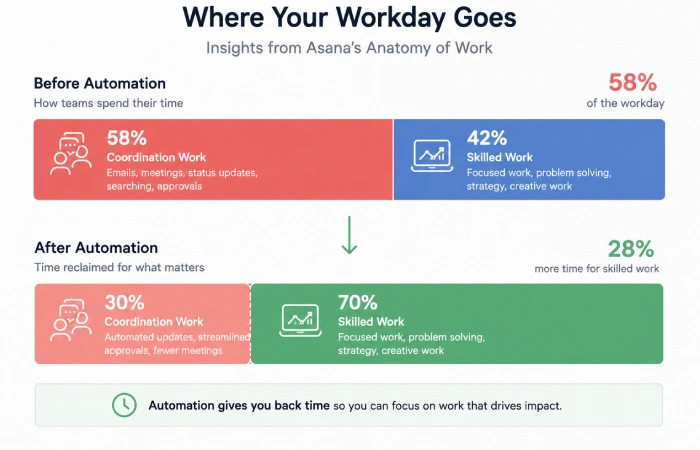
Manual task coordination has a hidden cost most managers don’t bother to calculate. Every time someone reassigns a task by hand, sends a status-check message, or updates a progress field, that’s a context switch. Individually, each one takes seconds. Across a full week, they add up.
According to Asana’s Anatomy of Work Global Index (2023), which surveyed 9,615 knowledge workers across six countries, people spend 58% of their working day on “work about work” — status checks, update chasing, and manual coordination — rather than the skilled work they were hired to do. The same report found that workers estimated they could recover 4.9 hours per week with better processes. That’s half a workday, gone to coordination overhead.
Automation cuts directly into that. When a tool automatically moves a task to “In Review” the moment someone marks their portion complete, the project manager doesn’t check. The next person gets notified. The workflow moves. Nobody touched it.
The task types that yield the most time back when automated:
- Recurring task creation (weekly reports, sprint kickoffs, monthly reviews)
- Status change notifications sent to the right person
- Task reassignment when work reaches a new pipeline stage
- Deadline reminders 24–48 hours before due dates
This is one layer of a broader office automation strategy. Task automation covers the daily operational repetition. Office automation covers everything built around it.
Features to Look for in Task Management Tools
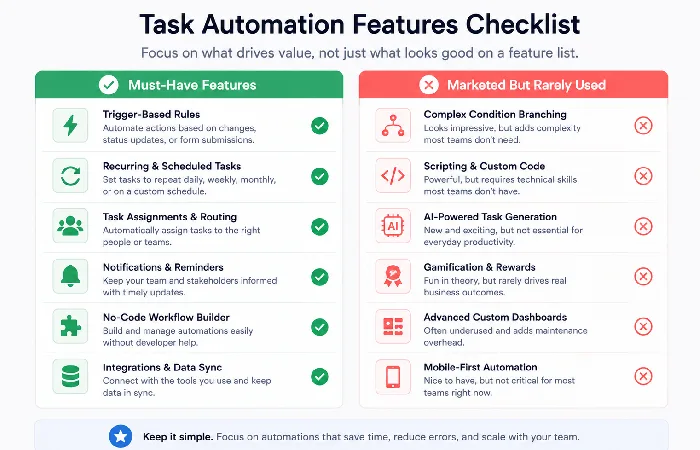
Know what you actually need before you look at a single pricing page. Most automation marketing emphasizes the most impressive-sounding features. What you use day-to-day is simpler.
- Trigger-based rules. You define a condition — when task status changes to “Done” — and the tool fires an action: notify the next person, update a field, create a follow-up task. This is the foundation of task automation. A tool without this is just a to-do list.
- Recurring task scheduling. For anything on a regular cadence — weekly standups, monthly invoices, quarterly reviews — you should create that task once. The tool rebuilds it on schedule. No manual recreation, no missed steps.
- No-code workflow builder. You shouldn’t need a developer to set up automation rules. Every major tool now offers an if/then interface. If basic rules require API access or custom code, it’s not the right fit for a standard team.
- Integration connectors. Most teams use more than one tool. Your task management software needs to connect with whatever you’re already using — Slack, Teams, Google Drive — and at a minimum support Zapier or Make for anything not natively connected.
Features That Look Good But Rarely Get Used
AI task prioritization sounds useful until you realize your team already has a priority system and doesn’t trust a tool to override it. User feedback on G2 and TrustRadius consistently shows teams configure AI prioritization features and disable them within a month.
The same pattern holds for complex conditional workflows with multiple branching paths. Most teams automate 3–5 simple rules and stop. The features that look impressive in a sales demo are rarely the ones that get used six months later.
If you’re zooming out to office automation software as a whole, task-specific tools and general-purpose ones stop looking interchangeable — and that gap is exactly what catches people off guard when they’re actually choosing what to buy.
Best Task Automation Software for Teams
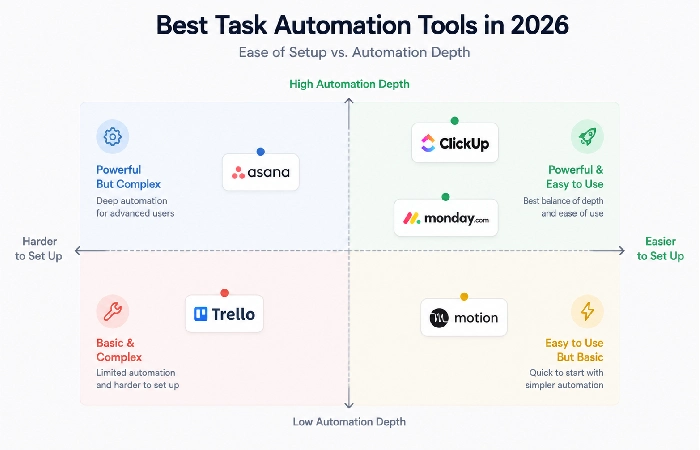
Pricing reflects publicly available rates as of Q2 2026. All four tools offer free trials.
ClickUp
Best for teams that want tasks, documents, goals, and communication in one place. The automation builder supports conditional workflows across projects — a rule like “when status changes to In Review, assign to QA team and post to Slack” takes about 10 minutes to configure. Free plan includes basic automation. Paid plans start at around $7 per user per month. The trade-off: new users consistently report a steep first two weeks before the interface clicks.
Monday.com
Best for teams that need visual status tracking with low setup friction. Color-coded boards make project state visible at a glance, and automation rules are easy to configure without any technical experience. Genuinely beginner-accessible — which is why it shows up in most first-time buyer recommendations. Paid plans start at approximately $9 per user per month.
Asana
Best for teams running multi-stage projects with multiple owners. Asana’s workflow builder is clean, and its timeline view adds context that purely board-based tools miss. One real limitation: Asana only allows one assignee per task natively, which creates friction when two people share ownership of a deliverable. Skip the free tier — automation only kicks in on paid plans, starting around $10.99 per user per month.
Trello
The pick if you’re a small team or solo user who’d rather keep things simple. Its automation tool, Butler, covers rules, scheduled commands, and one-click buttons for repetitive actions. Most people have it running within a day — faster than ClickUp or monday.com. Free plan available. Paid plans start at approximately $5 per user per month.
Motion
Best for individuals and small teams whose core problem is a chaotic calendar, not team coordination. Motion auto-builds your daily schedule around task deadlines and calendar blocks — it decides when you work on things, not just what’s on your list. At around $19 per user per month it’s the priciest option here, but if scheduling chaos is genuinely what’s slowing you down, nothing else on this list solves that.
Common Mistakes When Automating Tasks
Building complex automation before proving simple automation works. Start with one rule — notifying the assigned person the moment a task gets created in a specific project. Let your team get comfortable with the idea that the tool can act on its own before stacking conditions and branching logic on top.
Not documenting what’s been automated. Someone joins the team three months later and suddenly tasks are popping up with no explanation — no one knows who built the rule or what it’s even supposed to do. Write it down. Label the rule properly, say what kicks it off, and drop it in a shared doc your team will actually check.
Building a broader approach to automate office workflows starts here — getting task automation right at the daily operational level before adding layers across the rest of the business.
How to Choose the Right Tool for Your Team Size
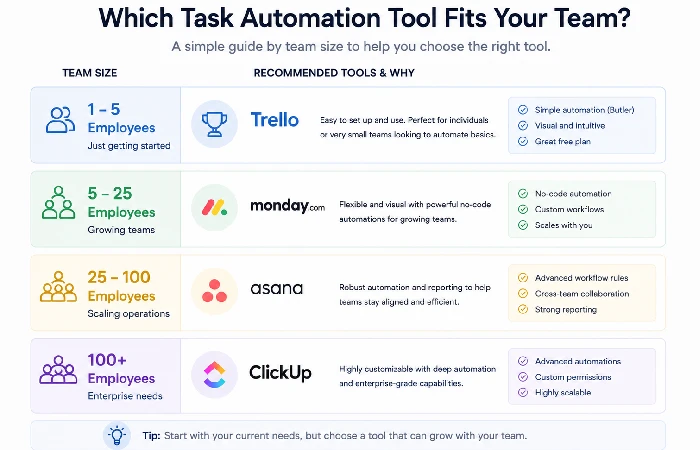
Every competitor on this topic assigns “best for” labels without connecting team size to automation complexity. Here’s what actually changes as you scale.
- 1–5 people: Trello’s free plan or ClickUp’s free tier. You don’t need advanced automation yet. Focus on recurring task creation and one or two trigger-based rules before spending anything. The goal at this stage is building the habit, not the sophistication.
- 5–25 people: monday.com or Asana. Both handle multi-user assignment, approval workflows, and cross-project visibility. Monday.com is easier to roll out across a mixed-experience team. Asana offers more control for teams that already have structured project management processes.
- 25–100 people: ClickUp or Asana on paid tiers. You’ll need role-based access controls, audit trails for automation rules, and integration management across departments. Both deliver this at the mid-tier price level.
- 100+ people: You’re looking at monday.com Enterprise, Asana Business/Enterprise, Smartsheet, or Jira. But honestly, at this size the software choice matters less than you’d think. The harder problem is figuring out who actually owns the automation rules — who builds them, who audits them, who kills the ones nobody uses anymore. That’s a people and process conversation before it’s a software one.
Frequently Asked Questions
What is task management automation software?
Task management automation software handles repetitive work actions — task assignments, deadline reminders, status updates — using preset rules and triggers. When defined conditions are met, the software executes the action automatically. Most tools use a no-code if/then interface that doesn’t require any programming knowledge.
What is the best free task automation tool?
ClickUp’s free plan offers more automation depth than most free competitors, including conditional rules and recurring task setup. Trello’s free plan includes basic Butler automation. For most small teams starting out, ClickUp’s free tier is the stronger starting point. Paid plans begin at approximately $7 per user per month if you outgrow the free limits.
What are the risks of over-automating tasks?
The most common failure mode is notification overload — stack up 20 active rules and every ping starts competing for attention until the noise drowns out what it was supposed to flag. There’s also a quieter risk: rules still firing in the background that nobody remembers setting up. A quarterly audit fixes both — go through what’s running and cut anything that no longer fits how the team actually works.