Published: September 18, 2026
Last Updated: September 18, 2026
Quick Answer
Delete temporary files. Turn on Storage Sense. Uninstall apps you don’t use. Empty the Recycle Bin. Move big files off to cloud storage or an external drive. None of it touches your personal files — just the clutter around them. Microsoft points to Storage Sense and Cleanup Recommendations specifically as the built-in tools for this.
A full drive doesn’t just sit there uselessly. It slows the whole system down. Windows updates start failing to install. Then come the constant low-storage warnings, nagging every time you turn the thing on. Here’s the upside, though: most PCs are carrying gigabytes of removable junk that can go without a second thought.
C: drive nearly full? Start in Windows Storage settings. Microsoft’s reasoning here is simple — Storage Sense and Cleanup Recommendations dig up temporary files, apps nobody opens anymore, oversized files, and leftover files from old Windows installations, all safe to remove, all separate from your actual documents. For the full walkthrough, Microsoft has a guide on freeing up drive space in Windows.
Want more than just storage fixes? Our Computer Tips and Tricks guide covers performance, troubleshooting, and optimization beyond this one topic.
Definition: Freeing up disk space means clearing out what Windows doesn’t need — unused apps, temp files, storage-heavy leftovers. Do that, and there’s room again for updates and everyday use.
Disk Space Cleanup Methods Compared
| Storage Issue |
Recommended Action |
Typical Space Recovery |
| Temporary files consuming storage |
Use Storage Sense or Cleanup Recommendations |
1–10+ GB |
| Downloads folder overloaded |
Remove or archive old files |
1–50+ GB |
| Unused software installed |
Uninstall unused apps |
500 MB–20+ GB |
| Large media files filling drive |
Move files to external storage |
10–100+ GB |
| Recycle Bin full |
Empty Recycle Bin |
Varies |
| Previous Windows installation present |
Remove Windows.old folder if rollback not needed |
10–30+ GB |
Methodology: Recovery ranges are based on Microsoft storage-management guidance and common Windows storage categories. Actual results vary by device.
Check What’s Using Your Storage First
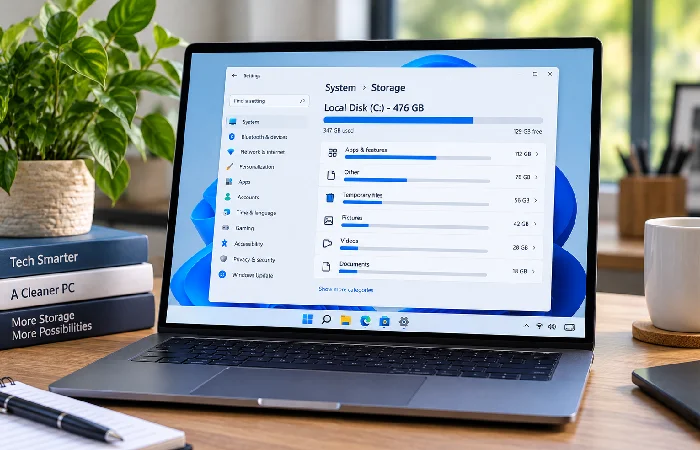
Before deleting anything, identify what is consuming disk space.
Windows Storage Settings provides a category breakdown showing apps, temporary files, documents, system files, and other storage consumers. This prevents random file deletion and helps prioritize the biggest opportunities first.
To check storage usage:
- Open Settings
- Select System
- Choose Storage
- Review storage categories
Pay special attention to:
- Installed apps
- Temporary files
- Downloads
- Documents
- Videos
- System and reserved storage
Many users discover that a few large files consume more space than thousands of smaller files.
Use Storage Sense for Automatic Cleanup
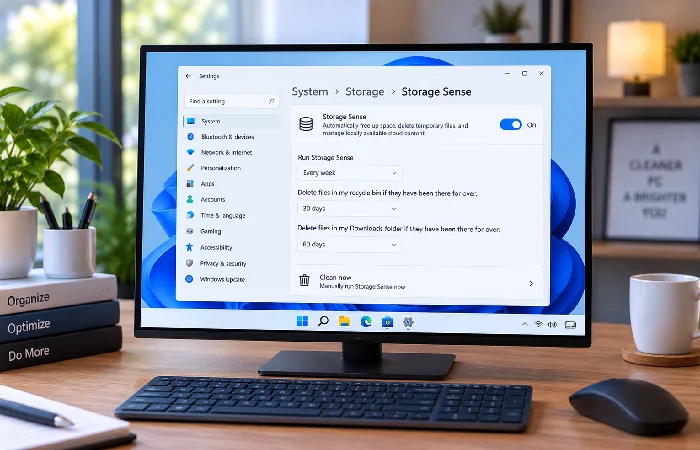
Storage Sense is Microsoft’s recommended automated storage-management feature. It removes temporary files, clears Recycle Bin content based on your settings, and can manage cloud-backed files automatically.
To enable Storage Sense:
- Open Settings
- Select System
- Choose Storage
- Turn on Storage Sense
You can configure:
- Daily, weekly, or monthly cleanup schedules
- Recycle Bin retention periods
- Downloads folder cleanup rules
- Cloud file management settings
Storage Sense is especially useful for users who regularly download files and forget to clean up afterward. Microsoft notes that it can automatically run when disk space becomes low.
Cleanup Recommendations Recover Space Quickly
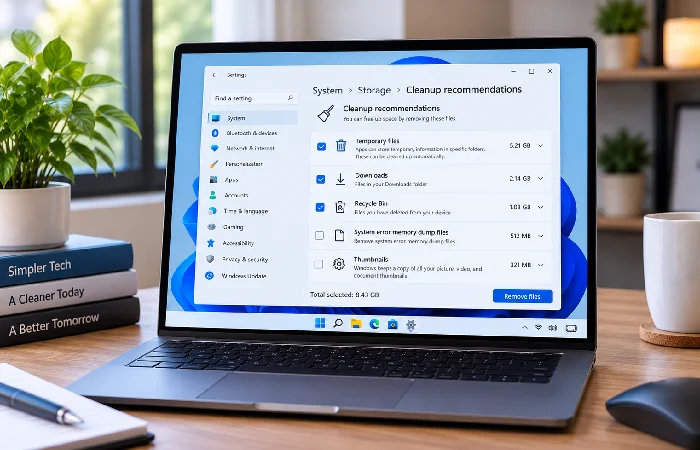
Cleanup Recommendations. Barely anyone knows it exists, which is a waste, honestly. It’s one of the better storage tools built into Windows. No generic sweep here either. It actually looks at your specific system and flags what’s safe to remove. Microsoft includes recommendations for:
- Temporary files
- Large files
- Unused files
- Cloud-synced content
- Unused applications
Navigate to:
Settings → System → Storage → Cleanup Recommendations
Windows estimates how much storage each cleanup action can recover before you remove anything.
This often provides the fastest path to reclaiming several gigabytes of storage.
Delete Temporary Files Safely
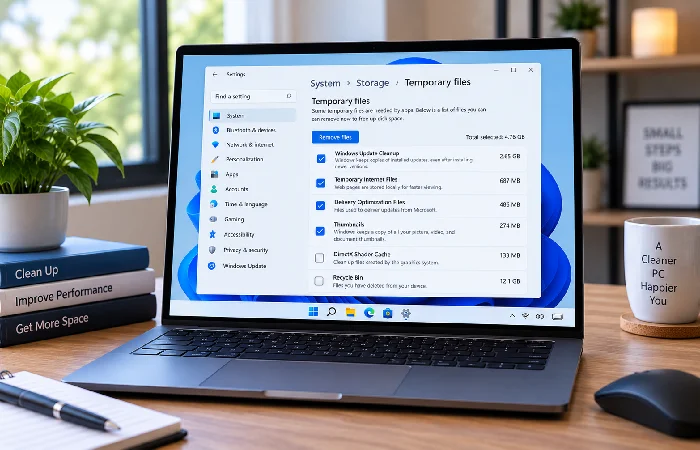
Temp files build up constantly, whether it’s from Windows updates, the apps you use daily, your browser, or background system tasks nobody notices. Windows actually has a system built in for this. It sorts through what’s safe to delete and what the operating system still needs, so nothing essential gets touched.
To remove temporary files:
- Open Storage Settings
- Select Temporary Files
- Review categories
- Select files to remove
- Click Remove Files
Common categories include:
- Temporary internet files
- Delivery optimization files
- Windows update cleanup
- Temporary application files
- Thumbnail cache
Review selections carefully before confirming removal.
Remove Unused Applications
Half the software on most computers was installed months, maybe years ago, and never touched since. Old games. Trial software nobody uninstalled. Dev tools from a project that ended. Creative apps used once. Manufacturer utilities that came preloaded. Any one of these can eat multiple gigabytes without anyone noticing.
To uninstall unused apps:
- Open Settings
- Select Apps
- Choose Installed Apps
- Sort by size
- Remove applications no longer needed
Focus on:
- Large games
- Duplicate software
- Expired trial programs
- Unused productivity tools
Avoid uninstalling applications unless you understand their purpose.
Find and Delete Large Files
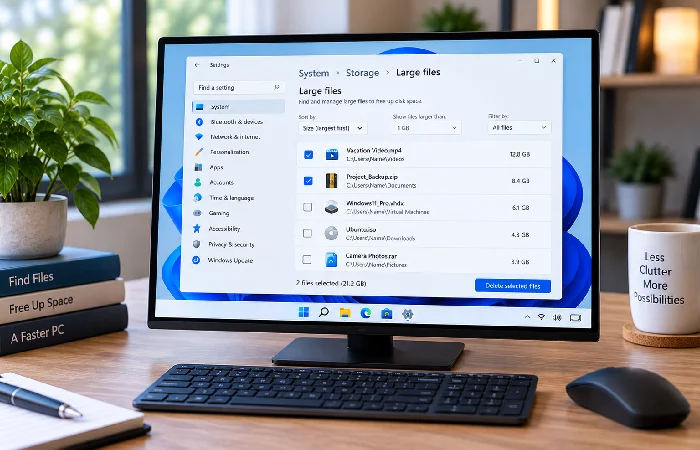
Big files are usually the real problem, not scattered small clutter. Think videos, ISO files, ZIP archives, old virtual machine images, project backups, or installer packages nobody deleted after setup finished — any one of these can eat tens of gigabytes on its own. Microsoft’s advice here is simple: sort by size in File Explorer to see what’s actually taking up the room.
Check these folders first:
- Downloads
- Videos
- Desktop
- Documents
- Pictures
Sort by:
View → Details → Sort By → Size
Archive or remove files you no longer need.
Empty the Recycle Bin
Files remain on your drive until the Recycle Bin is emptied.
Many users delete files but never permanently remove them.
To clear the Recycle Bin:
- Open Recycle Bin
- Review contents
- Select Empty Recycle Bin
Storage Sense can also automate this process based on retention settings.
If you’re recovering space urgently, this is one of the fastest actions available.
Move Files to External or Cloud Storage
If you need the files but not constant local access, moving them elsewhere is often better than deleting them.
Microsoft recommends:
- External SSDs
- USB drives
- SD cards
- OneDrive Files On-Demand
Files On-Demand solves the cloud-versus-storage tradeoff. Full access to everything in OneDrive, without every file actually living on your drive. What you see on the device is usually just a placeholder — the real thing downloads only when you open it. Microsoft pairs this with Storage Sense. Files you haven’t touched in a while get switched to online-only automatically, no manual cleanup required. Nothing’s deleted in the process, just moved. For the full breakdown, Microsoft covers it in their guide on using OneDrive and Storage Sense to manage disk space.
Good candidates for relocation include:
- Old videos
- Archived projects
- Completed work files
- Large photo libraries
- Backup folders
Free Up C Drive Space Specifically
A nearly full C: drive can impact updates and overall performance.
Focus on these high-impact actions:
- Remove temporary files
- Enable Storage Sense
- Uninstall unused software
- Empty Recycle Bin
- Move large personal files
- Review Cleanup Recommendations
Old Windows installations can be removed too, once you’re past the point of needing a rollback. These leftover files add up fast, especially right after a big feature update. Want more than just storage back? These tips on how to speed up a computer cover the rest — less startup delay, better overall performance, Windows running the way it should.
Common Disk-Cleanup Mistakes to Avoid
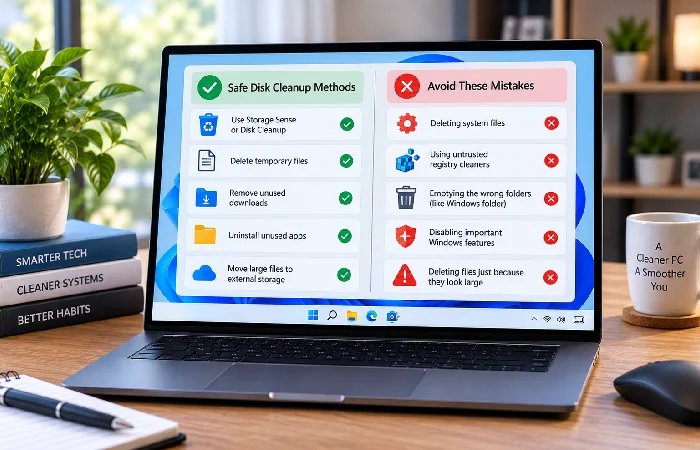
Some storage advice found online can create problems.
Avoid:
- Random registry cleaners
- Unverified cleanup utilities
- Deleting unknown system folders
- Removing files from System32
- Force-deleting Windows update components
Microsoft’s advice: stick to the built-in storage tools when you can. They actually know which files are safe to delete. A manual guess doesn’t.
Built-in tools reduce the risk of accidental system damage.
Frequently Asked Questions
1. How do I free up disk space quickly?
Run Cleanup Recommendations. Delete the temp files. Empty the Recycle Bin. Uninstall whatever’s not being used. These four alone usually recover more space, faster, than anything else on this list.
2. What files are safe to delete?
Temp files. Recycle Bin contents. Downloads you forgot about. Software that’s just sitting there unused. All generally safe to clear out. Still worth a quick look before deleting anything, though.
3. Does Storage Sense delete important files?
Not by default. Storage Sense sticks to temp files, and only does what you’ve told it to do. Downloads folder cleanup? Cloud-file management? Both need you to actually set those preferences yourself.
4. Why is my C drive full even after deleting files?
Check the Recycle Bin. Temp storage locations too. Cloud sync caches, hidden system folders — files hide in all of these. Storage Settings is a good place to spot whatever’s still eating space.
5. Should I use Disk Cleanup or Storage Sense?
Storage Sense is where Microsoft’s put its focus now — the modern option. Disk Cleanup hasn’t gone away. It’s still there for compatibility’s sake. Storage Sense just does more, and does it automatically, without you having to remember to run anything.
Final Action Plan
Start with Storage Settings. Identify the largest storage categories. Run Cleanup Recommendations. Enable Storage Sense. Remove unused applications. Then move large files to external or cloud storage.
Follow that order and most people get meaningful space back. No new hardware needed. Nothing important gets deleted along the way.
