Published: September 18, 2026
Last Updated: September 18, 2026
Most people use a fraction of what their computer can actually do. A few practical tips change that — less time wasted, less frustration, more done in a normal workday.
Student. Office worker. Freelancer. Casual user, just trying to get through email faster. Doesn’t matter which one you are — none of this needs new software.
Quick Answer
Three things move the needle most: keyboard shortcuts, file organization, and the productivity features already built into Windows. Master those and you’ll likely see bigger gains than any app you could install. Microsoft’s own guidance backs this up. Keyboard shortcuts. Clipboard history. Virtual desktops. File Explorer tools. All flagged as the efficient path, straight from the source.
“Definition: Computer tips and tricks are practical techniques and shortcuts for using a computer better. They cover workflow improvements too. The goal is simple — faster task completion, fewer errors, more efficient use of the machine you already have.”
Computer Tips and Tricks Quick Reference
| Category |
Primary Benefit |
Difficulty |
Time to Learn |
| Keyboard Shortcuts |
Faster navigation |
Easy |
5–15 minutes |
| File Management |
Better organization |
Easy |
10–20 minutes |
| Productivity Features |
Improved workflow |
Easy to Medium |
15–30 minutes |
| Troubleshooting Skills |
Faster problem resolution |
Medium |
15–45 minutes |
| Security Habits |
Better protection |
Easy |
10–20 minutes |
| Performance Optimization |
Faster computer operation |
Medium |
20–60 minutes |
Keyboard Shortcuts Deliver the Fastest Productivity Gains
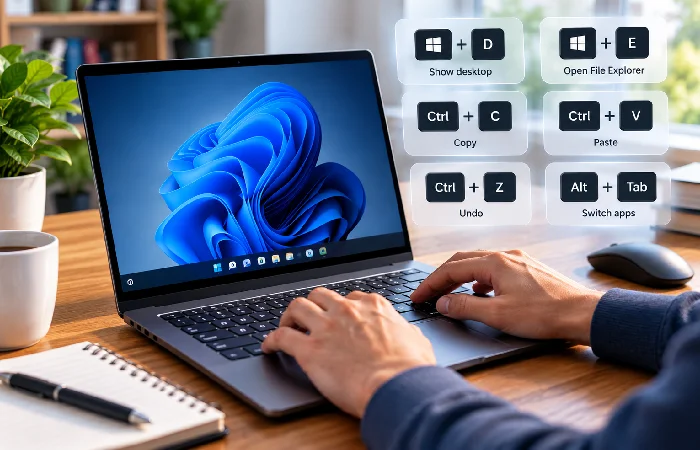
Want a faster computer, without buying anything new? Stop reaching for the mouse so much. It’s slower than you think. Keyboard shortcuts skip the repetitive back-and-forth entirely — one keypress instead of three mouse movements. Microsoft agrees. Its official guide to Windows keyboard shortcuts still calls shortcuts one of the most effective productivity wins available to Windows users.
Essential Keyboard Shortcuts Everyone Should Know
| Shortcut |
Function |
| Ctrl + C |
Copy |
| Ctrl + V |
Paste |
| Ctrl + X |
Cut |
| Ctrl + Z |
Undo |
| Ctrl + Y |
Redo |
| Ctrl + A |
Select All |
| Alt + Tab |
Switch Between Open Apps |
| Alt + F4 |
Close Current Program |
| Ctrl + Shift + Esc |
Open Task Manager |
These shortcuts aren’t limited to one app either. Word, Excel, your browser, File Explorer — most of them carry over. Routine tasks that used to take a dozen clicks shrink down fast.
Windows Key Shortcuts Worth Memorizing
Windows includes dozens of shortcuts, but a small group delivers the greatest day-to-day value.
| Shortcut |
Purpose |
| Windows + E |
Open File Explorer |
| Windows + D |
Show Desktop |
| Windows + I |
Open Settings |
| Windows + R |
Open Run Dialog |
| Windows + L |
Lock Computer |
| Windows + V |
Open Clipboard History |
| Windows + Tab |
Open Task View |
These commands provide quick access to core Windows functions and help reduce navigation time.
Learn Shortcuts Gradually
Trying to memorize dozens of shortcuts at once rarely works.
Instead:
- Learn three shortcuts.
- Use them daily for one week.
- Add two or three new shortcuts.
- Repeat the process.
This gradual approach improves retention and increases actual usage.
Built-In Windows Features Most Users Ignore
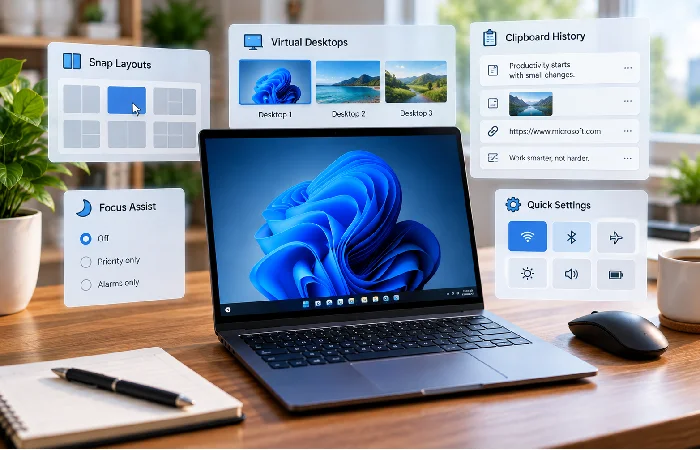
Most people install a new app before ever checking what’s already there. Windows 11 already ships with tools built for exactly this — organization, efficiency, less clutter.
Clipboard History
Most people only use the last item copied to their clipboard.
Windows Clipboard History allows you to access multiple copied items instead.
To enable it:
- Press Windows + V.
- Select Turn On.
- Access previous copied content whenever needed.
Moving stuff between documents, a spreadsheet, a dozen browser tabs — this is where it actually pays off.
Snap Layouts Improve Multitasking
Constant window-switching eats more time than people realize. Snap Layouts fix that — multiple apps, one screen, no more alt-tabbing through a stack of windows.
Examples:
- Browser + Word document
- Spreadsheet + Email
- Research window + Notes application
Microsoft calls it one of Windows 11’s best multitasking features. Not a stretch, honestly.
Virtual Desktops Reduce Clutter
Many users keep dozens of windows open simultaneously.
Virtual desktops help separate different activities.
Examples:
- Work desktop
- Personal desktop
- Research desktop
- Creative projects desktop
Create a new desktop using:
Windows + Ctrl + D
Switch between desktops using:
Windows + Ctrl + Left Arrow
Windows + Ctrl + Right Arrow
Microsoft built in dedicated shortcuts just for managing virtual desktops. That’s not an accident. Workspace organization gets messy fast without them.
Better File Management Saves More Time Than Most Software
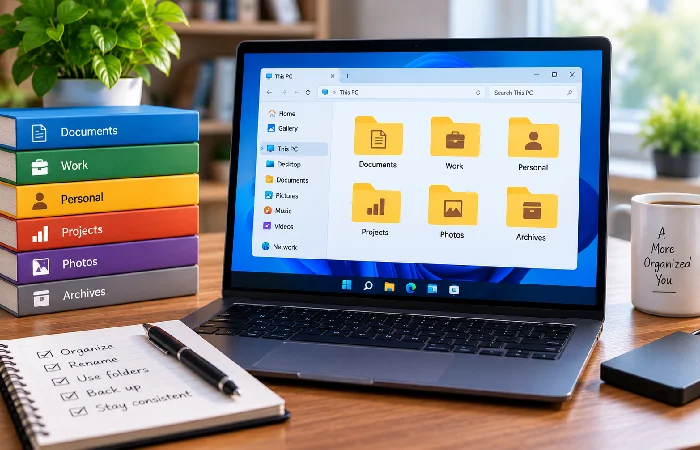
Bad file organization kills productivity faster than almost anything else on this list. Documents. Screenshots. Downloads. Random project files nobody can find six months later — that search alone burns more time than people ever account for.
Create a Consistent Folder Structure
A simple folder structure is usually more effective than a complex one.
Example:
Documents
 ├── Work
 ├── Personal
 ├── Finance
 ├── Learning
 └── Projects
Avoid creating excessive folder layers that make navigation difficult.
Use Clear File Names
Bad:
Document1.docx
NotesFinal.docx
FileNew.docx
Better:
2026-Marketing-Plan.docx
Client-Meeting-Notes-Sep-2026.docx
Budget-Review-Q4.xlsx
Descriptive names make files easier to locate through search.
Use File Explorer Search Correctly
Many users underutilize Windows Search.
Useful examples:
type:pdf
kind:pictures
date:this week
These filters help locate files much faster than manually browsing folders.
Keep Downloads Organized
The Downloads folder. Where files go to be forgotten.
Once a week:
- Delete unnecessary downloads.
- Move important files into permanent folders.
- Archive completed projects.
This simple habit prevents clutter from accumulating over time.
Productivity Workflows That Save Time Every Day
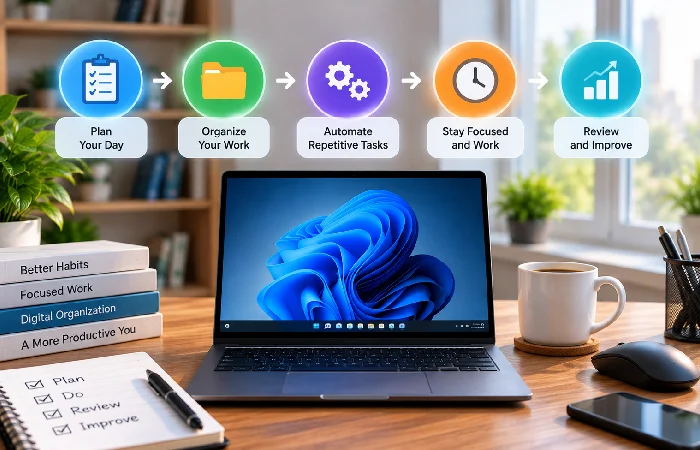
Real productivity gains don’t come from a clever trick here and there. They come from fixing the workflow itself.
Use the Two-Minute Rule
If a task takes less than two minutes:
- Complete it immediately.
- Avoid creating reminders for simple actions.
This reduces mental clutter and prevents small tasks from accumulating.
Batch Similar Tasks
Instead of checking email continuously:
- Process email at scheduled times.
- Group similar tasks together.
- Reduce context switching.
Frequent task switching reduces focus and increases completion time.
Pin Frequently Used Applications
Windows allows applications to be pinned to the taskbar.
Pin tools you use daily:
- Browser
- Email
- File Explorer
- Office applications
- Communication tools
Then launch them instantly using taskbar shortcuts. Microsoft supports keyboard-based taskbar access through Windows key combinations.
Use Search Instead of Navigation
Many users click through multiple folders and menus.
Instead:
- Press Windows + S.
- Type the app or file name.
- Open it directly.
Search is often significantly faster than manual navigation.
Common Computer Habits That Waste Time
Improving productivity often means eliminating inefficient habits.
Keeping Too Many Browser Tabs Open
Large numbers of tabs can:
- Increase distraction
- Make information harder to find
- Consume system resources
Bookmark the page. Close the tab. Way better than letting forty of them sit open for a week.
Storing Everything on the Desktop
A messy desktop isn’t just ugly. It’s noise, and it buries the file you actually need under forty icons you don’t. Keep what you’re actually using. Nothing else.
Ignoring Keyboard Shortcuts
Thousands of repetitive mouse clicks a year. That’s what most people are still doing. A handful of shortcuts beats any app you could download to fix it. Microsoft keeps saying the same thing, over and over — shortcuts are the real productivity practice here.
Computer Security Tips That Prevent Expensive Mistakes
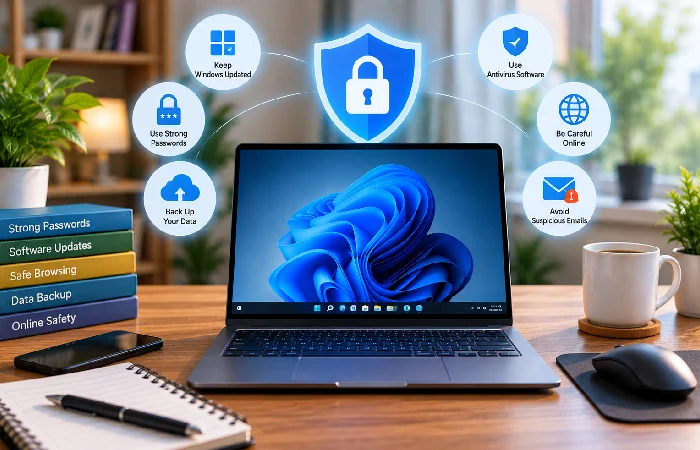
Security is a productivity skill. Recovering from malware, phishing attacks, or account compromise often costs far more time than following basic security practices.
Keep Windows Updated
Security fixes. Performance tweaks. Reliability patches. Usually all three ride along in one Windows update. Microsoft’s stance is simple: keep the OS current. Keep the drivers current too. Skip either one and performance suffers; security does too.
Best practice:
- Enable automatic updates.
- Install important updates promptly.
- Restart when updates require it.
Use Microsoft Defender SmartScreen
Many attacks begin with malicious websites, unsafe downloads, or phishing attempts.
Malicious websites. Unsafe downloads. Phishing attempts. Most attacks start with one of these three. Microsoft Defender SmartScreen is built to catch them before that happens. It checks sites and downloaded files against Microsoft’s own reputation systems and phishing databases, flagging anything that looks off before it ever causes damage.
Be Cautious With Links and Attachments
Before entering passwords or personal information:
- Verify website addresses.
- Avoid clicking suspicious email links.
- Navigate directly to trusted websites when possible.
- Be skeptical of urgent requests for credentials.
Microsoft specifically recommends entering URLs directly and being cautious with email links and pop-up requests for information.
Enable Real-Time Protection
Windows includes built-in antivirus protection through Microsoft Defender.
Verify that:
- Real-time protection is enabled.
- Cloud-delivered protection is enabled.
- Reputation-based protection remains active.
These settings help identify threats using current security intelligence.
Performance Optimization Without Risky Tweaks
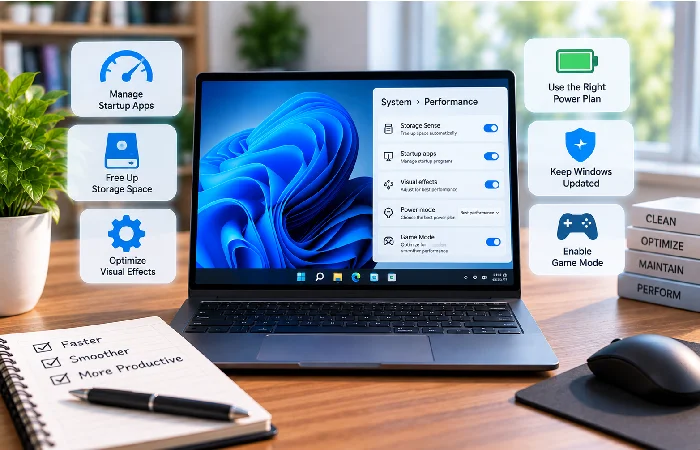
Many performance articles recommend registry modifications and questionable “PC cleaner” software.
For most users, the highest-impact performance improvements come from Microsoft’s recommended maintenance practices rather than aggressive system modifications.
Free Storage Space Regularly
Low storage space can reduce overall system performance.
Windows Storage settings help identify:
- Large files
- Temporary files
- Installed applications
- Storage usage categories
Storage Sense. Set it once, forget it. Temp files gone, space freed, no manual cleanup needed.
Disable Unnecessary Startup Applications
Too many startup apps, and boot speed pays for it. So does everything after boot, honestly — the whole system feels heavier.
Microsoft notes that startup applications can significantly impact startup performance and provides tools to identify high-impact startup programs.
To review startup apps:
- Press Ctrl + Shift + Esc.
- Open Task Manager.
- Select Startup Apps.
- Disable unnecessary entries.
Focus first on applications marked as having high startup impact.
Remove Software You No Longer Use
Unused software:
- Consumes storage.
- May run background services.
- Can add startup tasks.
Removing unused applications is one of Microsoft’s recommended performance improvements.
Restart Your Computer Occasionally
Many users leave computers running for weeks.
Restarting:
- Clears temporary memory usage.
- Resets processes.
- Applies updates.
- Resolves many minor performance issues.
Microsoft continues to include restarting as a recommended troubleshooting and performance step.
Troubleshooting Tips Every Computer User Should Know
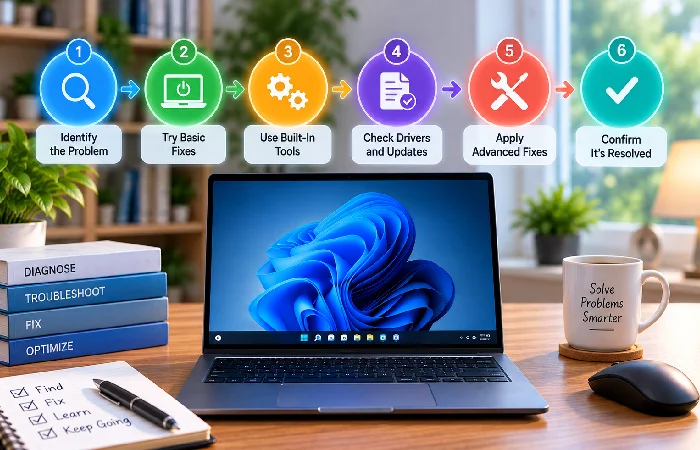
Most computer problems can be narrowed down systematically.
Use Task Manager First
Task Manager often reveals:
- High CPU usage
- Excessive memory consumption
- Disk bottlenecks
- Startup-related slowdowns
Something running slow? Task Manager’s the first stop. Microsoft’s own advice: check CPU, memory, and disk usage there before assuming the worst.
Identify Startup Problems
A slow startup often indicates:
- Too many startup apps
- High-impact startup processes
- Background software conflicts
Microsoft documentation highlights startup applications as a common source of startup delays and responsiveness issues.
Check Storage Before Assuming Hardware Failure
Performance issues frequently result from:
- Nearly full drives
- Temporary file buildup
- Excessive background processes
Check available storage before assuming hardware replacement is necessary.
Update Before Troubleshooting Further
Before spending hours troubleshooting:
- Install Windows updates.
- Install relevant driver updates.
- Restart the computer.
- Re-test the issue.
Microsoft lists updates among the first recommended troubleshooting steps for performance-related problems.
Advanced Computer Tricks for Power Users
Got the basics down? Good. A few advanced features are worth digging into next.
Use Multiple Virtual Desktops
Instead of managing dozens of windows on one desktop:
- Desktop 1: Email and communication
- Desktop 2: Project work
- Desktop 3: Research
- Desktop 4: Personal tasks
This reduces visual clutter and improves focus.
Master Windows Search Operators
Search operators help locate files faster.
Examples:
type:pdf
kind:document
date:this month
Using filters often finds files faster than manual browsing.
Learn Task Manager Beyond Processes
Most users only view the Processes tab.
Also explore:
- Performance
- Startup Apps
- Users
- Details
These sections provide deeper visibility into system behavior.
Reduce Startup Impact
Microsoft classifies startup applications by impact level.
Applications with high startup impact eat CPU time or disk activity right when you least want it, during boot. Trim the unnecessary ones. Boot gets noticeably faster.
Computer Skills Every Beginner Should Learn
If you’re new to computers, focus on foundational skills first.
Learn File Organization
Understand:
- Folders
- File types
- Saving locations
- Search functions
These skills improve efficiency more than most advanced tricks.
Learn Basic Security Practices
Every beginner should know:
- How to identify phishing attempts
- How to create strong passwords
- How to update software
- How to recognize suspicious downloads
Learn Keyboard Shortcuts
Start with:
- Copy
- Paste
- Undo
- Select All
- Alt + Tab
These shortcuts deliver immediate productivity improvements.
Learn Backup Basics
Important files should never exist in only one location.
Maintain backups using:
- Cloud storage
- External drives
- Backup software
This habit prevents data loss from hardware failure or accidental deletion.
Frequently Asked Questions
1. What are the most useful computer tips for beginners?
Keyboard shortcuts. File organization. Windows Search. Clipboard History. A few basic security habits. Start there. That’s where the real productivity payoff sits, and it doesn’t take long to learn any of it.
2. Do computer tricks actually improve productivity?
Yes. Keyboard shortcuts. Startup optimization. Better file management. Small stuff, a few minutes a day. Add that up over months, years even, and it’s not small anymore.
3. What is the fastest way to speed up a slow computer?
Start with startup applications. Check what’s running. Free up storage space. Uninstall whatever you don’t actually use anymore. Install pending updates. Restart. Microsoft lists these as the primary performance fixes worth doing first.
4. Are PC cleaner applications necessary?
Storage Sense. Task Manager. Windows Security. Storage settings. Most people never need anything beyond these four to keep a machine running well. Microsoft’s own guidance points to the same built-in tools, nothing extra required.
5. What is the most overlooked Windows productivity feature?
Clipboard History. Virtual Desktops. Snap Layouts. Windows Search. Four features most people never touch. All four actually change how a workday feels once you start using them.
Conclusion
Nothing on this list is complicated. Most of the real gains come down to a handful of habits, done consistently:
- Keyboard shortcuts
- Keeping files organized
- Managing what launches at startup
- Using what Windows already gives you
- Basic security habits, kept up
- Troubleshooting one step at a time, not guessing
Dozens of productivity apps aren’t the answer here. What’s already built into Windows usually covers it, and covers it better in the long term.
