Published: September 29, 2026
Last Updated: September 29, 2026
Students work with PDFs for lecture notes, research papers, and worksheets. Assignments, too. Application forms. And project documents.
A basic PDF reader is enough for reading. An editor becomes useful when you need to highlight text, add notes, or change content. Organize pages? Complete a form? Same answer.
The right PDF editor for students should make those everyday tasks easier. No unnecessary complexity.
Quick Answer: A PDF editor for students lets you do more than open academic documents. Depending on the software, you can highlight and annotate study material, or add or edit text. Organize PDF pages, too. Plus fill forms, sign documents and work with scanned PDFs.
The best choice depends on the tasks you perform most often. Your device matters. So does whether you need basic annotation or full PDF editing.
Why Do Students Need a PDF Editor?
PDFs are common in education because they preserve document formatting when files are shared between different devices and systems. Adobe’s student guidance specifically highlights coursework, assignments, annotation and organizing PDF material as common student workflows.
A PDF editor can be useful when you need to:
- Highlight important sections in lecture notes
- Add comments to research papers
- Write notes beside important passages
- Mark questions or areas that need review
- Edit text in an existing PDF
- Combine several study documents
- Rearrange or remove unnecessary pages
- Complete academic or administrative forms
- Add a signature where required
- Work with scanned documents
The important point is that not every student needs every PDF feature. Someone who mainly reads research papers may need strong annotation tools, while a student submitting assignments may care more about editing, page organization and conversion.
For a broader overview of PDF editing features and common document workflows, explore our PDF Editor guide.
For a broader overview of PDF tools and workflows, explore the PDF Editor guide.
How to Highlight and Annotate Study PDFs

One of the most useful PDF features for students? Annotation. Find something important and you can mark it directly in the document. No separate note-taking app to open every time.
Common annotation tools include:
- Highlighting
- Underlining
- Strikethrough
- Sticky notes
- Text boxes
- Freehand drawing
- Comments
Highlighting, comments, sticky notes, text boxes, drawing tools. Adobe’s current online PDF editor supports all of them, directly within its browser-based PDF workflow.
For example, reading a research paper? You can highlight the main argument. Add a note explaining an unfamiliar term, too. And mark evidence that you want to revisit later.
A simple system can make annotations easier to review:
| Annotation |
Useful purpose |
| Highlight |
Mark important facts or definitions |
| Underline |
Mark key terms or phrases |
| Sticky note |
Add your own explanation |
| Comment |
Record a question or observation |
| Drawing |
Mark diagrams or visual information |
Avoid highlighting entire pages. The goal is to make important information easier to find during revision.
How to Edit and Organise PDF Notes
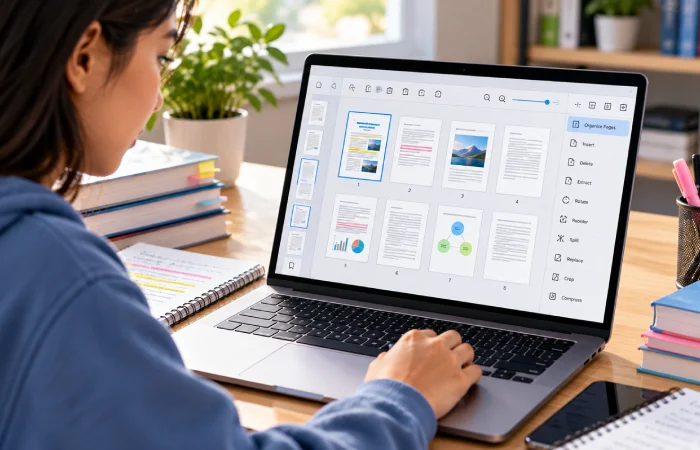
Editing a PDF can mean different things. Adding a comment or text box is not the same as changing the original document text.
If you need to modify an existing document, look for an editor that supports actual text and image editing. If you only need to add your own study notes, annotation tools may be enough.
Page organization is another useful feature for students. A PDF editor can help you:
- Combine notes from different sources.
- Remove unnecessary pages.
- Rearrange pages into a better study order.
- Separate selected pages into a smaller document.
- Keep related material together.
This becomes especially useful when several lecture handouts, reading materials or assignment instructions need to be managed as one study document.
Some students also work with scanned PDFs. In that situation, OCR, or optical character recognition, can make text in a scan searchable or editable when the software supports that capability.
The important selection question is therefore not simply “Can it edit PDFs?” Ask what kind of editing do I actually need?
How to Fill and Sign Academic PDF Forms
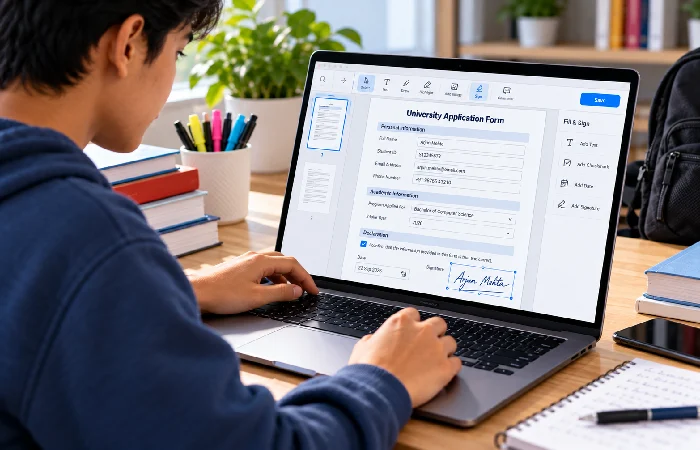
Students may also receive PDFs that are designed to be completed rather than studied.
Examples include:
- University forms
- Registration documents
- Permission forms
- Internship paperwork
- Scholarship documents
- Applications
- Administrative forms
A suitable PDF tool can allow you to enter information, select checkboxes and add a signature without printing the document first.
Adobe’s current documentation describes filling PDF form fields and adding a signature through its PDF tools.
Before submitting a completed form, check the final PDF carefully. Make sure:
- All required fields are completed.
- Text fits inside the intended fields.
- Your signature appears correctly.
- No pages were accidentally removed.
- The final file opens correctly.
- The filename follows the submission instructions.
If the document contains sensitive academic or personal information, also check how the PDF editor handles uploaded files and stored documents before using an online service.
How to Choose a Student-Friendly PDF Editor
Which PDF editor is best for you comes down to your academic workflow. Not the number of features advertised on the product page.
Use this checklist before choosing one:
| What you need |
Feature to look for |
| Reading research papers |
Search and easy navigation |
| Revision notes |
Highlighting and annotations |
| Detailed comments |
Sticky notes and comment tools |
| Editing document content |
Text and image editing |
| Scanned papers |
OCR |
| Combining study material |
Merge and page organization |
| Removing pages |
Delete and extract page tools |
| Academic forms |
Form filling |
| Applications |
Signature tools |
| Group projects |
Sharing and collaboration |
| Different devices |
Cross-platform or browser access |
| Sensitive documents |
Clear privacy and file-handling information |
Browser vs desktop PDF editors
A browser-based PDF tool can be convenient when you use different computers or prefer not to install separate software. For example, Microsoft’s PDF reader in Edge supports PDF highlighting, inking, text notes and basic form filling on supported desktop platforms.
Adobe’s current online editor, for example, supports browser-based annotation, highlighting, comments and form/sign workflows.
Desktop software may make more sense for regular work with large collections of PDFs. Or when you need more advanced editing features.
Mobile apps can be useful for reading and annotating material while away from your computer. The available tools vary by product and platform, though.
Free vs paid PDF editors
Students do not automatically need a paid PDF editor.
Start with the tasks you actually perform. Identify them first. Mainly highlight, annotate and fill basic forms? A free option may cover what you need.
More advanced editing may require a paid product. So it might include OCR, document management, collaboration or professional features.
Education-specific plans can also change the calculation. Foxit currently offers education-oriented PDF products for students, teachers and educational institutions, with annotation, note-taking and collaboration features.
Instead of choosing software because it has the longest feature list, compare the features against your weekly study routine.
A simple student PDF workflow
A practical workflow could look like this:
Receive → Read → Annotate → Organise → Edit → Review → Submit
For example, you might download lecture material, highlight key concepts while reading, add notes to difficult sections, combine related pages, complete an assignment form and then review the final PDF before submitting it.
This keeps the PDF itself as the working document instead of creating several disconnected copies.
Final Thoughts
A good PDF editor for students? One that solves the document problems you actually encounter during study. For many students, that means reliable highlighting and annotation. Others may need text editing, OCR, page organization, form filling or signatures.
Your most common PDF tasks come first. Then choose software that supports those workflows on the devices you use. Usually more useful than picking a tool just because it advertises the largest number of features.
