Published: September 29, 2026
Last Updated: September 29, 2026
Editing a PDF on Windows can mean different things. Correcting a few words, maybe. You might also need to replace an image or add pages. Fill out a form. Or work with a scanned document. Which method is right depends on the type of PDF and the changes you need to make.
A basic PDF reader is enough for viewing, highlighting, commenting, and similar tasks. More advanced changes, such as editing existing text and images, require a PDF editor. Or another tool that can convert the PDF into an editable format. Adobe, for example, distinguishes Acrobat Reader from Acrobat’s advanced editing capabilities.
Our PDF Editor guide covers the broader range of PDF editing tools and workflows.
A PDF editor for Windows lets you change PDF content directly or through a conversion workflow. Depending on the software, you may be able to edit text and add or replace images. Organize pages, too. Plus fill forms, convert files, and use OCR on scanned documents.
For simple text-heavy PDFs, Microsoft Word can also convert a PDF into an editable document. Complex layouts may not convert perfectly.
1. What Can a PDF Editor for Windows Do?
A dedicated PDF editor can do much more than display a document. The exact feature set varies between applications. Common capabilities include editing text and working with images. Managing pages and converting files, adding annotations and handling forms.
Edit existing PDF text
Direct text editing is useful when you need to correct:
- Names or addresses
- Dates
- Typos
- Paragraphs
- Headings
- Contact information
- Other small sections of an existing document
Modern PDF editors can allow you to select existing text and change its content, font, size, alignment, or other formatting. Adobe’s current Acrobat documentation, for example, describes editing existing text as well as adding and formatting new text.
The important point is that editing PDF text is different from simply adding a comment or text annotation. A comment sits on top of the document, while direct editing changes the document’s content.
Add or replace images
PDF editing software can also be used to insert images, resize them, move them, or replace existing visual elements. Adobe’s documentation describes adding an image from a computer and then resizing or repositioning it within the PDF.
This can be useful for updating:
- Logos
- Product images
- Screenshots
- Diagrams
- Photographs
- Other visual elements
Organize PDF pages
Page-management tools can help you:
- Add pages
- Remove unwanted pages
- Reorder pages
- Combine documents
- Split larger PDFs
These features are especially useful when the task involves the structure of the document rather than its text.
Work with scanned PDFs
A scanned PDF is often made from images rather than editable text. A normal text-editing tool may not immediately recognize the words. OCR (optical character recognition) matters here. It converts recognized text in an image-based document into editable or searchable text.
Adobe documents OCR as part of its workflow for turning scanned PDFs into editable documents, while Foxit’s Windows documentation also describes automatically recognizing text when editing scanned PDFs.
Other useful features
Depending on your needs, you may also want:
- PDF-to-Word conversion
- PDF-to-Excel conversion
- Form filling
- Digital signatures
- Annotations
- Password protection
- Document comparison
- Redaction
- Compression
- Accessibility tools
You do not necessarily need every feature. The best choice depends on what you actually need to do with your PDFs.
2. How to Edit PDF Text on Windows
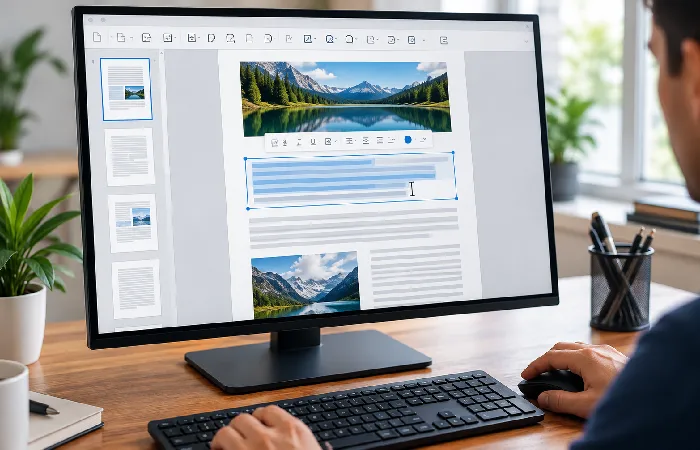
Two approaches are common. Editing the PDF directly. Or converting it into an editable document.
Method 1: Use a dedicated PDF editor
With a dedicated PDF editor, the general workflow is:
- Open the PDF in the application.
- Select the editing tool.
- Select the text you want to change.
- Replace, delete, or add text.
- Adjust formatting if necessary.
- Review the page for layout changes.
- Save the edited PDF.
The exact controls vary between applications. For example, Adobe’s current Acrobat documentation shows that existing PDF text can be changed, replaced, or deleted, while new text can also be added and formatted. Its Acrobat text-editing guide also notes that font availability can affect some text edits.
For example, Adobe’s current Windows instructions use the Edit tool and allow users to select existing text, replace it, delete it, or add new text.
Font availability can also matter. If a PDF uses a font that is not available on your computer, the editor may need to substitute another font or restrict some formatting changes. Adobe specifically documents this limitation for Acrobat.
Method 2: Edit the PDF with Microsoft Word
Already have a desktop version of Word? For a simple, mostly text-based document, you may not need a dedicated PDF editor. Microsoft’s PDF editing guide in Word says Word can open a PDF and convert a copy into an editable Word document. You can then save the result as a Word file or PDF. It works best when the PDF is mostly text. Complex layouts may not convert perfectly, and the guide covers the supported workflow and limitations.
Microsoft’s documented process is:
- Open Word.
- Select File > Open.
- Choose the PDF.
- Allow Word to convert the PDF into an editable format.
- Make your changes.
- Save the result as a PDF when finished.
Microsoft says this works best when the PDF is mostly text. The original PDF is not changed during the opening process; Word creates a copy for conversion.
The main limitation is layout. Microsoft warns that the converted document may not maintain perfect page-to-page correspondence. Complex PDFs may not convert cleanly either.
For a text-heavy document, Word is a practical option. Less suitable when the PDF depends heavily on precise positioning and complex graphics. Forms, too. Or other fixed-layout elements.
Which method should you use?
A simple rule is:
| Your task |
Suitable approach |
| Read or print a PDF |
PDF reader |
| Highlight or comment |
PDF reader/annotation tool |
| Correct existing PDF text |
Dedicated PDF editor |
| Add or replace images |
Dedicated PDF editor |
| Make substantial text changes to a simple PDF |
Word may work |
| Edit a scanned PDF |
PDF editor with OCR |
| Rearrange pages |
PDF editor |
| Work with complex fixed layouts |
Dedicated PDF editor |
| Edit a sensitive document |
Consider a desktop/offline workflow |
The goal is not to choose the most feature-heavy application. It is to choose a method that preserves the document as closely as possible while giving you the tools you need.
3. How to Add Images, Links and Pages to PDFs
Text is only one part of PDF editing. Many Windows users also need to add visual elements, links, or pages.
Add images
A PDF editor can let you insert an image into an existing page and then adjust its size and position.
For example, you might add:
- A company logo
- A signature image
- A product photo
- A chart
- A replacement illustration
When editing an existing document, check the surrounding layout after inserting the image. A large image can overlap text or change the visual balance of the page.
Adobe’s current Acrobat documentation confirms that users can add an image from their computer and resize or reposition it after insertion.
Add links
Links can be useful when a PDF needs to direct readers to:
- A website
- An online resource
- Another section of a document
- An email address
- A downloadable file
Whether a particular editor can create or modify PDF links depends on the application, so check the editor’s feature list if links are an important part of your workflow.
Add or remove pages
Page management is useful when the content of the PDF is correct but the document structure needs to change.
For example, you may want to:
- Remove a blank page.
- Move an appendix closer to the relevant section.
- Insert a cover page.
- Combine two PDFs.
- Remove outdated pages.
- Extract selected pages into another document.
A full PDF editor commonly combines page organization with text and image editing. Foxit, for example, lists editing text and images as well as merging, splitting and reordering PDF pages among its capabilities.
Be careful with forms and signatures
Some PDFs are not ordinary documents. They may contain interactive forms or digital signatures.
A signed or restricted PDF may prevent certain changes. Adobe notes that secured and digitally signed PDFs can have editing restrictions.
Don’t assume the software is broken when an editor refuses to change a document. Check whether the PDF has security restrictions. Permissions, too. And a digital signature.
4. Desktop vs Online PDF Editors for Windows
Both desktop and online PDF editors can be useful, but they solve slightly different problems.
| Factor |
Desktop PDF editor |
Online PDF editor |
| Internet connection |
Usually not required for local editing |
Usually required |
| Large files |
Often practical |
Depends on service and upload limits |
| Sensitive documents |
Can keep files on the PC, depending on software |
Requires sending files to a service |
| Installation |
Required |
Usually none |
| Advanced editing |
Often strong |
Varies by service |
| Quick one-off task |
Can be less convenient |
Often convenient |
| Offline workflow |
Strong |
Limited |
| Organizational control |
Can be easier to manage locally |
Depends on provider |
When a desktop editor makes sense
A desktop application is useful when you regularly work with PDFs or want a local workflow.
It can be particularly suitable for:
- Frequent PDF editing
- Large documents
- Offline work
- Repeated document processing
- Sensitive files where local processing is preferred
- Advanced editing and organization
For example, Foxit provides a Windows desktop application and supports Windows 10 and Windows 11 for its current PDF Editor.
When an online editor makes sense
An online editor can be convenient when:
- You only need occasional editing.
- You do not want to install software.
- The document is suitable for uploading.
- You need access from different devices.
- The task is relatively simple.
Before uploading a document, consider its sensitivity. And the service’s privacy and security practices.
Confidential business records, identity documents, contracts? Financial information, or other sensitive material? A local desktop workflow may be preferable. That’s only if the software supports the required task.
Do not confuse a browser PDF viewer with a PDF editor
Opening a PDF in a browser does not automatically mean you can edit its original content.
Microsoft’s documentation, for example, notes that its browser-based PDF reader can display and print PDFs. It doesn’t directly edit their contents. Microsoft recommends converting the PDF to an editable format when you’re using Word for content changes. DOCX, for instance.
Viewing a PDF is one task. Annotating it, another. And editing its original content is a third. All of that can save you time.
5. How to Choose a PDF Editor for Windows
Easiest way to choose a PDF editor? Start with your most common task. Not a list of features.
1. Check whether you need direct editing
Only highlighting, commenting, or filling out PDFs? You may not need a full editor.
Need to change existing paragraphs? Look for a dedicated PDF editor with direct editing tools. Replacing images, too. Or rearranging document content.
Adobe distinguishes its free Reader from Acrobat’s advanced editing functions, which is a useful example of this difference.
2. Check OCR if you work with scans
Scanned documents land in your inbox regularly? OCR should be high on your requirements list.
No OCR, and an image-based page may behave more like a picture. Not a document with editable text.
Look for an editor that can recognize the language. It should also convert scanned text into searchable or editable content.
3. Check Windows compatibility
Verify that the software supports your Windows version before you install it. Your hardware, too.
Foxit’s current Windows documentation, for example, lists Windows 10 and Windows 11 as supported operating systems for its PDF Editor.
Do not assume that every PDF application supports every Windows version simply because it is advertised as a “Windows PDF editor.”
4. Check the editing features you actually need
A useful checklist is:
You do not need every item. Select the features that match your normal workflow.
5. Decide between local and online editing
Ask where you want the document processed.
Choose a desktop workflow when offline access, repeated editing, or local handling is important.
Consider an online workflow when convenience and browser access matter more and the document is appropriate to upload.
6. Check how the editor handles difficult PDFs
A good editor should not be judged only by how it handles a simple text document.
Consider whether you will work with:
- Scanned documents
- Complex layouts
- Tables
- Embedded images
- Forms
- Large files
- Password-protected documents
- Digitally signed PDFs
Different PDFs can require different tools.
7. Check licensing before committing
PDF software can use different licensing models, including free versions, subscriptions, trials, and one-time purchases.
Feature availability may also differ between plans.
For example, Foxit currently offers Windows and macOS desktop editing. Different licensing options, too, including a perpetual license for its PDF Editor product.
Check the vendor’s current licensing page before purchasing. Prices and included features can change.
A simple decision guide
Only need to read, highlight, comment on, or fill out PDFs? A basic PDF reader may be enough.
Making direct changes to existing text or images is a different job. Look for a dedicated PDF editor.
Mainly simple, text-heavy PDFs? Microsoft Word can sometimes give you a practical conversion-based workflow. Formatting may change, though.
Are scanned PDFs frequent for you? Prioritize OCR.
With sensitive documents, consider whether a desktop workflow keeps the file local. And whether the application provides the security controls you need.
Final Takeaway
Choosing a PDF editor for Windows does not have to start with a long list of software names. Start with the job you need to complete.
For simple text-based documents, Word can sometimes convert a PDF into an editable document. For direct editing, page management, image changes, OCR, and more advanced PDF workflows, a dedicated PDF editor is generally the more appropriate category of tool. Microsoft and Adobe both document the differences and limitations involved in their respective PDF workflows.
Match the editor to the PDF itself. Text PDF, scanned PDF, form, protected document, or complex fixed-layout file. Know what you need to change, and the choice gets much easier.
