Published: September 18, 2026
Last Updated: September 18, 2026
A slow computer turns everything into a chore. Programs crawl to open. Websites load like it’s 2004. Try to multitask and the whole thing chokes. Here’s the good part though — most of this is fixable, and none of it requires a new machine.
Startup applications eating resources. Storage running low. Background processes nobody asked for. Outdated software sitting there unpatched. Malware, sometimes. Fix even a couple of these and performance usually comes back on its own.
Want the broader picture, productivity tips and maintenance habits together? That’s covered in our Computer Tips and Tricks guide.
Quick Answer
The fastest ways to speed up a computer are:
- Disable unnecessary startup programs.
- Free up storage space.
- Remove unused software.
- Install Windows updates.
- Scan for malware.
- Reduce background processes.
- Upgrade to an SSD.
- Add more RAM when needed.
These fixes target the most common causes of a slow computer, and most of the time it runs fast. Not weeks. Sometimes not even a full day.
Definition: Computer speed optimization means removing what’s slowing the machine down. Less wasted resources. Better use of the hardware already there. The result — faster, more reliable performance.
Why Computers Become Slow Over Time
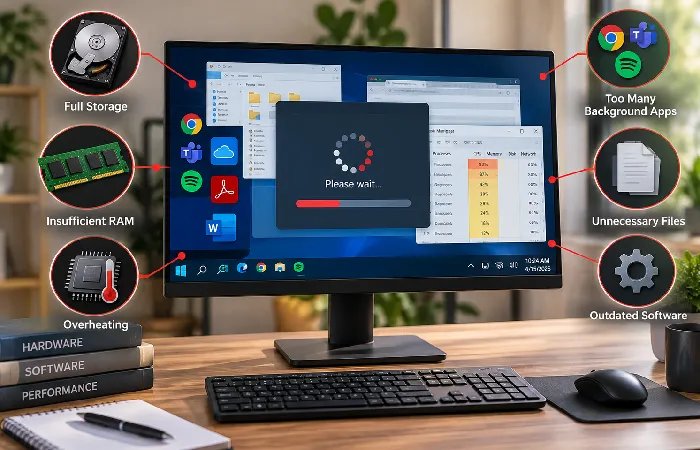
Every computer slows down eventually. More software installed. More files piling up. Background services nobody remembers enabling. Startup apps stacking on top of each other. It adds up.
Microsoft points to the usual suspects: not enough storage space, too many startup applications, software that’s gone stale, malware, hardware just getting old. Any one of these can drag a machine down. Most of the time it’s a few of them at once.
Common causes include:
- Too many startup programs
- Low available disk space
- Malware infections
- Excessive browser extensions
- Outdated drivers
- Aging hard drives
- Insufficient RAM
Know the cause first. The fix depends on it — a storage issue and a malware issue don’t get solved the same way.
Check Startup Programs First
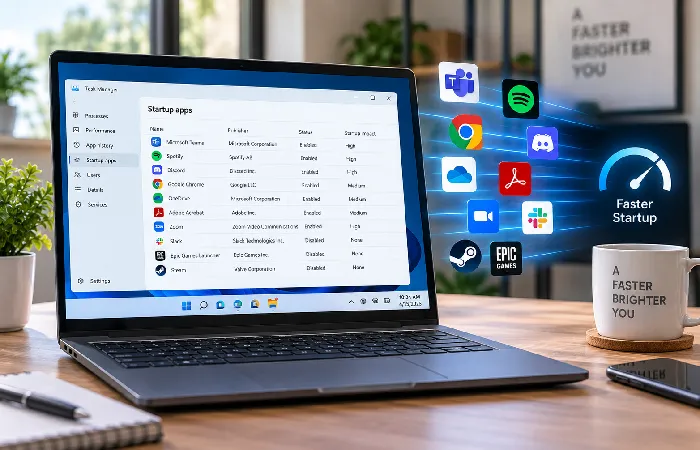
Startup applications. One of the biggest culprits behind a slow boot. Windows fires up a whole batch of them the moment you sign in. Some are necessary. Most aren’t.
According to Microsoft’s guidance on startup applications, disabling unnecessary startup apps can improve startup speed and reduce background resource usage.
To review startup apps:
- Press Ctrl + Shift + Esc.
- Open Task Manager.
- Select Startup Apps.
- Review the Startup Impact column.
- Disable applications you do not need immediately after login.
Focus first on apps marked High Impact.
Free Up Storage Space
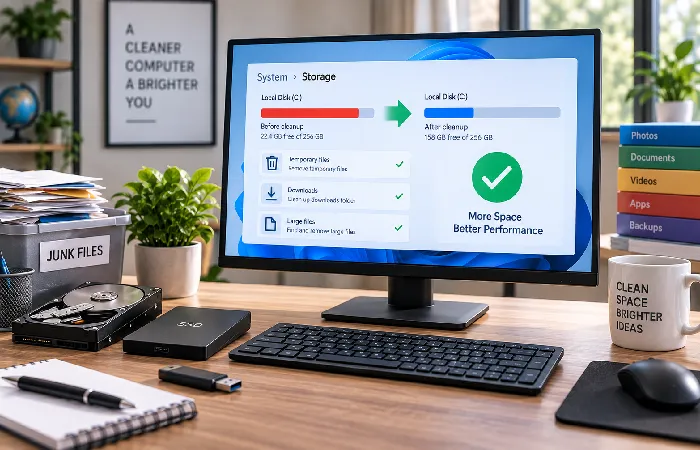
Low disk space can significantly affect system responsiveness.
Microsoft’s answer here is Storage Sense. Turn it on and it clears out temp files and reclaims space, no manual digging required.
Useful cleanup targets include:
- Temporary files
- Recycle Bin contents
- Old downloads
- Duplicate files
- Unused applications
A good rule is to keep at least 15–20% of your system drive free whenever possible.
Remove Unused Software
Unused programs still cost you storage space, background resources, and sometimes even startup time. Get rid of what you don’t touch anymore. The machine feels lighter, and there’s more disk space to show for it.
To review installed programs:
- Open Settings → Apps → Installed Apps.
- Sort by size or installation date.
- Identify software you no longer need.
- Uninstall unnecessary applications.
Don’t recognize a program? Be careful before deleting it. Windows needs some of it. Hardware manufacturers require others. Not everything unfamiliar is safe to remove.
Common candidates for removal include:
- Trial software
- Duplicate utilities
- Unused games
- Old media applications
- Legacy printer software
Remove the unused stuff and the payoff is immediate. More storage. Snappier performance, right away.
Update Windows and Drivers
Outdated software causes problems. Performance drops. Stability gets shaky. Compatibility conflicts start showing up out of nowhere. Windows updates usually fix at least some of this — performance tweaks, bug fixes, security patches, all bundled in. Drivers matter too. They’re the translator between hardware and Windows, and an old one can mess up that conversation.
To check for updates:
- Open Settings → Windows Update.
- Select Check for Updates.
- Install available updates.
- Restart the computer if required.
Pay special attention to:
- Graphics drivers
- Storage controller drivers
- Network drivers
- Chipset drivers
Updates aren’t going to turn an old machine into something new. That’s not what they’re for. What they will do is fix the small inefficiencies eating into everyday tasks.
Check for Malware
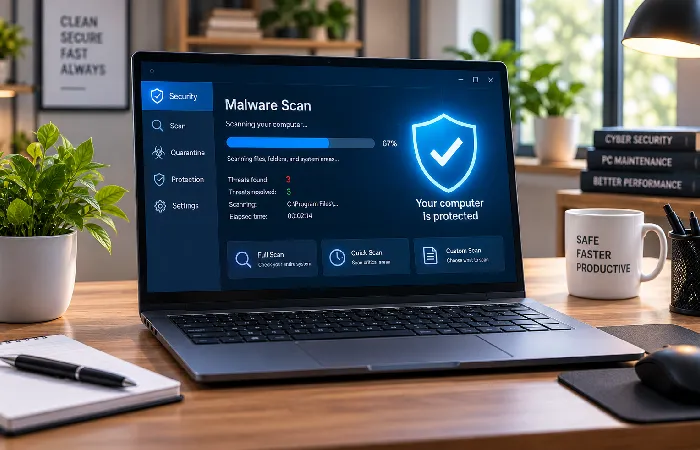
Malware eats resources, quietly, without you noticing. Some of it runs nonstop in the background. CPU usage climbs. Memory gets tied up. Network performance drops. Disk activity spikes for no obvious reason.
Signs of malware-related slowdowns include:
- Unusually high CPU activity
- Frequent pop-ups
- Browser redirects
- Unknown background processes
- Excessive fan noise
To scan your system:
- Open Windows Security.
- Select Virus & Threat Protection.
- Run a Full Scan.
Still seeing something off? Run another scan. A reputable one, not whatever random tool popped up in a search result.
Regular scans. Small habit, but it covers two things at once — performance and security both.
Reduce Background Processes
Plenty of apps don’t actually close when you close them. One process alone barely registers. Stack up a few dozen of them running in the background, though, and the whole system starts dragging.
To review running applications:
- Press Ctrl + Shift + Esc.
- Open Task Manager.
- Review CPU, Memory, Disk, and Network usage.
- Identify unnecessary applications.
- Close programs you are not actively using.
Common resource-heavy background applications include:
- Cloud synchronization tools
- Messaging applications
- Browser processes
- Media software
- Updaters
Killing a Windows system process because the name looks unfamiliar is a bad habit. Look it up first, or at least have some idea what it does. Guessing wrong here can cause real problems.
Upgrade RAM When It Makes Sense
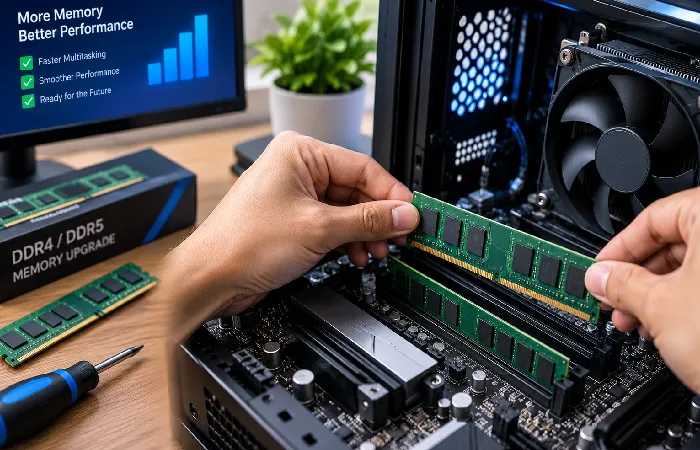
Running out of memory constantly? That’s a RAM problem, and an upgrade actually fixes it.
Common symptoms of insufficient RAM include:
- Frequent disk activity during multitasking
- Slow application switching
- Browser tabs reloading unexpectedly
- System pauses during normal use
General guidance:
| Usage Type |
Recommended RAM |
| Basic browsing and email |
8 GB |
| Productivity and multitasking |
16 GB |
| Content creation |
16–32 GB |
| Gaming and advanced workloads |
16 GB or more |
Before upgrading, verify:
- Available RAM slots
- Maximum supported memory
- Memory type compatibility
RAM upgrades pay off in one specific case: when memory itself is the bottleneck, not something else pretending to be one.
Switch to an SSD for the Biggest Performance Gain
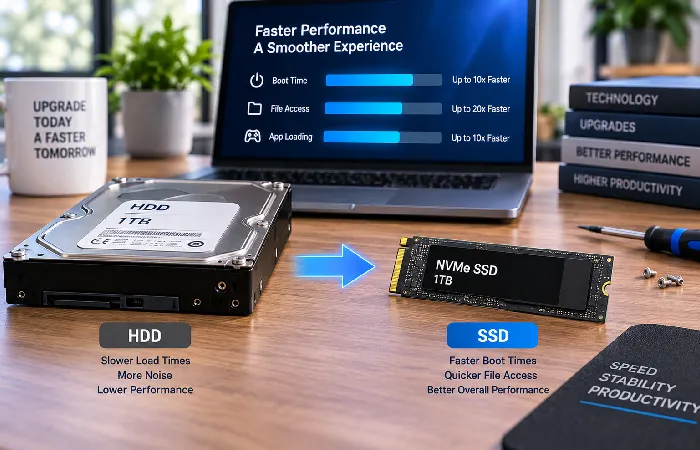
For an older machine, forget the long list of tweaks. One upgrade matters more than the rest combined — an SSD instead of the old hard drive. People notice that one immediately.
Benefits include:
- Faster boot times
- Faster application launches
- Reduced loading delays
- Improved file transfer speeds
- Better overall responsiveness
Hard drives are mechanical — spinning platters, moving parts. SSDs skip all that. Flash memory, no moving parts, and data access that’s just faster across the board.
Still running a hard drive? An SSD upgrade tends to outperform even a RAM bump in terms of what you’ll actually feel day to day.
Adjust Visual Effects
Windows likes to show off. Animations, transparency effects, visual polish everywhere — all of it costs resources. Turn some of it off on older hardware and the difference is real.
To adjust visual settings:
- Search for Advanced System Settings.
- Open Performance Settings.
- Select Adjust for Best Performance.
Or go the middle route. Turn off just a few effects, keep the ones you actually like looking at. Older laptops and entry-level machines feel this one the most.
Keep Your Browser Under Control
Web browsers. Probably the single most resource-hungry thing running on your machine every day.
Performance problems can result from:
- Excessive open tabs
- Heavy browser extensions
- Memory-intensive websites
- Cached data accumulation
Helpful practices include:
- Close unused tabs.
- Remove unnecessary extensions.
- Keep your browser updated.
- Clear cached files periodically.
- Restart the browser occasionally.
Most people live in a browser tab all day. Fix that experience and the whole computer feels faster, even if nothing else changed.
When a Slow Computer Indicates Hardware Failure
Not every performance issue has a software solution.
Potential hardware warning signs include:
- Clicking or grinding drive noises
- Frequent system crashes
- Random restarts
- Blue screen errors
- Overheating
- Display artifacts
If these symptoms appear consistently, hardware diagnostics may be necessary.
Components commonly associated with performance-related failures include:
- Hard drives
- SSDs
- RAM modules
- Cooling systems
- Power supplies
Catch a hardware problem early and you’re ahead of it. Wait too long and it’s not just a repair anymore — it’s lost files too.
Common Speed-Up Myths to Avoid
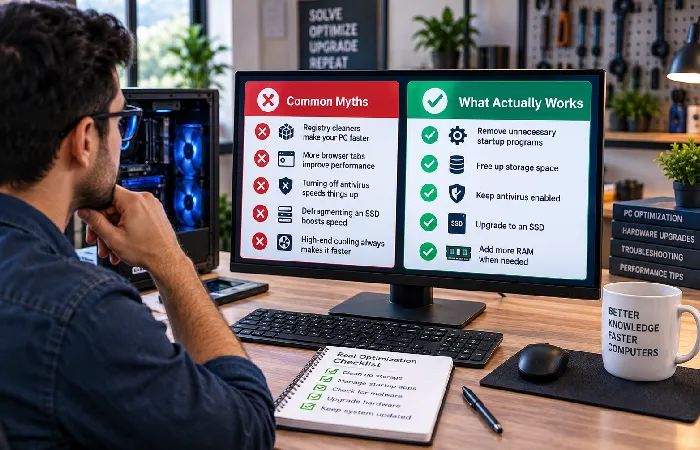
A lot of the optimization advice floating around online is old. Some of it never worked to begin with.
Myth: Registry Cleaners Dramatically Improve Speed
Registry cleaning doesn’t do much on modern Windows. It mattered more on older versions. Some registry cleaners still cause issues today — deleting entries that were actually needed, that kind of thing.
Myth: More Antivirus Programs Improve Performance
Two real-time antivirus programs running at once isn’t extra protection. It’s usually just a slower computer.
Myth: Closing Random Windows Services Makes Computers Faster
Turning off core Windows services rarely speeds anything up. What it usually does is break something else.
Myth: Daily Disk Defragmentation Is Necessary
Windows already handles storage optimization on its own, in the background, on any modern system. Manually defragmenting on top of that is mostly wasted effort at this point.
Stick to what actually works. Startup optimization. Managing storage. Getting rid of malware. An SSD upgrade if you’re still on a hard drive. More RAM if memory’s the bottleneck. That’s the real list.
Frequently Asked Questions
1. How can I make my computer faster for free?
Start here. Disable the startup apps you don’t need. Remove software you’re not using. Free up some storage. Run a malware scan. Update Windows. Five things, none of them complicated.
2. Does adding RAM always improve performance?
No. RAM only helps in one specific case — when memory itself is what’s slowing things down, not something else.
3. Is an SSD better than adding RAM?
Still on a traditional hard drive? An SSD is probably the single biggest upgrade available. Nothing else usually comes close.
4. How much free disk space should I keep?
Leave 15 to 20% of the system drive free. Windows just runs better that way. Microsoft backs this up too — low storage doesn’t just slow things down, it can mess with updates as well.
5. How often should I clean my computer?
Once a month is plenty for most people. Check storage. Check startup apps. Run updates. Scan for malware. That covers it.
Conclusion
A slow computer doesn’t mean it’s time to buy a new one. Not usually, anyway. Most of the time the real cause is something else entirely — too many startup apps, not enough storage, software nobody uses anymore, malware, or hardware that’s just old.
Start simple. Check what’s launching at startup. Uninstall what you don’t use. Free up some space. Run a scan. Microsoft specifically calls out managing startup apps and using Storage Sense as two of the most effective ways to keep Windows running well.
Still slow after all that? Then it might be time to look at hardware. A RAM upgrade. An SSD instead of the old hard drive. Either one tends to buy a computer real extra years, not just a temporary bump.
