Published: September 18, 2026
Last Updated: September 18, 2026
Quick Answer
Windows Update is the starting point. Check it, install whatever’s pending for the operating system itself. That’s step one, not the whole job though — apps, programs, your browser, device drivers, none of those update through Windows Update. Each one’s got its own tool, and each one needs checking separately. Skip that part and you’re only half-updated.
Why bother with all of it? Security gets tighter. Bugs get fixed before they cause problems. Compatibility improves across the board. The machine just runs better, plain and simple. Microsoft’s official Windows Update documentation says the same thing — regular updates mean better security, better reliability, better performance, consistently.
Definition: Updating computer software means installing the official releases. OS patches. Application updates. Driver updates. Security fixes. All of it, so the device stays protected and keeps running the way it should.
Why software updates matter
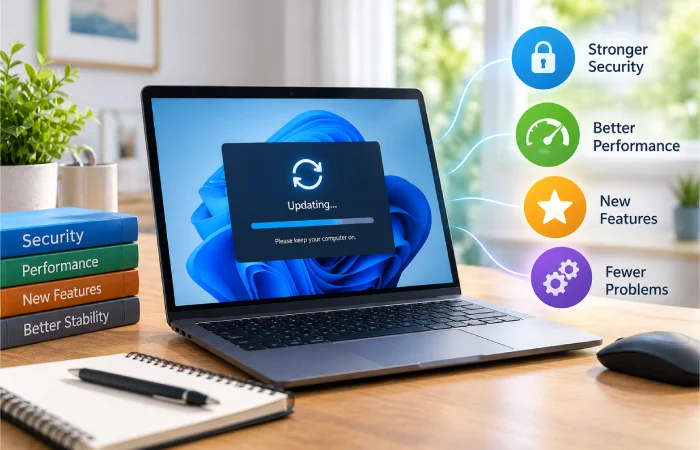
Software updates aren’t just about new features. Security holes get patched. Bugs get corrected. Compatibility improves. The whole thing just runs more reliably. Skip updates long enough and you’re stuck with problems the vendor already fixed, sitting there, unpatched, for no good reason.
Most people think only Windows needs updating. In reality, four areas require attention:
- Operating system updates
- Application updates
- Browser updates
- Device driver updates
Microsoft states that Windows updates help keep devices secure and running smoothly. Windows 11 also automatically delivers many updates to maintain protection.
Regular maintenance also supports overall system performance. Alongside updates, these practical computer performance improvement methods can help keep a PC responsive over time.
Checking for operating system updates
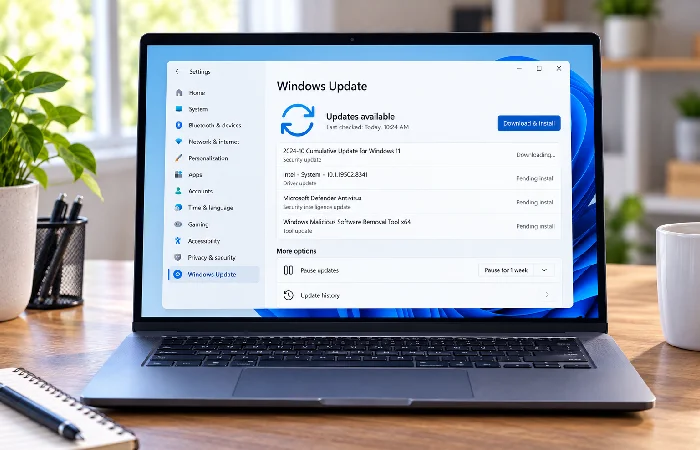
Windows Update is the safe route. For most people, it’s a few clicks and done. Microsoft’s stance here is clear too — stick to the built-in update service. Random update files from some site you’ve never heard of? Skip it.
Windows 11
- Open Start.
- Select Settings.
- Choose Windows Update.
- Click Check for updates.
- Select Download and install if updates are available.
- Restart when prompted.
Windows 10
- Open Settings.
- Select Update & Security.
- Open Windows Update.
- Click Check for updates.
- Install available updates.
- Restart if required.
Windows 10 support officially ended on October 14, 2025, and Microsoft flagged that date well in advance. Anyone still running it needs an actual migration plan at this point, not just a vague intention to get to it eventually.
Updating apps and programs on your computer
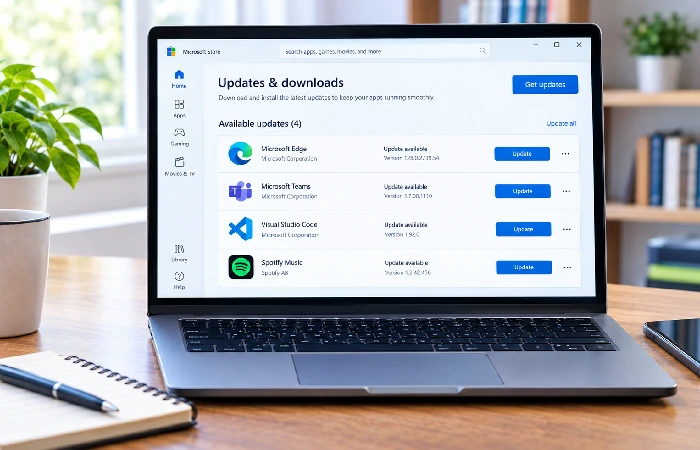
Windows Update covers the operating system and a handful of Microsoft products. That’s the limit, mostly. Everything else, most third-party apps, runs its own separate update system entirely.
Common update methods include:
- Built-in software updaters
- Microsoft Store updates
- Vendor websites
- Security software update tools
For Microsoft Store apps:
- Open Microsoft Store.
- Select Library.
- Choose Get Updates.
For desktop programs such as browsers, productivity tools, or media software, look for options such as:
- Check for Updates
- Software Update
- Update Now
Get updates from the developer’s actual website. Nowhere else. Those pop-ups that scream your software’s out of date? Ignore them. That’s usually not a real update warning — it’s a common way to sneak unwanted software onto your machine.
Updating device drivers safely
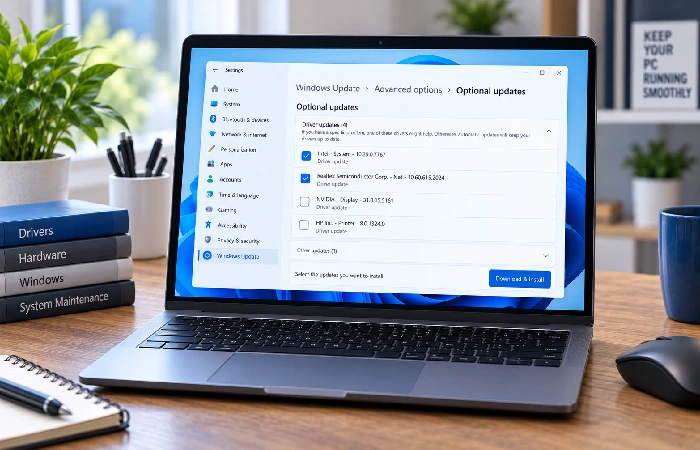
Drivers are the translator between Windows and your hardware. Printers. Graphics cards. Scanners. Storage devices. All of it relies on drivers to actually talk to the OS. Update them and compatibility improves, hardware-specific bugs get fixed too.
There’s a common misconception here, though — that every driver update available should get installed right away.
Microsoft separates many driver releases into optional updates. These updates often require manual review rather than automatic installation.
To check for driver updates:
- Open Settings.
- Select Windows Update.
- Open Advanced Options.
- Choose Optional Updates.
- Review available driver updates.
- Install only relevant updates.
Windows can’t find a driver sometimes. When that happens, Microsoft’s advice is simple — go straight to the hardware manufacturer’s own website.
Automatic updates are usually the best choice
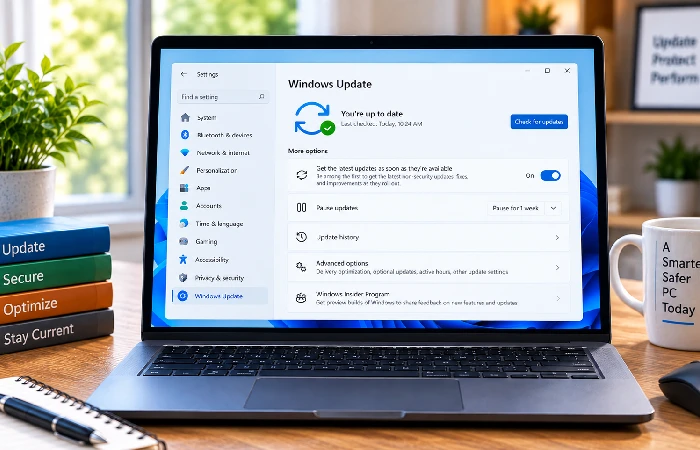
For most home users, automatic updates should remain enabled. Automatic updates reduce security risks and ensure important fixes are installed without requiring constant attention.
Benefits of automatic updates
- Security patches install faster
- Less manual maintenance
- Improved stability
- Better software compatibility
When manual review makes sense
- Specialized hardware environments
- Business testing requirements
- Optional driver updates
- Compatibility-sensitive systems
Windows 11 handles a lot of this on its own. Updates download automatically, install automatically, and require no clicking most of the time. That’s straight from the Windows Update FAQ from Microsoft — the goal being devices that stay secure and current without the user having to think about it.
Fixing software update failures
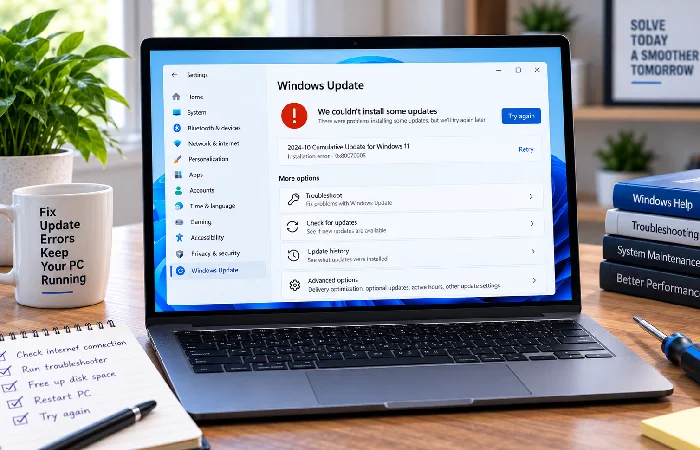
Update problems usually trace back to one of a few things. Connectivity issues. Not enough storage. Permission problems. Hardware conflicts. Microsoft actually has a structured troubleshooting process for this, and it clears up most of the common failures.
Step 1: Verify internet connectivity
Updates require a stable internet connection.
- Check Wi-Fi status
- Reconnect if necessary
- Retry the update
Step 2: Confirm administrator access
Some updates require administrator permissions.
- Sign in with an administrator account
- Retry installation
Step 3: Free storage space
Microsoft notes that major updates may require substantial free storage space.
- Delete unnecessary files
- Empty the Recycle Bin
- Remove unused applications
Upgrading a 32-bit operating system may require at least 16 GB of free space. For 64-bit systems, that number goes up, at least 20 GB may be needed.
Step 4: Disconnect external hardware
Remove:
- External drives
- Docking stations
- Unnecessary USB devices
Microsoft identifies external hardware conflicts as a possible update blocker.
Step 5: Run Windows Update Troubleshooter
If problems continue:
- Open Settings.
- Select Troubleshoot.
- Choose Windows Update.
- Run the troubleshooter.
Step 6: Restart and retry
Many update problems are resolved after a restart. Microsoft recommends restarting even when an update does not explicitly require it.
Common software update mistakes to avoid
Most update failures are preventable.
Avoid these common mistakes:
- Downloading updates from unofficial websites
- Ignoring restart requests
- Installing every optional driver without review
- Running outdated antivirus software
- Delaying critical security updates for months
Stick to the safe sources when you can. Windows Update. Microsoft Store. The vendor’s own official site. That’s it, really.
Frequently asked questions
1. How do I update all software on my computer?
There’s no single update button that covers everything. Windows Update handles the OS. Microsoft Store covers Store apps. Everything else, third-party programs, needs their own vendor’s update tool.
2. How often should I check for updates?
Got automatic updates turned on? Manual checks are mostly a waste of time then. For the apps that don’t update on their own, once a month is a reasonable habit.
3. Can software updates slow down my computer?
Most updates exist to improve stability and security, not hurt performance. Sure, things might slow down briefly during installation. That’s normal. Long-term degradation, though, is rare, as long as the manufacturer’s still properly supporting the device.
4. Are automatic updates safe?
For most users, yes. Microsoft’s recommendation is automatic updating, full stop. Keeps devices secure, keeps them current, without anyone having to remember to check. Optional driver updates are still worth a manual look now and then, though.
Why does Windows require a restart after updates?
Many system files cannot be replaced while Windows is actively using them. Restarting completes the installation process and activates the updated components.
Before leaving, readers looking for additional maintenance advice can visit the computer tips and tricks resource center for related guides.
