Published: September 20, 2026
Last Updated: September 20, 2026
Quick Answer
Fast. Secure. Reliable. That’s what regular maintenance gets your PC.
Update your software. Install the latest drivers. Run antivirus scans. Clear out junk files. Back up what matters. Don’t let the thing overheat. Do those regularly and slowdowns get rarer. Security gets tighter too. Your computer just lasts longer.
Want it running smoothly for years? Regular maintenance is what gets you there. Small problems left alone rarely stay small. They turn into bigger ones. A few minutes of upkeep each month, and you’re cutting down on slow performance, malware infections, overheating, data loss. That’s most of what actually kills a machine early.
Need more troubleshooting and optimization help? The Computer Tips and Tricks hub has a broader set of resources worth a look.
Definition: Computer maintenance tips are routine actions for keeping a system healthy. They improve performance and strengthen security. They also reduce hardware stress and help prevent data loss over time.
What Regular Computer Maintenance Should You Do?
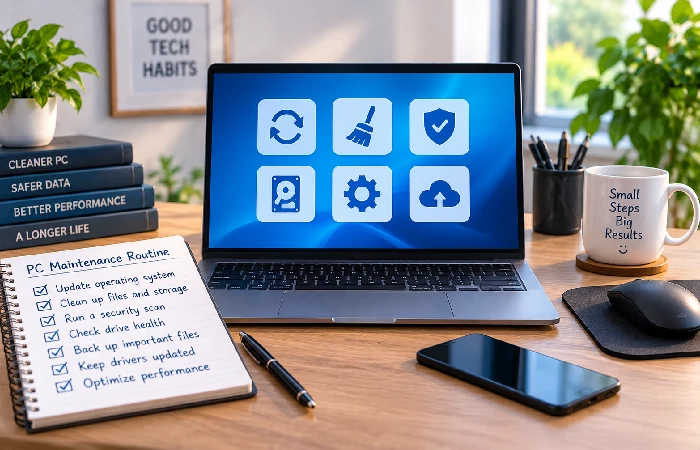
Performance. Security. Storage. Hardware health. That’s what regular maintenance actually targets.
The tasks that matter most: software updates, malware scans, storage cleanup, backups, physical cleaning.
Start with software updates. Security patches close vulnerabilities. They also improve system stability. Threats get caught early too, that’s what antivirus scans are for, before any real damage happens.
Dust is the quiet one. It builds up inside the case, pushes operating temperatures higher, and over time that shortens hardware lifespan. Physical cleaning keeps it in check.
Stick with proper maintenance and combine it with safe usage habits. Computers can stay functional for years that way.
A good maintenance routine should include:
- Software updates
- Driver updates
- Malware scans
- File backups
- Disk cleanup
- Startup program reviews
- Fan and vent cleaning
How to Keep Software and Drivers Up to Date
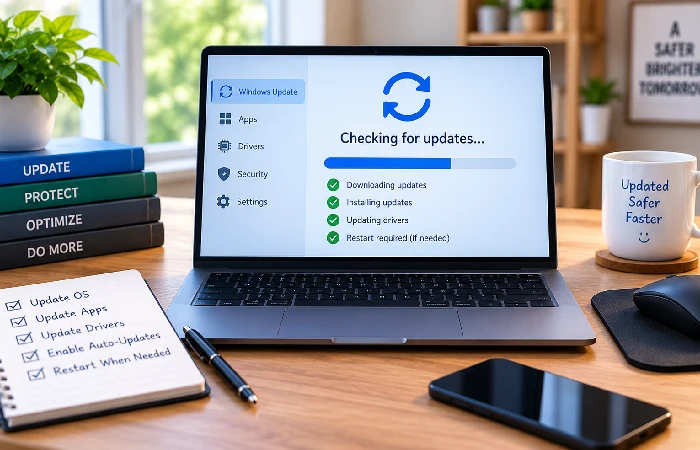
Keeping software and drivers updated is one of the highest-value maintenance tasks there is. Security fixes come bundled in. So do stability improvements. Compatibility gets better too.
Turn on automatic updates for your operating system. Set it and mostly forget it. Windows handles security patches this way. Reliability fixes come through the same channel.
Drivers, though — different story. Manufacturers push their own updates, separate from Windows. Compatibility improves. Device issues get fixed. Worth checking for these manually every so often, since they don’t always arrive automatically.
Focus on:
- Windows updates
- Graphics drivers
- Network drivers
- Printer drivers
- Security software updates
Avoid downloading drivers from unknown websites. Use manufacturer support pages or Windows Update whenever possible.
How to Maintain Storage and System Performance
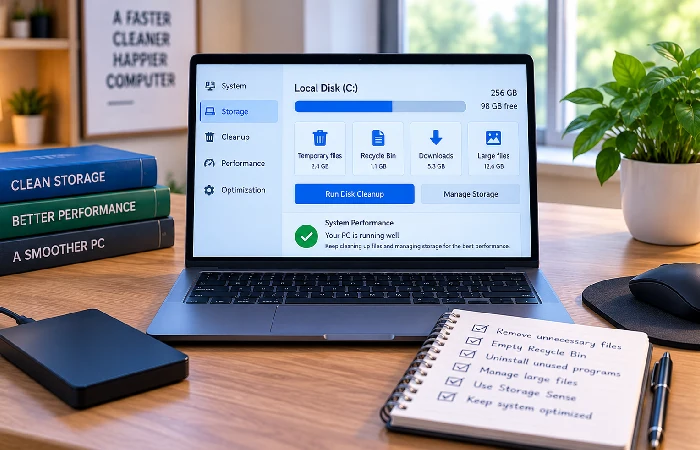
Storage maintenance keeps your computer responsive. Clear out files and programs you don’t need, and you free up real space, not just a little.
Built-in tools handle most of this. Microsoft Storage Sense or Disk Cleanup will clear temporary files without much effort on your end.
Go through your installed applications next. Anything you’re not using anymore, uninstall it. Startup programs deserve a look too — too many of them running at boot slows things down and eats into system resources you’d rather have free.
Additional performance tips include:
- Empty the recycle bin regularly
- Remove duplicate files
- Archive older documents
- Monitor available storage
- Review startup applications monthly
For additional optimization techniques, see these practical computer performance improvement methods.
How to Protect Your Computer From Malware and Data Loss
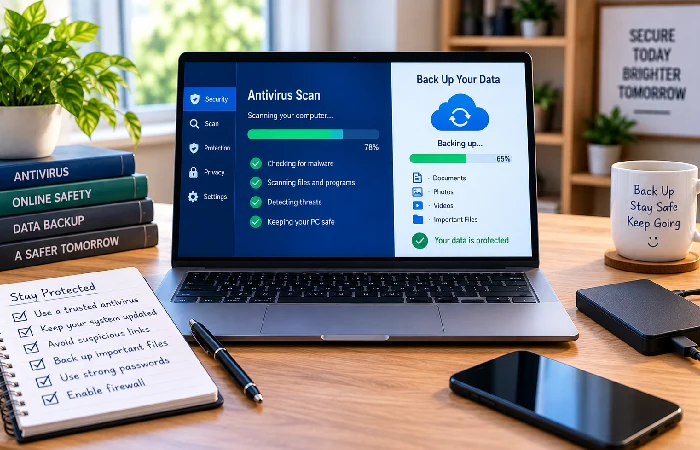
Security matters just as much as performance. Maybe more. Malware, ransomware, phishing, these threats aren’t going anywhere.
Run antivirus scans regularly. Keep virus definitions current while you’re at it. Untrusted downloads are where the trouble usually starts, so steer clear of those. Unexpected email attachments too, treat those with some suspicion. One unsafe download is often all it takes.
Hardware fails. Files get deleted by accident. Ransomware happens. Backups are what protect you against all three. Microsoft’s Windows Backup guide walks through backing up files, settings, and apps.
Keep at least one extra copy of anything important, cloud storage or an external drive works. Skip backups and you’re gambling with everything else you just fixed.
Monthly Computer Maintenance Checklist for Better Performance
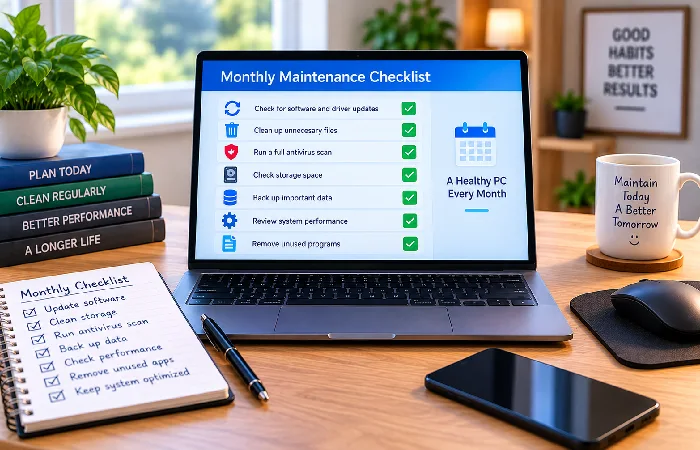
A monthly schedule keeps maintenance manageable. Fewer things pile up that way.
Monthly Checklist
- Install available software updates
- Check for driver updates
- Run a full antivirus scan
- Remove unnecessary programs
- Delete temporary files
- Empty the recycle bin
- Review startup programs
- Back up important files
- Check storage usage
- Clean fans and vents
- Inspect cables and connections
- Review security settings
Stick with this checklist and performance holds up. Security gets tighter. Your computer simply lasts longer.
FAQ
1. How often should you clean your computer?
Weekly. That’s the light cleaning cadence worth sticking to. Fans and vents need something deeper every few months or so, though the exact timing really comes down to how much dust your setup collects.
2. How often should antivirus scans run?
Weekly scans work fine for most home users. Real-time protection is the one thing that shouldn’t ever get switched off, though, that part runs continuously no matter what.
3. Should you update device drivers regularly?
Yes. Driver updates can improve compatibility, stability, and security. Graphics, networking, peripherals, these device types benefit most.
4. What is the most important computer maintenance task?
Software updates and backups top the priority list. Security and data, that’s what’s on the line if you skip them.
5. Does cleaning a computer improve performance?
Cleaning fans and vents improves airflow. Less heat builds up. Performance stays steadier as a result.
