Published: September 19, 2026
Last Updated: September 19, 2026
Quick answer
The safest approach: keep two backup copies besides the original. One goes on an external drive, using File History on Windows or Time Machine on Mac. The other sits in a cloud backup service with version history. Automate both, then restore one test file every month to confirm things actually work.
Most people don’t think about backups until something breaks. A drive fails with no warning. A laptop gets lost or stolen. Ransomware locks a folder, and years of photos disappear along with it. This guide covers both Windows and Mac — a schedule you can realistically stick to, plus a restore test that proves the backup is doing its job. It’s scoped to personal files only; full-system images and phone backups aren’t included. For more upkeep guides, browse the computer tips and tricks hub.
Definition: “Backing up computer files means keeping at least one extra copy of your personal data on a separate drive or cloud service, so a failure, theft, or ransomware attack doesn’t erase it for good.”
Backup methods at a glance
| Method |
What it protects |
Where the copy lives |
Limits to know |
| Windows File History to an external drive |
Windows keeps copies of files in libraries such as Documents, Pictures, Videos and Music. It saves them to an external drive or network location so earlier versions can be restored. |
Local only, not off-site |
Needs a connected drive. Does not protect against fire or theft at your location. |
| Windows Backup with OneDrive |
It syncs the Desktop, Documents, Pictures, Videos and Music folders to OneDrive, with 5 GB free storage. |
Off-site, in the cloud |
Personal Microsoft accounts only. Work or school accounts are not supported. |
| Mac Time Machine to an external drive |
Time Machine runs hourly, daily and weekly backups of apps, music, photos, email and documents. |
Local, on the external drive |
Apple recommends a drive at least twice the Mac’s storage capacity, for example 2 TB for a 1 TB Mac. |
| Third-party cloud backup service |
It uploads the files you choose, then sends only changes, and usually keeps previous versions up to 90 days. |
Off-site, on the provider’s servers |
The first upload can take from a few hours to several days. |
| External drive plus cloud (3-2-1 rule) |
Keeps three copies of your data on two storage types, with one copy off-site. |
Local drive and cloud service |
Two tools to set up and check. It is the only row that covers both hardware failure and site disasters. |
Methodology: rows come from Microsoft Support, Apple Support and Carbonite pages read in September 2026. The 3-2-1 rule states the rule as backup vendors define it. Prices are left out because they change.
Why files disappear without a backup
Files disappear when a drive fails, a laptop is stolen, or ransomware locks your data. Backups are what survive all three. Drives wear out from constant reading and writing, according to 2BrightSparks — and that kind of failure rarely gives any warning first. Power failures, corrupted files, viruses, and malware can damage data too.
Think about what sits on your drive right now. Family photos. Tax records. Work documents. A saved email archive. Most of it can’t be downloaded again, and some of it can’t be rebuilt.
A backup limits the damage. A failed drive then costs you a replacement drive and a restore. Without one, you start over.
Which files to back up and which to skip
Back up files you created or can’t download again: documents, photos, videos, music and saved email. Skip Windows system files, installed programs and temporary files, which 2BrightSparks’ backup guide treats as unnecessary to back up.
Use this checklist:
- Documents, spreadsheets and PDFs
- Photos and videos
- Your music library
- Anything saved on the Desktop
- Email data. Outlook stores downloaded mail in .PST files inside your user account’s AppData folder.
If your drive is cluttered, start by clearing temporary files to speed up your computer.
Then check the total size of what you picked. It decides which cloud plan fits and how big your external drive needs to be. For example, a 40 GB photo folder won’t fit in Windows Backup’s 5 GB free tier.
Backing up to an external drive on Windows and Mac
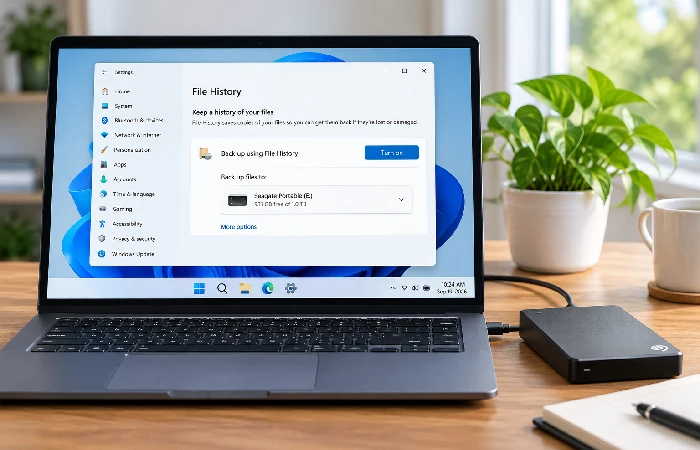
An external drive gives you a local copy you can restore without an internet connection. On Windows, File History does the job. On a Mac, use Time Machine. Both run automatically once your drive is connected.
A local copy protects against drive failure. It doesn’t protect against a fire or theft at your location, so pair this step with the cloud method in the next section.
Windows: set up File History
File History covers four libraries: Documents, Pictures, Videos, Music. Copies land on whatever external drive or network spot you’ve picked. Windows 11, right out of the box. Windows 10 too, but not forever. October 14, 2025 – that’s when Microsoft’s own File History guide says support ended.
- Connect an external drive.
- Head into Control Panel, then System and Security, and find “Save backup copies of your files with File History.”
- Click Turn on. If it doesn’t already show a drive, select Select drive and choose yours.
- Want to add another folder? Right-click it, choose Show more options, then Include in library.
Mac: set up Time Machine
Time Machine covers apps, music, photos, email, and documents, all going to a USB or Thunderbolt drive. Turn it on once, and hourly, daily, and weekly backups just happen from there.
Get a drive that’s at least double your Mac’s storage. Apple’s Time Machine setup guidance gives an example: a 1 TB Mac needs a 2 TB drive. Use that drive only for Time Machine.
Plug it in. Then head to System Settings, then General, then Time Machine – on macOS Ventura 13 or later – and set that drive as your backup disk.
Cloud backup with Windows Backup or a backup service
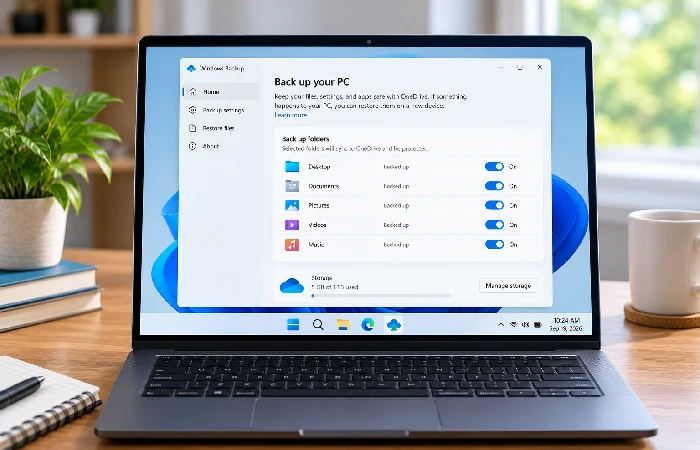
Cloud backup keeps a copy of your files somewhere else entirely. A fire, a theft, a dead drive sitting at home – none of it can touch a copy that isn’t there. Windows Backup handles this through OneDrive, and the free tier gives you 5 GB. Check your folder sizes before you turn it on.
Windows Backup and OneDrive
Account requirement: You need a personal Microsoft account. Microsoft’s own guidance notes that work or school accounts don’t work with Windows Backup.
- Select Start, type backup, and open Windows Backup.
- Expand Folders and switch on Desktop, Documents, Pictures, Videos or Music.
- Select Back up.
If OneDrive shows an error, the likely causes are being signed out or running low on storage. Microsoft describes this feature as syncing your folders to OneDrive. Treat it as one off-site copy, and confirm version history before you rely on it alone.
Cloud backup services and the 3-2-1 rule
A cloud backup service automates the upload for you. You install it, pick your files and folders, and let the first backup run — this initial upload can take anywhere from a few hours to several days depending on how much data you have. Once that first run finishes, uploads get quicker — only the changed files go up from then on. Some services also hold onto older file versions for around 90 days, which comes in handy if you undo something by mistake. Throw an external drive into the mix and you’re set on the 3-2-1 rule — three copies, two storage types, one off-site.
Backup frequency that fits personal files
Back up personal files daily, ideally with automated software handling it for you. Daily backups are considered ideal for most personal users, with hourly backups reserved for business-critical data. For small businesses, a common approach is a full backup weekly paired with daily incremental backups.
A full backup copies everything you selected. An incremental backup only grabs what’s changed since the last run — that’s why it finishes faster and takes up less space. Your very first backup, though, is always a full one.
Then test it. Silent Security recommends restoring one random file each month and testing a complete system restore once a year. A backup you’ve never restored is an assumption.
A schedule that works:
- Daily: automatic backup to your external drive and to the cloud
- Monthly: restore one file and open it
- Yearly: run a full restore test
Restoring your files from a backup
Restoring copies a saved version back from your backup. Windows has its own path. Right-click the folder the file used to live in. Hit Restore previous versions. Pull out the version you’re after. Mac users are looking at Time Machine instead for this.
For File History, follow Microsoft’s File History restore steps:
Open File Explorer and track down the folder that used to hold the file, then right-click it and choose Restore previous versions from the menu. Under the Previous Versions tab, pick a version from before the loss — if the file was deleted today, choose yesterday’s version.
Select Restore, or open the Restore menu and choose Restore to, to save it somewhere else.
Use Restore to when you’re unsure. A standard restore overwrites what’s currently there, and there’s no undoing it once it’s done, according to Microsoft.
If you used Windows Backup, sign in with the same Microsoft account when setting up a new PC — Windows will then offer to restore your files. Signing into OneDrive works too, if you just need a few files back.
On a Mac, Apple’s guide to backing up your Mac says a Time Machine backup can restore older files, deleted files, or inaccessible files, to the same Mac or a different one.
Backup FAQ
1. What is the best way to back up my computer files?
Three copies, two kinds of storage, one off-site – that’s the 3-2-1 rule, and here’s what it looks like at home. Your original file. A copy on an external drive. A cloud copy with version history sitting behind it, set to run without you having to think about it.
2. Should I back up to an external drive or the cloud?
Both. An external drive doesn’t need internet to restore from, but it lives right next to your computer — same room, same risk.
3. What is the 3-2-1 backup rule?
Keep three copies of your data, on two kinds of storage, with one copy off-site. Acronis’s 3-2-1 backup guide lists external drives and cloud storage among the usual choices.
4. Is OneDrive a real backup?
It can be one copy, but it isn’t the whole plan. Windows Backup stores five user folders in OneDrive, and the free tier holds 5 GB. Add an external drive copy, and check whether your plan keeps older versions.
Do it tonight. Plug in an external drive, turn on File History or Time Machine, and set a calendar reminder 30 days out – that’s your cue to test-restore one file.
