Published: September 29, 2026
Last Updated: September 29, 2026
Across different environments, PDF files are designed to preserve a document’s appearance. Reports, forms, applications, manuals, invoices, and other documents: PDFs are useful for sharing all of them. Working with one is different from editing a Word document, though.
With a PDF editor, you can change or manage PDF content. No need to rebuild the entire document from scratch. Editing text and images may be possible, depending on the software. Add annotations, fill forms, sign documents. Rearranging pages, converting files, and reducing file size may be included too.
Not every PDF task requires a full editor. Only need to highlight text or add a name to a form? A simpler tool may be enough. Rewriting existing content may call for more advanced software. So might editing a scanned document. Or managing a large document workflow.
Quick Answer: A PDF editor is software for modifying or managing PDF documents. Common tasks? Editing text and images, adding annotations, filling forms. Also signing documents, organizing pages, converting files, and compressing PDFs. The right tool depends on the type of PDF. And on the change you need to make.
1. What Is a PDF Editor and What Can It Do?
A basic PDF reader and a PDF editor aren’t the same thing.
A reader is mainly designed to open, view, search, print, and annotate documents. Some can also fill forms, add text boxes, or apply a simple signature. A full PDF editor goes further. It lets you modify existing text or images. It also manages document elements such as pages, OCR, conversion, and redaction. Features vary by product and plan.
PDF is an internationally standardized document format. ISO describes it as a digital format for representing electronic documents. Independently of the environment in which it is created, viewed, or printed.
The fixed-document approach is useful for sharing. Editing gets more complicated, though, compared with a normal word-processing document.
Common PDF editor features
Depending on the application, a PDF editor may let you:
- Edit existing text
- Add new text
- Replace or resize images
- Highlight and annotate content
- Fill PDF forms
- Add signatures
- Add or remove pages
- Reorder pages
- Merge or split documents
- Convert PDFs to other formats
- Run OCR on scanned documents
- Compress PDFs
- Protect documents with security controls
- Redact sensitive information
For example, Adobe Acrobat documents features for editing PDF text and images, annotating documents, compressing files, using OCR to make scanned content editable, and merging or splitting PDFs.
PDF reader vs PDF editor
| Task |
PDF Reader |
PDF Editor |
| View a PDF |
Yes |
Yes |
| Search text |
Usually |
Yes |
| Highlight text |
Often |
Yes |
| Add annotations |
Often |
Yes |
| Edit existing text |
Usually no |
Often, but support varies by editor, PDF structure, permissions, and whether the text is selectable |
| Replace images |
Usually no |
Often |
| Rearrange pages |
Limited |
Yes |
| Fill forms |
Sometimes |
Yes |
| Sign documents |
Sometimes |
Yes |
| OCR scanned documents |
Not usually included |
Available in some full PDF editors and document-conversion tools |
| Compress PDFs |
Not usually included |
Available in some editors and dedicated compression tools |
The exact feature set varies by software, so check the documentation for the editor you plan to use.
Do you need a full PDF editor?
Not always.
Choose the simplest tool that matches the job:
- Reading: a PDF reader is enough.
- Highlighting: an annotation tool may be enough.
- Filling a form: use a PDF form tool.
- Adding a signature: use a signing workflow.
- Changing existing text: use a real PDF editor or convert the document to an editable format.
- Editing a scan: use OCR first.
- Reducing file size: use a PDF compression tool.
- Managing many pages: use page organization tools.
This approach can save time because you avoid using complicated software for a simple task.
2. PDF Editors for Windows and Students
Built-in tools, dedicated PDF applications, web-based editors. Windows users have several ways to work with PDFs.
Microsoft Edge includes a built-in PDF reader for viewing, searching, annotating, inking, and filling supported PDF form fields. It can also add text, images, and shapes in supported workflows. No replacement for a full editor, though. Not when you need to rewrite existing body text or make advanced layout changes.
That makes Edge useful when you only need light PDF work.
Using Microsoft Word to edit a PDF
Microsoft Word can also open a PDF and convert it into an editable Word document. Microsoft explains that this works best when the PDF is mostly text and that Word creates a copy rather than changing the original PDF. Its guide to editing PDFs in Word also notes that the converted document may not preserve the original page-to-page layout perfectly.
Microsoft says this works best when the PDF is mostly text. Word creates a copy and converts the content into a format that Word can display. The original PDF remains unchanged.
A simple workflow is:
- Open Microsoft Word.
- Select File > Open.
- Choose the PDF.
- Allow Word to convert the PDF.
- Edit the converted document.
- Save the result as a Word document or export it as a PDF.
This method has an important limitation. The converted document may not have the same page breaks, spacing, or layout as the original PDF.
Microsoft specifically notes it too. PDFs containing many graphics may convert poorly. Some elements may not remain editable.
For a simple text-heavy PDF, this can be practical. For a highly designed document, a dedicated PDF editor may be more appropriate.
PDF editors for students
Students often use PDFs for lecture notes, research papers, worksheets, textbooks, assignments, and application forms.
The most useful features are usually:
- Highlighting important passages
- Adding notes
- Searching within long documents
- Filling forms
- Adding signatures where appropriate
- Organizing pages
- Compressing large documents before uploading
- Converting text when substantial editing is necessary
For study material, annotation can be more useful. More useful than changing the original text. Goal simply to mark important information? Nothing to rebuild.
Assignments or applications may call for something different. A form may need to be filled. A signature added. Or the document compressed to meet an upload limit.
Online vs desktop PDF editors
An online PDF editor can be convenient because you can work in a browser without installing desktop software. Adobe’s current Acrobat web documentation, for example, supports browser-based PDF editing and management.
A desktop editor may be preferable when:
- You work with PDFs frequently.
- You need advanced editing features.
- You regularly handle large documents.
- You work with sensitive documents and want to minimize uploading files to online services.
- You need more control over document processing.
Uploading a confidential document to an online service? Check the provider first. Look at privacy, retention, and deletion. Access control and sharing policies matter here too.
Got security or compliance requirements? Then use an approved service or an offline workflow. Don’t assume every browser-based editor is suitable.
3. How to Edit Text and Content in a PDF
Editing existing PDF text is one of the main reasons people look for a PDF editor.
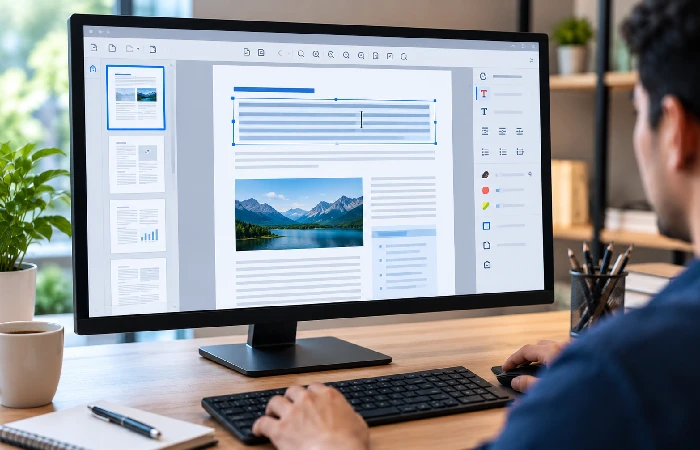
The basic process is usually:
- Open the PDF in an editor.
- Select the text-editing tool.
- Click the text you want to change.
- Replace, delete, or add text.
- Adjust the formatting if necessary.
- Review the surrounding layout.
- Save a new copy of the PDF.
Current Acrobat documentation confirms that its web editor can add, replace, and delete text and adjust fonts, typeface, alignment, spacing, and size. It also notes that complex layouts may require manual adjustments.
Why PDF text editing can be difficult
A Word document with a different file extension? Not a PDF.
Its layout may depend on text positioning, fonts, and images. Also graphics, page objects, and other document elements. Change one piece of content. Nearby elements can be affected.
For example, replacing a short sentence with a much longer sentence may cause:
- text to overlap;
- spacing to change;
- content to move;
- a line to wrap differently;
- a page to become visually unbalanced.
After making an edit, always review the complete page rather than checking only the sentence you changed.
Editing images in a PDF
Some PDF editors also let you insert, replace, resize, move, or otherwise modify images. Adobe documents these capabilities for Acrobat on the web.
For simple image changes, this can be convenient. More advanced image manipulation may still be better handled in dedicated image-editing software before placing the finished image into the PDF.
How to edit a scanned PDF
A scanned PDF is different from a normal text-based PDF.
Scanned paper documents may essentially be stored as images, page by page. A normal text-editing tool can’t automatically treat the words in that image as editable text. Not without help.
OCR, or optical character recognition, matters for exactly this reason.
A typical workflow is:
- Open the scanned PDF.
- Run OCR if the software supports it.
- Check the recognized text.
- Edit the text.
- Review the document carefully for recognition errors.
- Save the corrected PDF.
OCR makes scanned documents easier to search. And to edit. The result should still be checked against the original scan. Especially when the document contains names, numbers, tables, or unusual formatting.
When Word is a better option
PDF is mostly text, and you need substantial rewriting? Converting it to Word can sometimes be easier. Easier than making many individual edits inside a PDF editor.
Microsoft explicitly says Word’s PDF conversion works best with mostly text-based documents. It also warns that complex layouts may not convert perfectly.
A useful rule is:
Small correction → edit the PDF directly.
Large rewrite → consider converting the PDF to an editable document first.
4. How to Add Signatures and Manage PDF Documents
PDF management involves more than changing words.
A typical document workflow may include editing, reviewing, filling, signing, organizing, protecting, and finally sharing the PDF.
Add a signature after the content is final
If a document needs a signature, finish the content review before signing whenever possible.
This matters most when the document uses a certificate-based digital signature. Changes made after signing can invalidate the signature or show that the file was modified, depending on the signing settings. A typed, drawn, or image-based electronic signature does not necessarily provide the same tamper-evident protection, so follow the recipient’s required signing method.
A practical workflow is:
- Edit the document.
- Review all text and numbers.
- Complete form fields.
- Check attachments and pages.
- Add the required signature.
- Save the final version.
- Keep the original working copy when appropriate.
For important documents, avoid treating a signed PDF as though it were still an ordinary draft.
Manage PDF pages
A PDF editor can also help organize the document itself.
Common page-management tasks include:
- Reordering pages
- Deleting unwanted pages
- Rotating pages
- Extracting selected pages
- Adding pages
- Combining PDFs
- Splitting a PDF into smaller files
The functions come in particularly handy when a document has several sections. Same if you only need to submit selected pages.
Before deleting or extracting pages, keep an original copy if the complete document may be needed later.
Fill out PDF forms
There are two common situations.
A fillable PDF form already contains fields where you can enter information.
A non-fillable PDF may require an editor’s text or drawing tools to place information manually.
The correct workflow depends on how the form was created. If the form is already interactive, use its fields rather than placing text manually whenever possible.
Protect sensitive PDFs
PDF software may offer several different security functions. These should not be treated as identical.
Password protection can restrict who opens a PDF. Or ask for a password before certain actions, depending on the software and PDF configuration. Don’t treat it as a substitute for secure sharing controls. Access management, too. And proper redaction, when information has to be permanently removed.
Permissions can limit activities such as editing, printing, or copying.
Redaction is different. If sensitive information must actually be removed from a document, simply drawing a black box over the text is not necessarily enough. Use a proper redaction function designed to remove the underlying information.
For sensitive documents, verify the final PDF rather than assuming that content hidden visually has been permanently removed.
Review the final PDF before sharing
A simple final check can prevent many problems:
- Open the saved PDF.
- Check every edited page.
- Confirm that text is readable.
- Check images and page alignment.
- Test important links.
- Confirm signatures are present.
- Check that unwanted pages were removed.
- Verify that confidential information was handled correctly.
- Confirm the file opens normally.
A PDF is often the final version people receive, so the last review matters.
5. How to Compress PDFs While Preserving Usable Quality
PDF compression reduces file size so a document is easier to upload. Store, too. Or send.
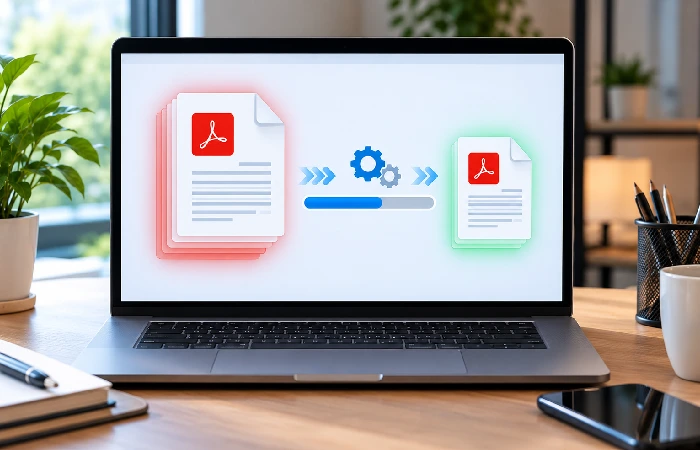
“Without losing quality” needs some care, though. Compression can reduce PDF size while keeping the file usable, but no setting guarantees zero quality loss. Aggressive image downsampling or compression can reduce image detail. Font optimization? It can affect how text displays on other devices.
How much you save depends on the PDF’s images, fonts, scans, graphics, and other embedded content. A mostly text document may behave differently. One packed with high-resolution photographs or scanned pages, differently again.
Why PDF files become large
Large PDF files often contain:
- High-resolution images
- Scanned pages
- Embedded fonts
- Large graphics
- Unnecessary document objects
- Multiple high-quality images
Adobe’s current compression documentation says Acrobat can optimize PDFs by compressing images, removing embedded fonts, and eliminating unnecessary items.
Basic PDF compression workflow
A practical process is:
- Keep a copy of the original PDF.
- Open the PDF in a compression tool.
- Select a suitable compression level.
- Save the compressed copy.
- Open the new file.
- Check text and images carefully.
- Confirm that forms, links, and signatures still behave as expected.
Adobe provides compression controls in Acrobat on the web and desktop versions.
How to reduce PDF size while preserving quality
Start with moderate compression rather than immediately choosing the strongest setting.
Then inspect:
- Small text
- Screenshots
- Photographs
- Charts
- Scanned pages
- Signatures
- Forms
- Embedded graphics
Still looks good? Then the reduced file may be ready to use.
Important images are blurry. Small text hard to read. Use a less aggressive compression setting.
When you should compress a PDF
Compression is useful when:
- An email attachment is too large.
- A website has an upload-size limit.
- A school or business portal restricts file size.
- You need to store many PDFs.
- You want to share a document more easily.
Do not overwrite the original immediately. Keeping the original gives you a higher-quality version if you later need to make additional edits.
Choosing the Right PDF Editor for Your Needs
Start with your actual task. Not the number of features an editor advertises.
| Your need |
Suitable approach |
| Read PDFs |
PDF reader |
| Highlight or annotate |
Reader with annotation tools |
| Add a few words |
PDF editor or browser-based tool |
| Rewrite a long text-heavy PDF |
PDF-to-Word workflow may be practical |
| Edit a scanned PDF |
OCR-enabled PDF editor |
| Fill a form |
PDF form tools |
| Sign a document |
PDF signing/e-signature tool |
| Rearrange pages |
PDF page-management tool |
| Combine documents |
PDF merge tool |
| Reduce file size |
PDF compression tool |
| Remove confidential information |
Proper PDF redaction tool |
| Frequent advanced PDF work |
Full desktop PDF editor |
The key is not finding a tool with every possible feature. It is finding one that handles the work you actually need to complete.
Final Takeaway
A PDF editor can do much more than change a few words. Modern PDF software can support text and image editing, annotations, forms, and signatures. Page management, too. Conversion and compression. Plus document security.
But the best workflow depends on the document.
For a quick annotation, a basic PDF reader may be enough. For a small text correction, direct PDF editing is usually more appropriate. For a major rewrite of a text-heavy document, converting it to Word can be practical. For a scanned document, OCR may be necessary before editing. Sensitive information in the PDF? Security and redaction need to be considered before sharing.
The most useful approach is simple. Identify the PDF task first. Then choose the lightest tool that can complete it correctly.
