Published: September 24, 2026
Last Updated: September 24, 2026
Quick answer: A password manager stores your usernames and passwords. In an encrypted vault. A master password controls access to that vault. It can generate unique passwords too. Autofill saved credentials. Sync that vault across your devices. Encryption, recovery, and sync methods vary by provider.
Dozens of passwords. Dozens of things to forget. Reuse one across several accounts and a single compromised credential stops being a single problem, it spreads to everything else using it. A password manager sidesteps that. Different passwords everywhere, none of them memorized by you.
What happens behind those simple actions is worth knowing. Encryption locks the vault. The master password is what unlocks it. Sync just means your devices are working off the same encrypted data, nothing more mysterious than that.
What does a password manager actually do?
A password manager stores your login credentials. That’s the core job. You stop having to remember every password yourself. Depending on the service, it might also hold secure notes, payment details, identities, 2FA information, and other sensitive data too.
Passkeys are different. Some managers store and sync them for sites and apps that support that sign-in method, but passkeys work differently from passwords underneath. Want the details? A separate passkey guide covers that ground.
Here’s what it actually does:
- Store credentials: usernames, passwords, website addresses, and related info, all saved in a vault.
- Generate passwords: random or customizable, created fresh whenever you set up or change an account.
- Autofill logins. Drops saved usernames and passwords into supported sites and apps automatically.
- Encrypt stored data: the vault’s contents get protected so nobody can just read them as plain text.
- Sync across devices, at least with cloud-based managers, which move encrypted vault data between the devices you’ve set up.
None of this replaces the passwords on your actual accounts. The manager stores them, retrieves them when needed, and that’s what lets you run unique credentials everywhere without leaning on memory.
How password managers store and encrypt passwords
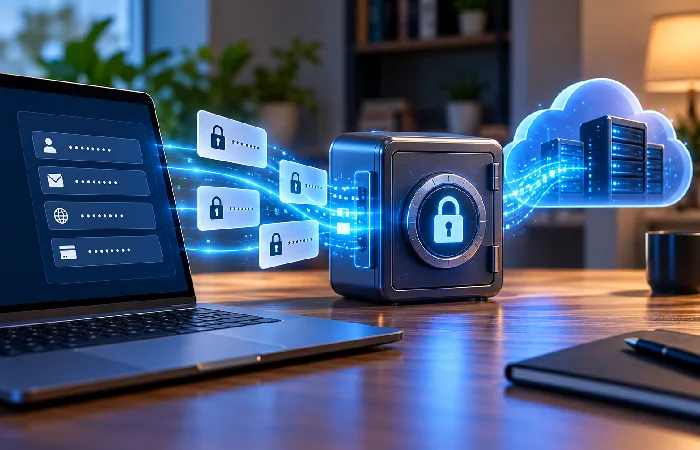
Your credentials sit inside an encrypted vault. That’s how a password manager keeps them. Readable information goes in. Protected data comes out, that’s encryption. No cryptographic key, no way to read it.
Security design isn’t identical across products, though. Proton Pass, for instance, says its vaults use AES-256 symmetric-key encryption, with encryption happening on the user’s device before anything reaches its servers. Proton lays out its approach in its Proton Pass security documentation.
A simplified flow looks like this:
Your login details → encrypted vault → encrypted storage or sync → your device → decrypted when needed
The distinction between encrypted storage and readable passwords matters. A provider may store an encrypted copy of your vault for synchronization without having the information required to read the contents.
Proton calls this end-to-end encryption. Its servers, the company says, can’t decrypt the vault data at all. Not every provider works the same way, though. Other password managers run their own security architectures. Check the documentation. Don’t assume one service’s setup matches another’s.
What is a master password?
The master password is the main secret. It’s what unlocks your password manager. Zero-knowledge design changes something specific here: the provider doesn’t keep a copy of it. No copy, no way for them to decrypt your vault themselves.
This creates an important trade-off. Strong protection can also mean limited recovery if you forget the master password. Proton, for example, says its account password should be memorized because it is the key to its secure data and cannot be reset by Proton if lost without recovery methods being available.
Your master password should therefore be:
- Long enough to resist guessing.
- Unique to the password manager.
- Something you can reliably remember.
- Protected with available account security features such as MFA.
How autofill and password generation work
Autofill skips the manual copy-paste. No more digging passwords out of your vault every time you sign in.
Visit a supported login page and the password manager spots the relevant saved login on its own. It offers it up for autofill, right there. Proton Pass works this way too: pick a saved login from the browser extension, and it drops the username and password into the fields for you.
Password generation works alongside autofill. When you create an account, the manager can generate a new password and save it to your vault. Proton Pass documents this workflow through its autosuggest and autosave features.
Forget making a password you can actually remember. Let the manager generate one instead. It’ll store it for you too.
Autofill can also help with phishing
Autofill can provide a useful security signal because password managers associate saved credentials with particular websites or apps. If the manager does not offer a saved login where you normally expect one, stop and check the website address before entering credentials.
Matching and warning behavior isn’t the same across password managers. Don’t treat autofill as a complete phishing defence because of that. It’s a useful security check. That’s different from making passwords themselves phishing-resistant, and they aren’t.
NIST’s digital identity guidance backs this up. Password-based authentication isn’t phishing-resistant, full stop. Still, NIST supports using password managers and autofill functionality alongside it.
Suspicious website? Unexpected login? Verify the address before you type in anything.
How does a password manager sync across devices?
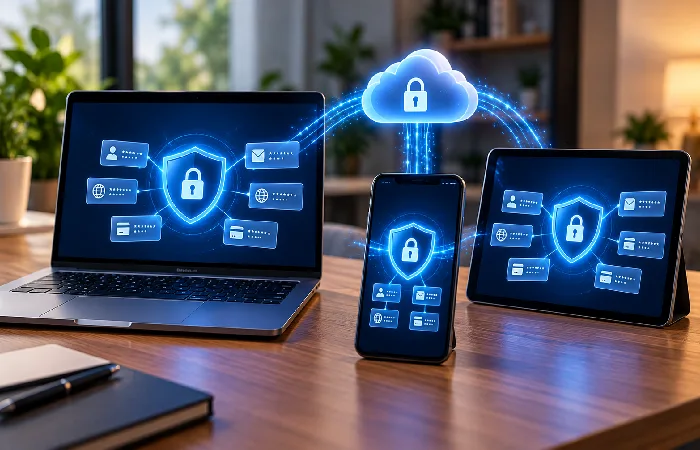
Cloud-based password managers sync encrypted vault information. Same saved credentials, everywhere: computers, phones, tablets, browsers, other supported devices.
The basic sequence is:
- You save or change a login on one device.
- The password manager updates the vault.
- The encrypted vault data is synchronized through the service.
- Another authorized device receives the updated encrypted data.
- That device unlocks the information when you authenticate.
Sync doesn’t mean your passwords get sent to a server as readable text. Not necessarily, anyway. Proton, for instance, says its Pass vault data gets encrypted on the device before it ever reaches its servers.
Not every password manager uses the same architecture, though. Before choosing a service, check its official security documentation, encryption, synchronization, recovery, device access, all of it.
What happens if you forget your master password?
There’s no universal recovery process. What happens depends on the password manager, and on the recovery features you configured.
Some services can’t recover the master password at all. Deliberately. They just don’t have access to it. That’s not a missing customer-service feature, it’s the security model working as designed.
Before relying on a password manager, check whether it offers:
- Account recovery.
- Recovery codes or keys.
- Emergency access.
- Trusted-device recovery.
- Biometric access on supported devices.
- Secure export or backup options.
Not every manager gives you these options. Don’t assume otherwise. Proton Pass, for one, documents encrypted exports, backups, or a way to move your data to another manager entirely.
Some providers design things so the master password is never available to them, not even internally. Lose that password, lose your recovery methods too, and you’re looking at losing the vault itself.
Is a password manager safe?
A reputable password manager can provide strong protection, but it is not risk-free.
Security depends on several parts working together: the manager’s encryption design, account authentication, device security, recovery process, software security, and your own master password.
Proton says Proton Pass uses AES-256-GCM encryption. End-to-end encryption too. Open-source applications, independent security audits, all documented. These are specific to that one service, though. Not a claim that every password manager works this way.
The main risks to understand are:
| Risk |
What it means |
| Weak master password |
Someone who obtains or guesses it may gain access to the vault. |
| Master password reuse |
A password exposed elsewhere could also put the vault at risk. |
| Unsecured device |
Malware or unauthorized device access can create additional risk. |
| Poor recovery setup |
Losing access may be difficult or impossible for some services. |
| Vulnerable software |
Security flaws can affect password manager applications or extensions. |
The practical goal is not to assume a password manager is invulnerable. It is to understand its security model and use its available protections correctly.
Password Manager vs Browser Password Manager: Which Is Better?
Browsers can save passwords. You don’t necessarily need a separate app just to stop reusing the same one everywhere.
A dedicated password manager can go further, though. Broader cross-platform support, maybe. Secure sharing. Password health checks. Specialized vaults. Other types of encrypted information beyond just logins. The exact feature set varies by product.
| Feature |
Browser password storage |
Dedicated password manager |
| Save website passwords |
Supported by major browsers |
Core feature |
| Password generation |
Commonly available |
Commonly available |
| Autofill |
Supported |
Supported |
| Cross-device access |
Depends on browser account and settings |
Common feature for cloud-based services |
| Secure notes |
Limited or varies |
Common feature |
| Password sharing |
Limited or varies |
Available with some services |
| Password security checks |
Varies |
Common in many products |
| Cross-browser support |
Usually tied to the browser |
Often designed for multiple browsers |
Devices, browsers, security needs. What you actually use matters more than what sounds impressive on a feature list, and that’s really what should drive the choice. One thing shouldn’t factor in: convenience as an excuse to reuse a password.
A simple password manager workflow
Once you understand the parts, the complete process is easier to follow:
- Create your account. Choose a password manager and set up the account according to its instructions.
- Create your master password. Make it unique and memorable.
- Protect the account. Turn on available multi-factor authentication or other additional security controls.
- Import or add passwords. Move existing credentials into the vault using the provider’s supported process.
- Generate new passwords. Use the built-in generator when creating or changing accounts.
- Enable autofill. Set up the browser extension or mobile feature where supported.
- Check recovery options. Configure recovery or emergency access before you need it.
- Keep the software updated. Use current versions of the password manager and its supported extensions or apps.
Proton Pass, for example, supports importing data from several other password managers and browsers. Its browser extension does more than that, too, saving new login details and generating passwords right when you create an account.
Common mistakes to avoid
A password manager only works well when you use it correctly. Avoid these mistakes:
- Reusing your master password on another account.
- Choosing a weak or predictable master password.
- Ignoring available MFA or other account protections.
- Assuming every password manager has the same encryption and recovery model.
- Keeping an outdated browser extension or application.
- Saving an unprotected password-manager export in an unsafe location.
- Assuming autofill alone can identify every phishing attack.
Set it up once and forget about it, that’s the biggest practical mistake people make with a password manager. Go back in periodically. Check the security settings, recovery options, supported devices, software updates, all of it.
Frequently asked questions
1. How does a password manager work?
An encrypted vault holds your login information. Getting in takes a master password, or whatever other authentication method the service supports. Once you’re in, it generates passwords for you. It retrieves the ones already saved. Autofill handles login forms on its own. And your data stays in sync across whatever devices you’ve connected.
2. What is a password manager used for?
Storing and managing passwords and other sensitive information securely, that’s the core use. Password generation, autofill, secure notes, 2FA support, syncing between devices, many services offer all of that too.
3. Does a password manager know my passwords?
Depends on the provider’s architecture. End-to-end or zero-knowledge designs can be built so the provider simply can’t decrypt your vault. Don’t assume that applies everywhere, though. Check the specific provider’s security documentation.
4. What happens if I forget my password manager’s master password?
No single answer here, it depends entirely on the service. Some can’t recover it. They simply never had it to begin with. Others build in recovery mechanisms, though those need setting up beforehand, not after the fact. Check your provider’s official recovery documentation before trusting the vault with anything important.
5. Can a password manager generate passwords?
Yes. Password generators are a common feature, creating random passwords during account creation or whenever you change an existing one.
6. Does a password manager work on multiple devices?
Many cloud-based password managers do, syncing encrypted vault data across them. Supported platforms and sync features vary by provider, though.
7. Are password managers completely secure?
No security tool is completely risk-free. Strong encryption and extra account protections help, sure. But your master password matters. Your devices, your software, your recovery settings, the provider’s security architecture, all of it factors in.
Start with the security model, not just the features
A password manager puts your credentials into a protected vault. It controls who gets in. Routine tasks, too, password generation, autofill, synchronization, it handles all of that.
Encryption, authentication, synchronization, account recovery, check those first. That’s what actually matters before choosing one. The basics settled, everything else gets easier to judge: autofill, password generation, secure notes, cross-device access.
For help comparing features, security models, and recovery options, read our guide to choosing a password manager.
