Published: September 19, 2026
Last Updated: September 19, 2026
Quick Answer
Cleaning up your computer comes down to a few habits. Remove unused files and programs. Organize folders. Clear your browser cache and Downloads folder. Do that light pass monthly. Go deeper quarterly, using Windows’ built-in Disk Cleanup and Storage Sense tools.
Digital clutter builds up fast. Temporary files pile up. Old programs sit unused, doing nothing. Your Downloads folder turns into a junk drawer somewhere along the way. None of it happens overnight, but it adds up – storage runs low, things start feeling sluggish.
Definition: “Cleaning up your computer means removing unnecessary files and programs, organizing folders, and clearing browser clutter on a regular schedule to keep storage free and performance steady.”
This guide walks through five parts of a proper digital cleanup, in order. It skips the dusting-and-compressed-air stuff — that’s a physical maintenance task, not a file cleanup one. If your machine also feels slow and you want the performance angle specifically, see our guide on how to speed up a slow computer.
What Should You Clean Up on Your Computer?
Four things matter most: leftover files and unused programs, disorganized folders, browser cache and Downloads, and a repeatable schedule. Skip any one of them and clutter creeps back within weeks.
Files and programs take up the most space, but folders and browsers take up the most friction — a messy desktop or an overflowing Downloads folder slows you down even when storage isn’t tight. Treat cleanup as four separate jobs, not one vague task. Each has its own tool, its own risk level, and its own frequency. Try to do all four at once – especially with a single third-party “cleaner” app – and that’s usually how people end up deleting something they actually needed. One at a time works better. Programs and files first. Then folders. Then browser data. Then set a recurring schedule.
How to Remove Unnecessary Files and Programs
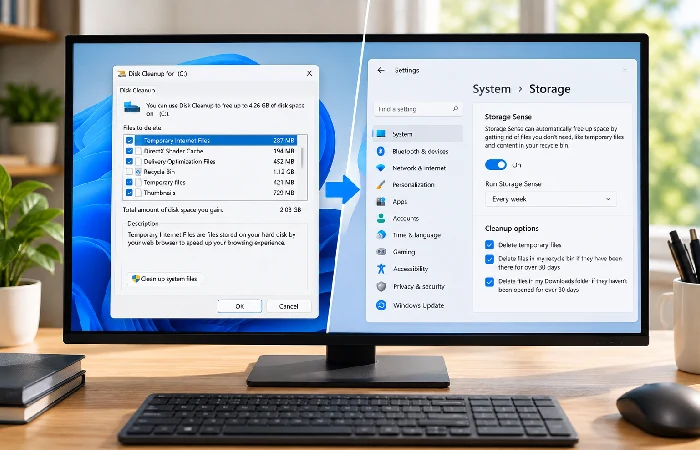
Disk Cleanup and Storage Sense – Windows’ own tools – are the place to start. Temporary files, delivery optimization files, Recycle Bin contents: both clear all three. Skip the third-party apps.
Turn Storage Sense on in Settings > System > Storage, and it starts clearing old Recycle Bin files and unused temp data by itself – that’s per Microsoft’s own guidance. No Storage Sense on your version? Same result, done by hand: open Disk Cleanup from the taskbar search, pick a drive, and check off which file types go.
Go to Settings > Apps > Installed apps to handle programs – anything untouched for six months or more is fair game to remove. Do it through the system menu itself, not by deleting the program’s folder directly; that shortcut leaves orphaned files and registry entries behind (source stamp: uninstall-safety guidance reported by Mindcore Technologies, based on IT support caseload observations). Registry cleaners and “optimizer” tools, though, are worth skipping. They tend to cause new problems more often than they fix old ones.
How to Organise Files and Folders on Your Computer
Every file needs a home before you start deleting anything. Sort documents, photos, and downloads into a small number of top-level folders. Then, and only then, delete what’s genuinely unused.
Start with your desktop. It’s the most-cluttered spot on most computers because it’s the path of least resistance for saving new files. Create a handful of clearly named folders – Documents, Projects, Archive – and move loose files into them. Nothing you haven’t touched in six months, with no real reason to keep it, needs to stay. Sorted files mean an empty Recycle Bin comes next – moving something there doesn’t actually free up space until it’s emptied. Do this step first, and the next two go faster. You’re not deleting blind anymore.
How to Clean Up Your Browser and Downloads
Your browser cache and Downloads folder fill up independently of your file system, and most people never touch either one. Clear both together as part of the same pass.
Pages leave traces behind. That’s cache, and it never really stops growing. Chrome, Edge, Brave – same fix across the board. Three-dot menu. More Tools. Clear Browsing Data. Cache and cookies, checked. Time range, set.
Every few months keeps it in check. Faster than that if something’s acting up – slow loads, logins that won’t stick.
Downloads is its own mess entirely. Every browser saves stuff here by default, and almost nobody clears it out on purpose. Sort it the way you’d sort your desktop. Keep what’s actually useful. Delete the rest. Worth redirecting future downloads to a specific folder in your browser’s settings too, so this doesn’t keep happening.
How Often Should You Clean Up Your Computer?
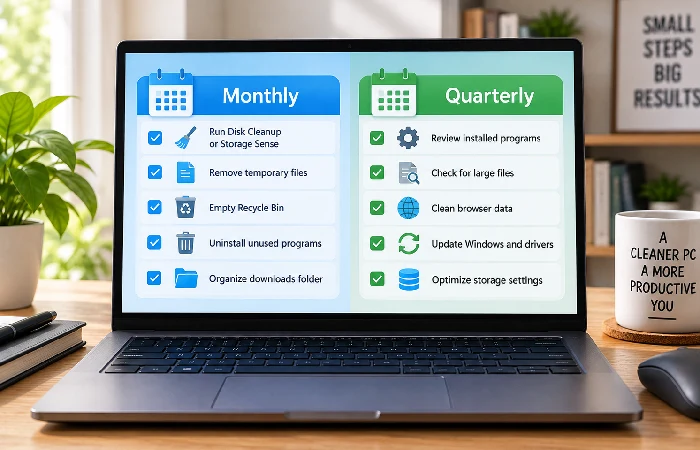
Run the file-and-program pass monthly, and do a full pass including folders and browser data every three months. This cadence keeps clutter from reaching a point where cleanup takes real time.
A monthly light pass (temporary files, Recycle Bin, unused programs) takes ten to fifteen minutes and prevents the backlog most guides don’t address directly. A quarterly deep pass – folders, browser data, Downloads – catches what the monthly pass skips. This isn’t an arbitrary number: it mirrors the maintenance rhythm IT professionals describe when they say cleanup should happen “regularly” rather than only when a computer starts struggling (source stamp: cadence framing reported by Mindcore Technologies, verified against current Windows tooling in September 2026). Running slow, not just cluttered? Different problem entirely. Check how to speed up a slow computer for performance-specific steps.
Frequently Asked Questions
1. Is it safe to delete temporary files?
Yes. Every program – Windows included – spins up temporary files just for one-time use, nothing permanent about them. Clearing that stuff through Disk Cleanup or Storage Sense leaves your actual software and personal files untouched. One exception, though: files sitting inside system directories you don’t recognize. Leave those alone.
2. What’s the difference between Disk Cleanup and Storage Sense?
You run Disk Cleanup yourself, whenever you decide it’s time. Storage Sense is different – flip it on once, and it just keeps clearing old temporary files and Recycle Bin contents in the background from then on.
3. Do I need third-party software to clean up my computer?
No. Windows’ built-in Disk Cleanup, Storage Sense, and the standard uninstall menu cover everything in this guide. Third-party “PC cleaner” tools add risk — some flag or remove files that are actually needed — without doing anything the built-in tools can’t already do.
4. How do I clean up my Downloads folder specifically?
Open the Downloads folder, sort by date, and delete anything you no longer need — most of what accumulates there is installers and one-time attachments. Then set your browser’s download location or behavior so files stop landing there by default going forward.
Pick one part of this list — files and programs is the fastest win — and do it today. Set a recurring monthly reminder for the light pass, and the quarterly deep clean stops being a chore.
