Published: September 30, 2026
Last Updated: September 30, 2026
Rebuilding the whole document. Not always what editing a PDF means. With selectable text in the PDF, you can usually change existing words with a PDF editor. Scanned document. You may need OCR first. The safest method depends on the type of PDF. Also on how much text you need to change.
Quick Answer: To edit text in a PDF, open the file in a PDF editor that supports direct text editing. Select the existing text and make your change. Save a new copy. Cannot select individual words. The PDF may be scanned or image-based, and may need OCR first. For large rewrites, converting the PDF to Word can be easier. The layout may change during conversion.
Can You Edit Existing Text in a PDF?
Yes, if the PDF contains editable text and the document does not have restrictions that prevent editing.
The quickest way to check is to open the PDF and try to select a word or sentence.
- Individual words can be selected: The PDF probably contains a text layer.
- The entire page behaves like an image: The PDF may be scanned or image-based.
- Text can be selected but not changed: The file may have editing restrictions, unsupported text, or another structural limitation.
- The text looks correct but changes to strange characters: The PDF may have font or text-encoding problems.
A dedicated PDF editor can change existing text. You won’t have to rebuild the entire page. For example, Adobe’s Acrobat text-editing documentation explains how to replace text in a PDF. It also explains how to add, delete, and format text.
Before making significant changes, save a copy of the original PDF. That gives you a clean version to return to if the edited document develops layout problems.
How to Change Text in an Editable PDF
For a normal PDF containing selectable text, direct editing is usually the simplest approach.
1. Open the PDF in a PDF editor
Open the document in software that supports editing existing PDF text.
A basic PDF viewer may let you read, highlight, comment on, or fill out a document. It won’t always let you change the original text. Advanced text editing may require a dedicated PDF editor.
2. Select the text you want to change
Enter the editor’s text-editing mode and select the word, sentence, or text block. It’s the one that needs correction.
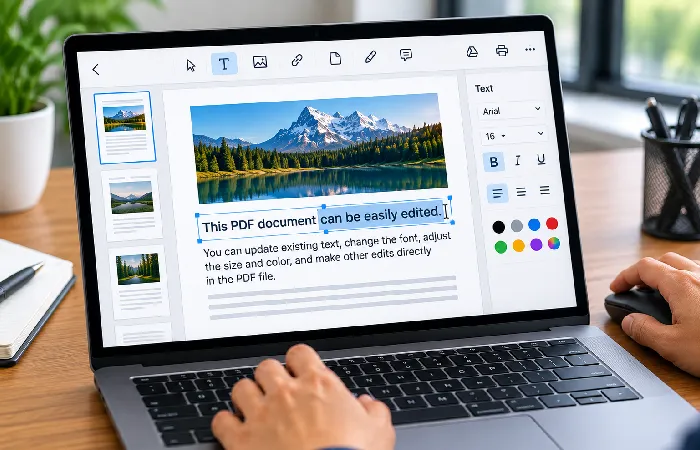
Correcting a name, date, number, or spelling mistake is a small change. Edit only the necessary characters.
3. Replace, add, or delete the text
Type the replacement text directly into the selected text area.
You can also add new text. Do it when the document needs additional information. Current Acrobat documentation supports replacing existing text and adding new content. It covers deleting text as well, changing text properties such as font, size, color, and alignment is supported too.
4. Check the text box after editing
This step is easy to skip.
PDF text is often positioned inside individual text areas rather than behaving exactly like a Word document. If you add several words, the text may reflow within its text box without automatically pushing unrelated content onto the next page.
After a longer edit, check:
- Line breaks
- Text alignment
- Spacing
- Text-box boundaries
- Nearby headings
- Tables or columns
- Page breaks
5. Save a new copy
Save the edited PDF under a new filename instead of immediately replacing the original.
For example:
invoice-original.pdf
can become:
invoice-corrected.pdf
This makes it easier to compare the two files if something changes unexpectedly.
How to Edit Text in a Scanned PDF
A scanned PDF is different. Its pages may be stored as images rather than normal selectable text.
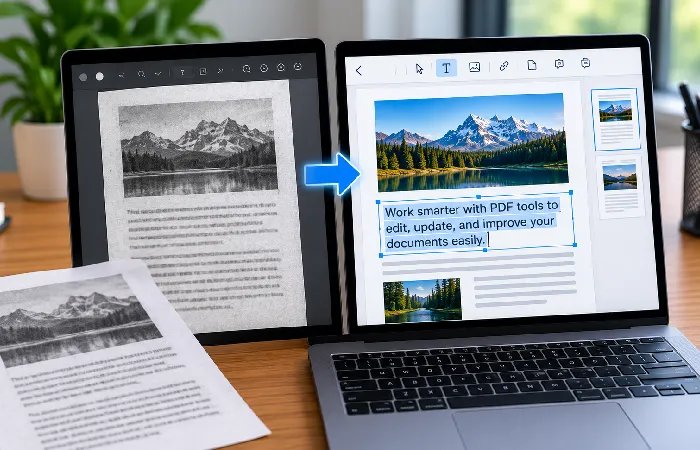
If you cannot select individual words, you may need OCR (Optical Character Recognition).
OCR analyzes the scanned page. It creates recognizable text that software can search and edit. Adobe’s current documentation explains that Acrobat can apply OCR to scanned PDFs and convert the recognized content into editable text.
The basic workflow
- Open the scanned PDF in an editor with OCR support.
- Run OCR or text recognition.
- Review the recognized text.
- Correct any recognition errors.
- Edit the required words.
- Check the original page against the edited version.
- Save a new PDF.
OCR should not be treated as a perfect transcription step. Scan quality, image clarity, unusual fonts, and other factors can affect recognition. Adobe recommends reviewing recognized text and correcting uncertain results.
Take extra care when editing names, numbers, addresses, dates, or other information. A single incorrect character can change the meaning.
How to Keep Fonts and Formatting Consistent
Make small, targeted changes whenever possible. It’s the easiest way to preserve the original appearance.
For example, replacing one incorrect digit is usually much easier to keep visually consistent. Replacing an entire paragraph with several additional sentences is harder.
Match the original font
When editing existing text, check the font, size, weight, color, and alignment.
Adobe explains that unavailable fonts can be substituted when editing PDF text, which can make the edited text look inconsistent with the original. Its PDF text-formatting guidance also explains the limitations around fonts used for editing. In some situations, an embedded font may allow limited formatting changes even when the font is not installed locally.
Keep replacement text close in length
A short replacement is less likely to disturb the surrounding layout.
Suppose the PDF contains:
Meeting date: 12 September
Changing it to:
Meeting date: 18 September
is unlikely to create the same layout challenge as replacing it with a much longer sentence.
If the new text is substantially longer, inspect the text box and surrounding content carefully.
Check spacing and alignment
After editing, compare the changed text with nearby text.
Look for:
- Different font size
- Different font weight
- Uneven spacing
- Misaligned baselines
- Text extending beyond its box
- Unexpected line breaks
Acrobat’s current formatting controls cover quite a lot. Those include font, size, color, alignment, line spacing, paragraph spacing, character spacing, and horizontal scaling.
Do not assume the whole page will reflow
A PDF editor may reflow text inside the selected text box without reorganizing the entire document.
That means a large replacement can create an overlap or leave too little space for nearby content.
If you are effectively rewriting the document, a conversion workflow may be more appropriate.
What to Do When PDF Text Cannot Be Edited
When an editor refuses to change the text, do not immediately assume the PDF is broken.
Check the problem in this order.
1. Check whether the PDF is scanned
Try selecting individual words.
If you cannot select the text normally, run OCR before attempting a standard text edit.
2. Check for editing restrictions
Security settings can be part of a PDF. They restrict editing, printing, or copying.
Own the document, or have permission to modify it? Then you can check the document’s security settings or obtain the required authorization. Adobe documents separate controls for password-protected and permission-restricted PDFs.
Do not try to bypass restrictions on a document you are not authorized to modify.
3. Check whether you are using a PDF viewer
A PDF reader and a PDF editor are not necessarily the same thing. They can do quite different jobs. If you mainly edit PDFs on a Windows PC, our guide to a PDF editor for Windows is the place to look. It covers the Windows-specific options and workflows.
For example, Adobe explains that Acrobat Reader is primarily a viewing application. Advanced editing features such as editing text require Acrobat.
4. Check whether the text is actually part of an image
A logo, scanned signature, screenshot, or other graphic may look like text but still be an image.
Normal text-editing tools cannot change characters that are simply pixels inside an image. You may need an appropriate image-editing or OCR workflow instead.
5. Consider converting the PDF to Word
You might need to rewrite several paragraphs or substantially restructure the document. In that case, converting the PDF to Word may be easier. Changing individual text boxes can take longer.
Microsoft says Word works best when converting PDFs that are mostly text. Microsoft also warns that page-to-page correspondence with the original may not be perfect in the converted document.
A practical workflow is:
- Open the PDF in Word.
- Allow Word to convert a copy.
- Edit the document.
- Review the layout.
- Save or export the result as a PDF.
- Compare the new PDF with the original.
This approach is better suited to substantial rewriting than a small typo correction.
Direct PDF Editing vs. Word Conversion
| Situation |
Better approach |
| Fix one spelling mistake |
Direct PDF editing |
| Change a date or number |
Direct PDF editing |
| Replace a person’s name |
Direct PDF editing |
| Add a short sentence |
Direct PDF editing |
| Edit a scanned document |
OCR, then edit |
| Rewrite several paragraphs |
Consider Word conversion |
| Rebuild a document’s structure |
Word or the source file |
| Work with a restricted PDF |
Obtain authorized editing access first |
| Preserve a highly precise layout |
Prefer direct PDF editing when practical |
The important distinction is small correction versus substantial rewriting.
The PDF may already be well designed, and you only need to change a few words. Converting the entire document can introduce unnecessary formatting changes.
Rewriting large sections is a different case. Direct PDF editing can become tedious and difficult to control.
A Simple Checklist Before You Save the Edited PDF
Before sending or publishing the edited document, check:
- The replacement text is correct.
- The font matches the surrounding text.
- Font size and weight look consistent.
- Text fits inside its text box.
- Line breaks still look natural.
- Tables and columns have not shifted.
- No text has been accidentally deleted.
- The page count is correct.
- OCR mistakes have been corrected if the PDF was scanned.
- The original PDF is still available as a backup.
Then reopen the saved PDF and inspect the edited page again.
A final check is especially useful after OCR or PDF-to-Word conversion. Both workflows can introduce changes that are not obvious while you are making the edit.
If you regularly work with PDFs, the broader PDF Editor category is worth a look. It can help you understand the different types of PDF editing tools and workflows.
