Published: September 29, 2026
Last Updated: September 29, 2026
Editing a PDF. Doesn’t always mean rebuilding the document from scratch. Change existing text with the right PDF editor. Add new content, replace images, rearrange pages, add links. All while keeping the document in PDF format.
The best method? Depends on the type of PDF. And the change you need to make. A normal text-based PDF can usually be edited directly. Scanned PDFs, though, may require OCR first. Converting a PDF to Word. Check the formatting before exporting it again, too.
Quick Answer: To edit a PDF, open it in a PDF editor. Content you want to change? Select it. Make your edits, and save a new copy of the file. Text, images, pages, and links: usually editable directly. For a scan, you may need OCR before you can edit the text. Microsoft Word is another option for mostly text-based PDFs. But conversion can change the original layout.
What Can You Edit Inside a PDF?
The first step is to identify what you actually need to change.
A PDF editor can commonly handle several types of edits:
| What you need to change |
Typical PDF editing task |
| Existing words |
Correct, replace, or delete text |
| New information |
Add a text box or paragraph |
| Images |
Add, replace, resize, move, or delete images |
| Pages |
Add, delete, rotate, or reorder pages |
| Links |
Add or change clickable links |
| Scanned text |
Use OCR before editing the recognized text |
| Document structure |
Move or extract pages |
Adobe’s current Acrobat documentation describes editing text, images and objects. Its page-management tools support adding, deleting, rotating and rearranging pages.
Editing versus annotation. Worth telling apart. Highlighting, commenting or drawing on a PDF adds markup. Editing changes the underlying document content.
Choosing a PDF tool before starting? Our PDF Editor guide provides the broader context.
How to Edit Text in a PDF
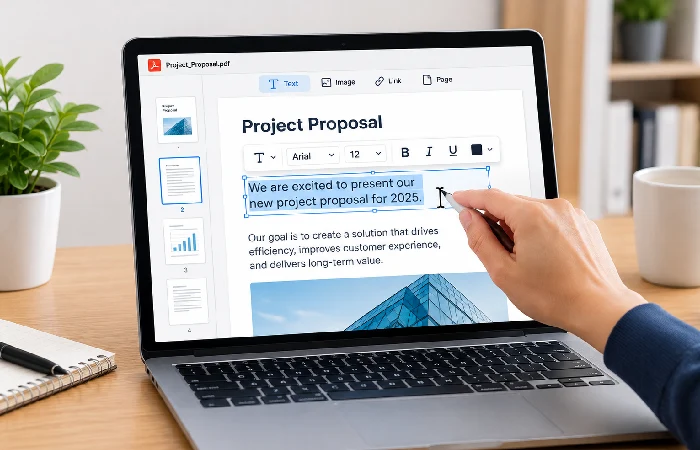
For a text-based PDF, direct editing is usually the simplest approach.
Step 1: Open the PDF in an editor
A tool that supports actual content editing. Open the PDF with that. A basic PDF viewer may allow you to read a document. Comment on it, or fill it out. Changing its existing text is another matter.
Step 2: Open the text editing tool
Look for an Edit or Edit PDF function. Select the text you want to change.
For example, Adobe Acrobat’s current workflow uses the Edit tool to select existing text and replace it. Add new text, modify formatting. Its documentation also explains that scanned PDFs can be processed with OCR so their text can become editable. Adobe’s PDF editing and text-editing documentation provides the current workflow and limitations.
Step 3: Replace or add text
Click the existing text and make your correction. You can also add new text where needed.
Depending on the editor, you may be able to change:
- Font
- Font size
- Text color
- Alignment
- Line spacing
- Basic text formatting
Adobe notes that font availability can affect editing. Required font not installed. Some font changes may be restricted.
Step 4: Check the surrounding layout
After changing text, look at the rest of the page.
A small change can shift things. Spacing, alignment, the position of nearby elements. Check headings, paragraphs, tables, images, and page breaks. Before moving on.
What if the PDF is scanned?
A scanned PDF may contain page images. Not selectable text. You generally need OCR (Optical Character Recognition) first. Then you can edit the recognized text.
Adobe explains that Acrobat can apply OCR to scanned documents. Editable PDF copies come out of it. Adobe also recommends reviewing OCR results, since recognition errors can occur.
For a scanned document, the basic workflow is:
- Open the scanned PDF.
- Run OCR.
- Review the recognized text.
- Correct the required text.
- Check the layout.
- Save the edited PDF.
How to Add, Delete or Rearrange PDF Pages
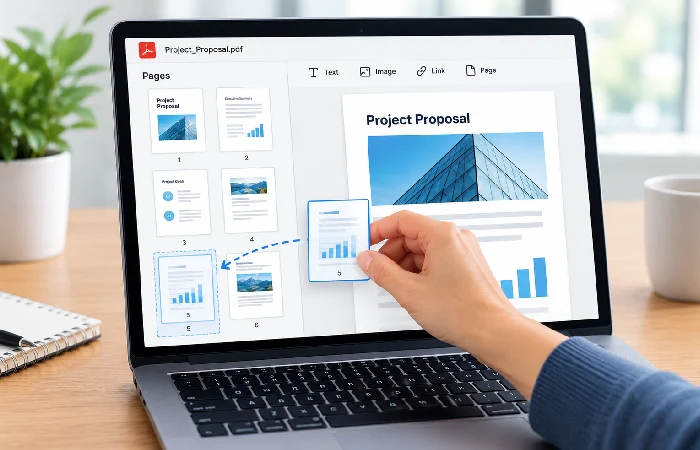
Sometimes the content on individual pages is fine, but the document structure needs to change.
A PDF page-management tool can usually help you:
- Add pages
- Delete unwanted pages
- Move pages
- Rotate pages
- Extract pages
- Replace pages
Add a page
Open the page-management or organize-pages tool and choose where the new page should appear.
In Acrobat on the web, for example, the Organize pages workflow supports inserting pages from another file.
Delete a page
Select the unwanted page from the thumbnail view and choose the delete option.
Before doing this, check the page number carefully. Deleting the wrong page can remove content that you need later.
Rearrange pages
Page thumbnails make this task straightforward. Select a page and drag it to the required position.
Acrobat’s current desktop documentation describes moving pages by dragging their thumbnails to a new location.
Rotate a page
A scanned page that’s sideways or has the wrong orientation. Use the page-rotation control. Not the option that rotates the entire document view.
Acrobat supports rotating selected pages 90 degrees left or right.
Tip: Keep a copy before changing page structure
If you are making several structural changes, save a copy of the original first. This gives you a clean version to return to if you remove or rearrange something incorrectly.
How to Add Images and Links to a PDF
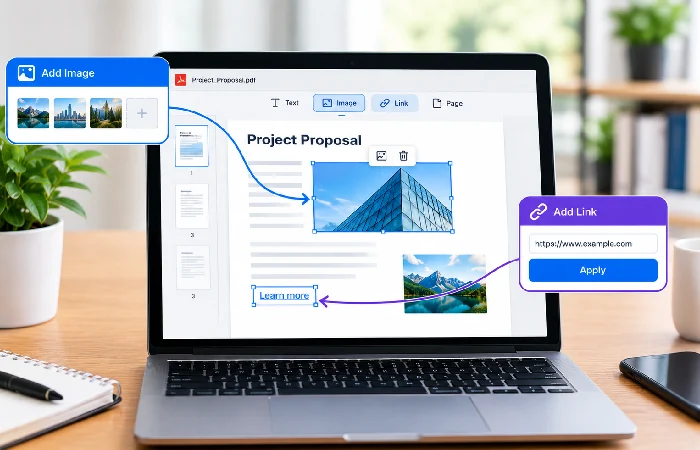
PDF editing is not limited to text. You can also update visual elements and make parts of the document interactive.
Add or replace an image
Select the image-editing tool and choose the image you want to modify.
Depending on the editor, you may be able to:
- Move the image
- Resize it
- Rotate it
- Crop it
- Replace it
- Delete it
- Adjust its position relative to other objects
Adobe’s current documentation supports these types of image and object changes in Acrobat.
Replacing an image. Check its size and position carefully. A different aspect ratio or resolution in the replacement image. That may change the visual balance of the page.
Add a clickable link
To add a link, use the editor’s link tool and select the area that should become clickable.
PDF links can point to:
- A web page
- Another location in the same PDF
- A file or other supported destination
Adobe’s current Acrobat documentation describes adding a link by selecting the link tool, drawing the clickable area, and choosing the link action.
After adding a link, test it before sharing the PDF. A link that looks correct on the page can still point to the wrong destination.
How to Save an Edited PDF Without Breaking Formatting
Saving the file is the final step, but it should not be treated as an afterthought.
1. Save a new copy
The original PDF is important. Use Save As or another option that creates a separate copy. Don’t immediately replace the original.
A backup, in case the edited version contains an unwanted change.
2. Review every edited page
Check:
- Text alignment
- Fonts
- Images
- Page breaks
- Page order
- Links
- Headers and footers
- Tables
- Blank pages
This is especially important after converting a PDF into another format.
3. Be careful when using Microsoft Word
Microsoft Word can open a PDF. Convert it into an editable Word document, too. Microsoft says this works best with PDFs that are mostly text. The converted document may not have a perfect page-to-page correspondence with the original. The Microsoft Support guide to editing PDFs in Word explains the conversion process. Plus its formatting limitations.
Word is useful when you need to substantially rewrite a mostly text-based PDF. Direct PDF editing can be preferable. When preserving the original layout is important.
4. Export or save the final PDF
Checking the document done. Save or export the final version as a PDF.
Used Word? Review the exported PDF again. Don’t assume the conversion preserved everything exactly.
5. Check signatures and security restrictions
Some PDFs have restrictions that prevent editing. Digitally signed PDFs can also behave differently when changes are made.
Adobe notes that certain restrictions apply to secured or signed PDFs. Its saving documentation warns that saving changes to a digitally signed PDF can invalidate the signature.
A signed or protected document. Check its permissions before attempting major edits.
Final Checklist Before Sharing an Edited PDF
Use this quick check before sending the finished file:
- The required text changes are correct.
- New text matches the surrounding formatting.
- Images are correctly positioned and sized.
- Pages are in the correct order.
- Unwanted pages have been removed.
- Links open the correct destinations.
- Scanned text was checked after OCR.
- No unexpected blank pages were created.
- The final PDF opens correctly.
- The original PDF has been kept as a backup.
If you regularly work with PDFs on Windows, the site’s PDF editor for Windows guide can help you explore workflows specific to that platform.
Bottom line
The easiest way to edit a PDF? Match the method to the type of change you need. Use a PDF editor for direct text, image, page, and link changes. OCR when the PDF is a scan. Plus consider Word when you need to substantially rewrite a mostly text-based document. Review the finished PDF before replacing or sharing the original. Whatever method you choose.
