Published: September 24, 2026
Last Updated: September 24, 2026
Quick Answer: One master password is all you need to remember. An encrypted vault for everything else. Each account gets its own generated password, saved and filled in at login. No reuse, no memorizing 30 different strings.
Password reuse is how most people get into trouble. NIST actively recommends password managers because they keep a different password for every service you use. One leaked credential from a breach shouldn’t unlock everything else you own. Attackers count on it. Password stuffing works exactly because people reuse the same credentials across sites. A manager prevents that by default. Learn more from NIST’s password manager guidance.
What is a password manager and how does it work?
Your passwords, usernames, and login details go into a protected vault. Most managers also generate passwords and fill them in automatically. Open a supported site or app and it handles the sign-in.
The basic process is simple:
- You create an account with a password manager.
- You create a strong master password or other primary method of unlocking the vault.
- You save existing login details or import them from another password store.
- Credentials you save go into the protected vault.
- On a supported site or app, the manager can offer to autofill your saved login.
- When creating a new account, it can generate a unique password for you right there.
Different password for every service, every account. One exposed credential stays contained. It doesn’t automatically unlock anything else you have.
Reusing passwords is how one breach turns into several. Attackers call it credential stuffing. They pull credentials from one breach and test them across other sites, fast. Every account sharing that password is suddenly in play. A password manager prevents that by giving each account its own generated password. NIST’s digital identity guidance makes the same point, noting password managers help users keep distinct credentials across different services.
What can a password manager store?
Depending on the product, a password manager may store:
- Usernames and passwords
- Website addresses
- Secure notes
- Payment information
- Wi-Fi credentials
- Recovery information
- One-time password codes
- Passkeys or other authentication information
Features vary by product. Check the provider’s documentation before assuming something is included.
How does the password vault work?
The vault is where your saved information is stored. Password managers differ in the technical design behind it. Some use local storage, some sync to the cloud, and some combine both.
A cloud-based manager can make the same vault available across supported devices. A local manager may keep the vault primarily under your control on a particular device or storage location.
The cloud question is often a distraction. More important is how the provider actually protects the vault. Check the encryption method. Look at recovery options too, and what the provider does if your account or device gets compromised.
Many dedicated password managers describe their design as “zero knowledge,” meaning the provider can’t read what’s inside your vault. Not universal, and not a complete security guarantee. Encryption methods, account recovery, emergency access, metadata handling, and administrative controls all differ between providers. Review the provider’s current security documentation before choosing.
Are password managers safe to use?
Using a long, unique password for every account is a lot easier when a manager handles it. Less reuse across the board. Not risk-free, though. Your password-manager account can still be targeted through phishing or malware. A stolen device hands it over too. Weak recovery settings and a provider security incident round out the main exposure points. The goal is not to treat a password manager as perfect protection, but to reduce the much more common risk of weak and reused passwords.
NIST links password managers to stronger security and everyday convenience, mainly because they help people use distinct, stronger passwords. Protecting the manager itself is part of the same guidance. Long master passphrase. Multi-factor authentication where the provider supports it. CISA goes further and directly recommends a password manager for creating and saving long, random, unique passwords.
One vault holds a lot. That makes a password manager a high-value target.
A breach at the provider level doesn’t hand attackers every saved password automatically. In many designs, vault contents are encrypted and require the vault-unlock secret to decrypt. However, the level of protection depends on the provider’s architecture, the strength and uniqueness of the master password, the account’s MFA settings and the security of the devices used to access the vault. This is why choosing a unique master password and enabling MFA are essential.
Protecting the account that unlocks the vault is therefore especially important.
What makes a password manager safer?
Password managers differ more than most people expect. The vault protection matters, and so does how the account itself is secured:
- A documented encryption and security design
- A long, unique master password or passphrase
- Multi-factor authentication, ideally with a phishing-resistant method when available
- Secure device and session management
- A password generator for long, unique passwords
- Alerts for weak, reused or exposed credentials
- Clear recovery, emergency-access and account-lockout options
- Regular security updates and active support for your devices and browsers
- Transparent security documentation, independent audits or public security reports where available
No password manager eliminates every risk. Malware, phishing, a compromised device, stolen recovery codes and unsafe account-recovery practices can still put accounts at risk.
How should you protect the master password?
Everything in the vault depends on one password. Don’t reuse it. Email, banking, work, social media, none of those count as exceptions.
Go long with the passphrase. Several unrelated words stick better than a short password packed with symbol substitutions. CISA’s baseline is 16 characters. Long, random, and unique is what they recommend.
The password-manager account needs multi-factor authentication. Passkeys or hardware security keys are worth using if the provider supports them. They’re harder to beat with phishing than SMS verification alone.
Check the recovery options before you actually need them. Recovery kit, backup codes, emergency-access details. Store them somewhere secure and separate from the vault.
Important: With some password managers, a forgotten master password is gone for good. The provider never holds the decryption keys. There’s nothing to reset from. Before moving every login in, know how recovery works. Set up emergency access or backup recovery information if the service offers it.
Password managers for families and businesses
Password managers can be useful when several people need controlled access to selected shared credentials. However, family and business plans solve different problems. A family plan usually focuses on private individual vaults, shared household items and recovery options, while a business plan should provide administration, access controls, employee onboarding and offboarding, and visibility into shared company credentials.
A shared vault or family plan lets members share specific passwords without opening everything to everyone. Household services, shared subscriptions, shared accounts, and emergency access. Those are the common reasons families use one.
Business use brings more requirements. Access controls alone cover user accounts, role-based permissions, and shared credentials. Add onboarding and offboarding workflows, audit features, security policies, and central management on top of that. Most teams end up needing all of it.
| Use case |
What to look for |
| Individual |
Password generation, autofill, MFA, cross-device access, recovery options and a security dashboard |
| Family |
Separate private vaults, selected shared vaults, emergency access, account recovery and simple member management |
| Small business |
Team sharing, role-based permissions, administrator controls, employee onboarding and offboarding, and activity reporting |
| Larger business |
Central administration, enforced security policies, audit logs, reporting, directory integration and support for privileged or shared credentials |
Do not assume that a personal or family plan provides the controls required for work accounts. Businesses should choose a product that supports prompt access removal when an employee leaves, limits who can view shared credentials and provides an audit trail appropriate to the organisation’s security needs.
How password managers work with apps and devices
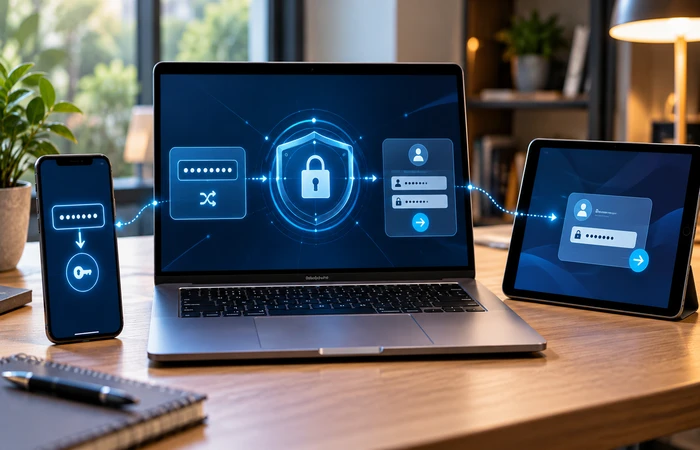
A password manager can work through several interfaces, depending on the product and operating system.
Browser extension
A browser extension can recognise supported login pages and offer to fill stored credentials. It can also generate a new password when you create an account.
Desktop app
A desktop application gives you a separate place to manage your vault. Some products also use the desktop application for additional security functions.
Mobile app
On a phone or tablet, a password manager can integrate with the operating system’s password autofill system. This lets you fill credentials inside supported browsers and apps without manually copying them.
Multiple devices
Cloud synchronisation can keep your vault available across supported computers, phones and tablets. Before relying on this feature, check which platforms the service supports and how synchronisation is protected.
The goal is consistency. Your password manager should let you use unique credentials without making the login process so difficult that you return to password reuse.
Do password managers work with passkeys?
Passkeys are showing up in more password managers now, sitting alongside traditional passwords. It’s a cryptographic credential tied to your device. No password to type, no string to steal. Approving a sign-in works the same as unlocking your phone. Fingerprint, face scan, PIN.
Each passkey is tied to the specific site or app it was created for. A fake website can’t use it. Typed passwords can be captured and reused anywhere, a passkey created for one domain simply doesn’t work on another. The FIDO Alliance’s passkey guidance explains that passkeys use cryptographic key pairs and are designed to be phishing-resistant.
Passkey support still varies. Website, browser, operating system, device, and the specific password-manager plan all factor in. If you’re picking a manager specifically for passkeys, check the provider’s official documentation first. Current support, cross-device syncing, recovery options, and compatibility with your devices.
Password manager vs browser password storage
Browser storage and dedicated password managers both help with reuse. Browser storage isn’t automatically the weaker option either. Modern browsers generate passwords, save them, sync across devices, and flag security alerts.
Scope and control are usually where they split. A dedicated manager is built specifically for credential management. Cross-browser support, secure sharing, separate vaults, secure notes, emergency access, business administration. Those features show up more consistently in dedicated tools.
| Feature |
Browser password storage |
Dedicated password manager |
| Save and autofill website passwords |
Usually available |
Usually available |
| Generate strong passwords |
Common |
Common |
| Browser integration |
Strong within the browser ecosystem |
Usually available through extensions and apps |
| Mobile app autofill |
Depends on the operating system and browser |
Usually available on supported devices |
| Cross-browser support |
Can be limited by ecosystem |
Often broader |
| Secure notes and additional vault items |
Varies |
Common in many products |
| Family sharing |
Limited or ecosystem-dependent |
Available in many family plans |
| Business administration |
Usually limited |
Available in business-focused plans |
| Emergency access and recovery controls |
Varies |
Available with some providers and plans |
| Security monitoring |
Varies by browser and account |
Varies by provider and plan |
One browser, one device ecosystem, and the simplest free option is all you need. Browser storage covers that. Multiple browsers, secure sharing, separate vaults, passkeys across platforms, family or business controls. Those point toward a dedicated manager.
How to start using a password manager
You can move to a password manager without changing every account at once.
1. Choose the type of manager you need
Browser-based storage, a dedicated manager, a local solution. Pick whichever fits your setup. Device count, sharing needs, secure notes, cross-platform access. Factor those in before deciding.
2. Create a strong master password
Long, unique, and not used anywhere else. That’s the baseline for a master passphrase. Several unrelated words hold up better than a short password loaded with symbol substitutions.
3. Turn on multi-factor authentication
Enable MFA for the password-manager account if the provider supports it. Another layer on top of the master password. Passkeys and hardware security keys are worth considering where available. Keep recovery codes somewhere secure and outside the vault.
4. Configure recovery and emergency access
Check what happens with a forgotten master password, lost device, or locked account before you need to know. Some services can’t reset a forgotten master password at all. The provider simply doesn’t hold the keys to your vault. Emergency access, trusted contacts, recovery kits, backup codes. Set these up if the service offers them. Store everything separately from the vault. You’ll need it precisely when you can’t get in.
5. Import your existing passwords
Most managers can pull in credentials from browsers or another manager directly. After the import, go through what came in. Delete what you no longer use. Flag any password showing up across multiple accounts.
6. Replace reused passwords
Email, financial services, work accounts, cloud storage. Start there. Generate a fresh password for each one. One exposed credential stops at that site instead of spreading.
7. Use autofill carefully
Autofill saves time. It won’t catch a fake login page for you. Check the address before signing in. Trusted link, bookmark, official app. Stick to those three. Any page that suddenly asks for your master password, recovery code, or MFA code mid-login is worth stopping on. Legitimate providers don’t reach out for that through unexpected emails, pop-ups, or unrelated sites.
8. Review your security settings
Come back to the security settings periodically. MFA, recovery options, active sessions, trusted devices, security alerts. Check those where the features exist.
What are the main benefits and limitations?
Most people end up reusing passwords because creating and remembering a different strong one for every account isn’t realistic. A password manager solves that.
Benefits
- Generates unique passwords
- Reduces password reuse
- Stores credentials in one protected vault
- Makes long passwords easier to use
- Provides autofill
- Can work across multiple devices
- May provide security alerts
- Can support family or business sharing
Limitations
- The vault becomes a valuable target
- Losing access to the account can be disruptive
- Recovery options differ between services
- Some features require paid plans
- Compatibility can vary between websites and apps
- Malware or a compromised device can still create risks
- No password manager protects against every type of attack
A password manager is one part of account security, not the whole picture. MFA, software updates, device security, phishing awareness. Those belong in the same stack.
Common password manager mistakes
Reusing the master password
Never use your password manager’s master password anywhere else.
Skipping MFA
If your provider offers an appropriate MFA option, leaving it disabled removes an additional layer of account protection.
Ignoring recovery and emergency-access settings
Forgotten master password, lost device, unavailable MFA. Any of those can lock you out of the vault completely. Go through the recovery options before the password manager becomes your only way into every account. Keep recovery information somewhere secure and outside the vault.
Saving every credential without reviewing them
Old accounts and duplicates pile up. They make the vault harder to work with over time. Go through saved credentials periodically and clear out what you no longer use.
Assuming autofill makes every website safe
Autofill handles the typing. It won’t flag a malicious site for you. Check the domain before signing in.
Ignoring security alerts
A warning that a credential has been exposed or reused needs attention, not a dismissal. Look into it.
Choosing based only on price
Free works fine for some people. Cross-device support, family sharing, business administration, additional security features. Those needs push toward a paid plan. Compare what you actually need against the subscription cost before deciding.
Frequently asked questions
1. What is a password manager?
Stores login credentials in a protected vault. Most also generate unique passwords and autofill saved credentials on supported websites and apps.
2. Are password managers safe?
Reputable ones make it easier to use a different strong password for every account, which reduces overall exposure. Not risk-free, though. Phishing, malware, compromised devices, unsafe recovery settings, provider security incidents. Any of those can still create a problem. Use a long, unique master passphrase. Enable MFA. Go through the provider’s security and recovery documentation first.
3. Is it better to use a password manager or save passwords in a browser?
No automatic answer fits everyone. Browser storage is convenient and built in. Dedicated managers tend to go broader. Credential management, sharing controls, cross-platform support. What you actually need decides it.
4. Can a password manager be hacked?
Password managers can be attacked like any other software or online service. No system is completely risk-free. Encryption, strong authentication, secure recovery, and regular security updates. All of it matters here.
5. What happens if I forget my master password?
Some password managers can’t reset it. The provider simply doesn’t hold the information needed to decrypt the vault. Before relying on a password manager for every account, know how recovery works. Emergency access, a recovery kit, trusted contacts. Set those up if the service offers them.
6. Do password managers support passkeys?
Many do now, alongside traditional passwords. Passkeys are tied to the specific site or app where they were created. That’s what cuts the phishing risk. Support still varies. Provider, browser, device, and website all factor in. Check the provider’s current documentation first, especially if you’re planning to use passkeys across every device.
7. Should I use the same password for my password manager and email?
No. The master password needs to be unique. Reusing it for email puts both accounts at greater risk if either one is compromised.
8. Do password managers work on phones?
Most support mobile devices and can plug into the operating system’s autofill features where supported. Check the provider’s current compatibility information for your specific device.
9. Are free password managers good enough?
For basic individual use, often yes. Paid plans add things like multi-device support, family sharing, secure sharing, and business administration. Whether that’s worth it depends on the provider and what you actually need.
The safest way to use a password manager
The biggest gain comes from using a different long, random password for every account. Primary email, financial services, work accounts, cloud storage, social media profiles. Start there. Work through the rest gradually, replacing reused passwords as you go.
Keep the vault locked down. Unique master passphrase, MFA, secure recovery settings. Update your devices. Check the website address before signing in. Act on any alerts about exposed or reused passwords.
Online risk doesn’t disappear with a password manager. What it does is make secure password habits easy enough to actually keep up.
