Definition: Your computer slows down for no reason. Your antivirus software gets disabled, sometimes without you touching it. Pop-ups start showing up, or your browser settings change on their own. Those are the clearest signs something’s wrong.
Virus Signs at a Glance
| Sign |
What It Usually Means Alone |
When It’s a Stronger Virus Signal |
| Slow performance with no heavy programs running |
Could be an aging drive or too many startup apps |
Confirmed by checking Task Manager or Activity Monitor for a process using unusually high CPU with no name you recognize |
| Frequent crashes or blue screens |
Can happen from a bad driver update alone |
Becomes a red flag when it starts suddenly and repeats multiple times in the same day |
| Hard drive active while the computer is idle |
Background OS updates can cause this occasionally |
Persistent activity with nothing scheduled running points to malware communicating in the background |
| Unexpected pop-ups or new toolbars |
A single stray pop-up from a sketchy site visit isn’t unusual |
Recurring pop-ups appearing outside your browser session are a near-certain infection marker |
| Antivirus software disabled or won’t open |
Rare software conflict on its own |
Malware frequently disables security tools first, so this alone justifies an offline scan |
| Browser homepage or search engine changed without you doing it |
Sometimes caused by a bundled installer you clicked through too fast |
Combined with new extensions you didn’t add, this points to a browser hijacker |
The Real Signs Worth Taking Seriously
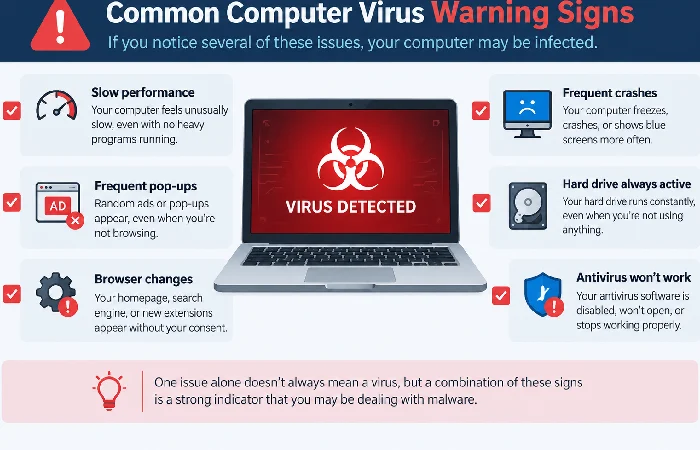
Not every glitch means infection. But a specific cluster of behaviors does. Surfshark tracks over 1.2 billion malware programs circulating globally right now. Add roughly 450,000 new ones every single day and no antivirus catches everything. Knowing the symptoms is still your best backup.
Here’s what actually deserves your attention: your computer slows down with nothing heavy running. It crashes repeatedly in a single day. Your antivirus won’t open. Your browser homepage changes on its own. One of these by itself might be nothing. Two or more together, especially disabled security software paired with anything else on this list, means it’s time to check. A Reddit thread of IT professionals flagged strange windows during boot and hard drive activity while the machine sits idle as two of the more reliable tells. Generic listicles tend to skip both entirely.
Why Your Computer Slows Down or Crashes
Malware eats CPU and memory. Something’s mining coins back there, or firing off spam, or checking in with a server somewhere. Ctrl+Shift+Esc gets you Task Manager on Windows. Got a Mac? Activity Monitor does the same job. Sort by CPU. Something you don’t recognize sitting above 20-30% while the machine’s otherwise idle? Worth a look.
Crashing follows a similar pattern. A stray crash once a week is just wear and tear. Multiple crashes or a blue screen in the same day is a different story, especially if it started right after you noticed the slowdown. Norton points out that malware can hog enough resources to destabilize the whole machine. Not just whatever app happened to be open. Restarting doesn’t fix it and it keeps happening? Don’t wait it out.
Pop-Ups and Browser Changes Explained
A pop-up that shows up outside your browser, while you’re not even online, isn’t a normal ad. Legitimate sites don’t work that way. Malware generates these to push you toward fake antivirus downloads or to redirect ad traffic for profit. Clicking them tends to make things worse, not better.
Browser hijacking runs on the same logic. If your homepage or default search engine changed and you didn’t touch a single setting, something installed itself without asking first. Check your extensions list. A lot of hijackers ride in bundled with free software installers you clicked through too quickly. New toolbars you never added are the same story. Reset your homepage manually and clear out anything unfamiliar before assuming a deeper infection. This step alone clears a surprising number of cases.
How to Check for a Virus Without Guessing
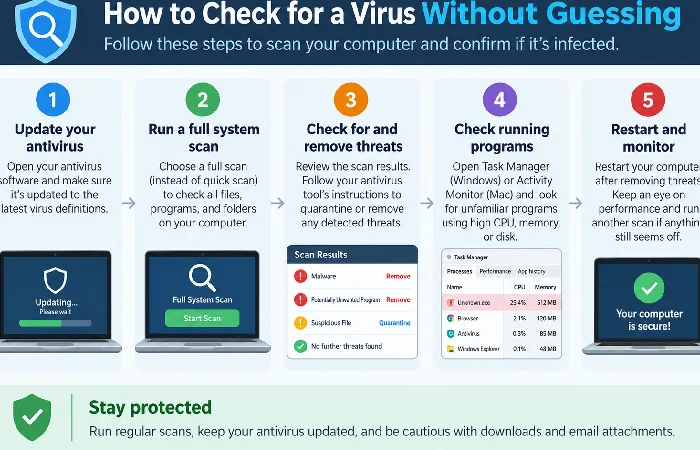
Most guides stop at “run your antivirus.” That’s fine until your antivirus won’t open, which Panda Security calls one of the more reliable signs of infection on its own. Here’s what to actually do:
- Check Task Manager or Activity Monitor for unfamiliar high-CPU processes.
- Try opening your antivirus. If it won’t launch, or it looks disabled, that’s a signal.
- Boot into Safe Mode. It loads only essential system processes, which can stop malware from running while you scan.
- Run a scan with an offline scanner if your regular antivirus is compromised. Offline tools bypass software the malware may have already shut down.
- Check your browser extensions. Remove anything you don’t recognize.
This sequence still works when your normal antivirus is the thing that’s broken. That’s the exact situation most competing guides never address.
What to Do After You Confirm an Infection
Pull the Ethernet cable, or kill the Wi-Fi. That’s step one, it keeps malware from spreading further across your network and cuts off whatever it’s been sending out. Run your scan next. Remove what it finds. Change your passwords too, but do that from a different, clean device. Not the infected one.
Phishing get you in the first place? Learn to spot one before it lands and go back through how this one slipped past you. Viruses dig through saved passwords and personal files while they’re in there. Worth locking things down once you’re clean — how to lock down your personal information online is a good next step.
Frequently Asked Questions
1. Is a slow computer always a virus?
No. Aging hardware, too many startup programs, a full hard drive — any of these can slow things down on their own. Check Task Manager for an unfamiliar high-CPU process before you jump to assuming infection.
2. How do I check for a virus without antivirus software?
Safe Mode comes first. Nothing else matters until you’re in it. Once there, dig through Task Manager or Activity Monitor, anything unfamiliar is worth a second look. A reputable offline scanner picks up what your eyes miss. Your regular antivirus doesn’t even need to be working for any of this.
3. Can a browser redirect happen without malware?
Occasionally. A bundled installer can change your homepage without technically being malicious. But paired with new extensions you didn’t add, it usually points to a hijacker.
4. What’s the difference between a virus and other malware?
A virus needs a host file or program to spread. You’ve got to do something too, open an attachment, say. Ransomware works differently. So does spyware. Trojans too, each one’s got its own way of operating once it’s inside.
For the full picture on staying protected, visit the internet security hub.
