Published: September 25, 2026
Last Updated: September 25, 2026
Quick Answer: PC backup software makes protected copies of your files, folders, or your whole system. Recover them later. Deletion, hardware failure, corruption, whatever went wrong. The right pick depends on your situation, file backups, system recovery, local storage, cloud protection, or some mix of these.
Manual copying only goes so far. That’s where this kind of software earns its place. A good setup matches the method to what actually needs recovering. Just documents and photos on your mind? File backup probably covers it. Rebuilding Windows, apps, and settings from scratch instead, and that taking real time? Then system or volume-level backups are what to look for.
Windows isn’t starting from zero here. Windows Backup handles selected files, settings, apps, and other info through a Microsoft account. File History works differently, keeping previous versions of personal files on an external drive or network location.
So it’s not really about grabbing copies of everything. What needs restoring, where it lives, how often it runs, that’s the actual decision.
Local storage. Network storage. Cloud destinations. Wherever it lands, the job is the same: keep files, folders, or a full Windows system recoverable when something goes wrong.
Why should you use PC backup software?
Manual copying isn’t really a plan. PC backup software gives you something repeatable instead. Deletion, corruption, hardware dying, a serious Windows problem, any of these, and a backup is what gets you out of it.
Microsoft actually splits this into three separate things in its backup, restore, and recovery in Windows documentation. Backup makes the copy. Restore pulls that data back. Recovery is the bigger one, covering broader system-repair situations altogether.
That same documentation covers File History too, how it automatically protects personal files, documents, photos, and videos, without you doing much.
The first decision is what you actually need to recover.
| Backup need |
What to look for |
Suitable when |
| Personal files |
File and folder backup |
You mainly need documents, photos, videos, and projects |
| Previous file versions |
Versioned or continuous file backup |
You regularly edit important files |
| Complete PC recovery |
System or volume-level imaging |
Rebuilding Windows and applications would take too much time |
| Off-site protection |
Cloud backup |
You need a copy away from the computer |
| Local recovery |
External-drive or network backup |
You want a nearby copy without depending on internet access |
| Mixed protection |
Local plus cloud destinations |
You want different recovery options |
Windows Backup covers selected files, settings, apps, and related information, useful stuff. Don’t mistake it for a full system-image backup, though. It isn’t one.
Microsoft’s own documentation backs this up. The focus there is protecting selected data and settings specifically. Restoring them on another Windows PC, that’s the scenario it’s built around.
For a broader look at the built-in Windows options, see the site’s guide to Windows backup software.
What should you back up on your PC?
Start with what can’t be replaced. Personal documents. Photos. Videos. Work files, project folders too, anything not already backed up somewhere safe.
Desktop, Documents, Pictures, Videos, Music, these are the common folders Windows Backup can protect through OneDrive, once folder backup’s turned on. There’s a cross-device angle too. Microsoft’s documentation covers this separately: selected folders stay available across whatever devices you’re using, not just the one they were backed up from.
A practical backup scope includes:
- Documents and work files
- Photos and videos
- Desktop files
- Important project folders
- Local files that are not already safely stored elsewhere
- Application data when the software supports backing it up
- A system or volume image when complete recovery is important
Don’t assume that syncing and backup are identical. A synced folder reflects changes across locations, while backup software may retain separate recovery copies or versions. Microsoft describes OneDrive as a synchronization service that can also provide folder backup, so the way it is configured matters.
Windows installation files? Not a personal backup priority, not really. Ask something more useful instead: what would you actually need if this PC died tomorrow?
Irreplaceable personal data comes first, that’s usually the answer. After that, whatever would take real time or effort to rebuild.
Local vs cloud PC backup
Local and cloud backup solve different storage problems. A local backup places a copy on storage you control, such as an external drive or network location. A cloud backup stores the copy away from the physical PC and can make it accessible through an internet-connected service.
| Factor |
Local PC backup |
Cloud PC backup |
| Storage location |
External drive, NAS, or network location |
Remote cloud infrastructure |
| Internet required for backup |
Not necessarily |
Yes |
| Recovery access |
Depends on having the storage available |
Depends on internet and service availability |
| Physical separation |
Usually limited unless the drive is stored elsewhere |
Built in |
| Large initial backup |
Usually practical over a local connection |
Can take longer because data must upload |
| Best fit |
Local recovery and direct control |
Off-site protection and access |
Microsoft’s File History documentation shows how a Windows PC can use an external drive or network location to automatically protect personal files and restore previous versions.
Cloud storage can also protect selected folders. With OneDrive folder backup, supported Windows folders can be synced to the cloud and accessed from other devices using the same account.
Full PC backup is different, though. Check exactly what the software can pull back. Do that before trusting it with anything. Veeam Agent for Microsoft Windows offers three modes here. Entire-computer. Volume-level. File-level. Which one applies depends on what you pick. Destinations vary too. Removable storage works. Network shares as well. Cloud or object storage rounds it out.
The key distinction is recovery scope. A cloud copy of selected documents is useful if you lose a document. A complete system image serves a different purpose when you need to rebuild the computer itself.
How often should you back up your computer?
The right backup schedule depends on how much recent work you can afford to lose. A computer used for daily work needs a different schedule from a PC that stores occasional photos and documents.
Files that change a lot need more frequent backups. Simple as that. Skip too many days between runs and recent work is what’s at risk of going missing.
Dell’s own backup guidance weighs in here. Daily or weekly works fine for many users, it says. Data changing constantly, though? That’s when more frequent or continuous backup starts making more sense.
A simple starting point is:
| PC usage |
Starting schedule |
| Everyday work and documents |
Daily |
| Frequently changing project files |
Several times per day where supported |
| Photos or media imported in batches |
After important imports or on a regular schedule |
| Occasional home use |
Weekly may be sufficient |
| System image |
Create before major system changes and maintain according to your recovery needs |
Consistency is what actually matters here. A backup plan sitting untouched on paper doesn’t protect anything. One that actually runs, on its own, on schedule, does.
Also check whether the backup destination is actually available. Microsoft’s File History troubleshooting guidance notes that an external backup drive must be connected for backups to run successfully.
How to choose PC backup software
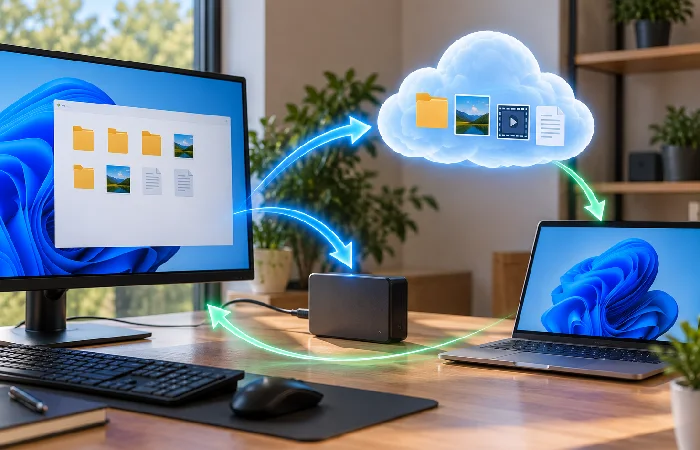
Pick backup software around the recovery you’ll actually need, not the feature list. Feature lists tend to look alike anyway. What really separates one from another comes down to a few things, what it backs up, where that copy ends up stored. How scheduling works. What you get back on the recovery side.
Check the backup scope
Start here: does it back up individual files? Folders? Whole volumes? Or the entire computer? Worth knowing before anything else.
Veeam Agent, again, is a useful reference point. It documents these as separate modes, not one blended option. Go entire-computer and you’re covering the system plus whatever data a broader recovery would need. File-level is narrower. Selected folders, selected files, nothing beyond that scope.
Check the destination options
Match the destination to your setup, that’s the real requirement. An external HDD or SSD might fit. A network share, a NAS, cloud storage, all possible too, depending on the software.
Veeam’s documentation goes further on this front. Removable storage is listed. Local drives too. Network shares, object storage, Veeam repositories, cloud repositories, the list runs long. Worth checking against what you’ve actually got available.
Look for scheduling
Backup software should let you automate jobs when regular protection matters. Veeam, for example, provides scheduled backup jobs and lets users define when the backup runs.
The exact schedule should follow your data-change rate rather than simply choosing the shortest available interval.
Check recovery options
Backup quality is ultimately tied to recovery. Look for software that clearly explains how you can restore individual files and, when supported, recover an entire computer.
Veeam also provides recovery media that can boot a Windows recovery environment and support recovery when the operating system cannot start normally.
Check version history and retention
If a file becomes corrupted or is accidentally changed, having only the newest copy may not be enough. Look for versioning or retention controls when your workflow requires earlier copies.
Windows File History is one example: Microsoft describes it as saving copies of files so previous versions can be restored.
Check compatibility with your Windows version
Don’t choose software only because its name includes “backup.” Check its current documentation for the Windows versions and storage environments you use.
Microsoft’s current backup documentation covers both Windows 11 and Windows 10. Worth flagging, though: Windows 10 support itself ended October 14, 2025, according to Microsoft’s own support pages.
Test the restore process
Never restored it? Then don’t trust it, plain and simple. Know how to pull back a single file at minimum. Relying on system imaging too? Understand the full recovery process before you need it, not after.
Recovery media matters more than people think for image-based backups. A failed Windows installation can lock you out of starting the OS normally, and that’s exactly the scenario it’s meant for. Veeam covers this specifically, both for a Windows-won’t-start situation and for bare-metal recovery generally.
Common PC backup mistakes
The most common problems are usually setup problems rather than a lack of backup software.
Same internal drive, every time? That backup’s exposed. Drive fails, backup’s gone with it. A separate storage destination is what actually protects against that.
Assuming OneDrive automatically backs up everything can leave folders outside the configured backup scope unprotected. Check which folders are actually included in OneDrive folder backup.
Choosing file backup when you need full recovery can create a gap. If rebuilding Windows, applications, and settings would be a major problem, check whether your software supports system or volume-level imaging.
Never checking whether backups completed can leave you with an outdated copy. Review backup status and investigate failed jobs.
Never testing recovery creates uncertainty when you actually need the backup. Restore a sample file and understand the full recovery process for system backups.
One backup location? That’s a single point of failure, full stop. A local copy plus something off-site covers different risks, not the same one twice.
CISA actually has a name for this: the 3-2-1 backup rule. Three copies of important data, total. Two different types of media for storage. One copy kept off-site, away from the rest.
Frequently asked questions
1. What is PC backup software?
It makes copies of files, folders, volumes, sometimes the entire machine, so you’re not stuck if something goes wrong later. Where those copies live depends on the software. External drives work. Network locations too. Cloud destinations as well, often all supported by the same tool.
2. Is PC backup software necessary?
It is useful when losing your files or rebuilding your computer would cause significant problems. Windows already includes backup and recovery features, but dedicated PC backup software can provide additional backup scopes and recovery workflows depending on the product.
3. What should I back up on my PC?
Anything you couldn’t get back another way. Documents, photos, videos, work files, project data, the stuff with no second copy sitting somewhere else. Major Windows failure worries you specifically? Look for software with system or volume-level backup, that’s what gets you back up faster.
4. How often should I back up my PC?
Two things decide this. How fast your data changes, and how much recent work you’re okay losing if something goes wrong. Daily’s a solid baseline for most active users. Data churning constantly, though? That’s a case for running backups more often than daily.
5. Is cloud backup better than local backup?
Neither covers the same need. Local backup can provide a nearby copy for recovery, while cloud backup provides an off-site copy. Your recovery requirements determine whether one or both make sense.
6. Does Windows have built-in PC backup software?
It does, a few different tools actually. Windows Backup is one, covering selected files, settings, apps, and related info. File History works differently. Previous versions of personal files get saved there, on an external drive or a network location, and you can go back to an earlier version whenever needed.
7. Can PC backup software back up the whole computer?
Some PC backup software can create an entire-computer or system-image backup. For example, Veeam Agent documents an entire-computer backup mode that can capture the computer image for broader recovery.
Choose PC backup software by what you need to restore
The simplest way to choose PC backup software is to start with the recovery scenario. If you mainly need protection for documents and photos, file backup may be enough. If you need to recover a complete Windows installation, look for system or volume-level imaging. If physical damage is a concern, add an off-site copy.
For the wider range of backup options and related topics, visit the site’s Backup Software pillar page.
