Published: September 25, 2026
Last Updated: September 25, 2026
Quick Answer: Backup software makes copies of your files, your system data, whatever you need recoverable. Accidental deletion, hardware failure, corruption, any data-loss event really, that’s what it’s there for. Where the copies land depends on the software, external drive, network location, cloud, sometimes a mix of all three.
Manually copying files? Easy to forget. Easy to miss half of what actually needs protecting. That’s the gap backup software fills. What you actually need matters here too, individual files, whole folders, an entire Windows install, or data scattered across several devices.
Windows isn’t starting from zero, either. Windows Backup and File History are both built in already. Third-party tools go further though, disk imaging, scheduled runs, cloning, encryption, cloud storage, and recovery controls that go deeper than the defaults.
Here’s the distinction that actually matters: syncing isn’t backing up. A synced folder keeps files handy across your devices, sure. But a real backup plan needs its own separate recovery copy, sitting apart from whatever you’re actively using.
What is backup software and why do you need it?
Backup software makes copies. Manages when those copies happen, where they land, and how they’re stored. Selected files and folders, sure, but some products go further, a full image of an entire drive.
Why bother at all? The original can fail. That’s really it. Laptop stops working. Drive corrupts. Someone deletes the wrong file by accident.
Recovery needs something to recover from, that’s what a backup actually gives you.
And the type matters, because not every problem gets fixed the same way.
Choose the backup setup that fits your needs
| If you need to protect |
A practical backup setup |
Why it fits |
| Personal files, such as documents, photos, and videos |
Automatic file and folder backup to an external drive, plus an off-site copy of irreplaceable files |
Lets you restore individual files without needing a complete system image |
| A complete Windows PC |
A system image, recovery media, and a separate backup of important personal files |
Helps you recover the operating system, installed programs, settings, and data after a major drive or system failure |
| A large photo or video library |
A local backup with enough storage for the full library, plus an off-site copy of irreplaceable files |
Local storage can make large restores faster, while an off-site copy helps protect against loss or damage at the same location |
| Files that need protection away from home or office |
Cloud backup or another off-site backup destination |
Keeps a recovery copy separate from the computer and nearby storage devices |
| Important files and full-PC recovery |
A hybrid setup that combines local and off-site backups |
Provides faster local recovery while reducing the risk that one local event affects both the computer and its only backup |
| Ransomware recovery |
Versioned backups stored separately from the main computer, with at least one off-site or otherwise isolated copy |
Older recovery points may help restore files damaged or encrypted by ransomware, provided the attacker cannot alter the backup too |
The 3-2-1 rule gets cited a lot. Three copies of the important stuff. Two different types of media. One copy, off-site. NIST backs this too, recommends maintaining and testing backups so they’re actually ready to support recovery when something goes wrong.
Doesn’t mean everyone needs some elaborate backup setup, though. What it does mean: your plan has to account for one thing, that the computer and whatever’s backing it up nearby could both get hit by the same event.
Windows and PC backup software explained

Windows includes several backup and recovery features, but they do different jobs. Knowing what each one does helps you avoid treating file synchronization as a complete backup strategy.
Microsoft’s current Windows documentation describes Windows Backup, File History, and other recovery features as separate tools within Windows.
Windows Backup
Windows Backup can back up selected user folders to OneDrive and save certain Windows settings and preferences to your Microsoft account. Microsoft also documents restoring supported backed-up content when setting up another Windows PC.
This makes Windows Backup useful when your main goal is moving supported files, settings, and apps to another Windows PC.
It has a limitation that matters when planning data protection: the folder backup is tied to OneDrive storage. Microsoft currently provides 5 GB of OneDrive storage with a free Microsoft account, with additional storage available through paid plans.
File History
File History does something different. Microsoft describes it as automatic, saving copies of personal files to an external drive or network location. Restoring earlier versions of those files, is built in too.
Good fit if you’re constantly editing documents or other personal files and want the option to go back to an earlier version.
It should not be treated as the same thing as a full system image. If your goal is complete PC recovery, check whether the backup software you choose supports system imaging and the type of restore you need.
Third-party PC backup software
Third-party PC backup software can combine several functions in one product. Depending on the software, these can include file backup, full disk imaging, incremental or differential backups, scheduled jobs, cloning, encryption, cloud storage, and recovery media.
For example, Acronis documents support for full disk cloning, disk imaging, incremental and differential backups, and multiple operating systems on its current product pages.
The important point is to choose according to the recovery task rather than the number of features listed on a product page.
Automatic, data and cloud backup options
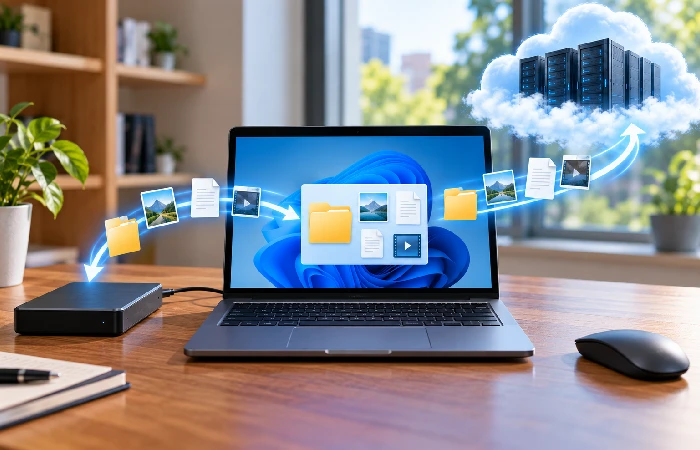
Automatic backup software cuts down on one thing mostly, forgetting. Add a file, change one, the backup just happens. No relying on remembering to do it yourself.
A typical automatic backup workflow looks like this:
- Select the data. Choose specific folders, files, drives, or the whole system.
- Choose a schedule. Depending on the software, backups may run at set times or continuously.
- Choose the destination. This can be an external drive, network location, cloud storage, or another supported destination.
- Set retention rules. Decide how long older backup versions should remain available when the software supports this feature.
- Run the backup. The software creates the backup according to the selected settings.
- Verify recovery. Periodically check that the backup exists and that the required files can actually be restored.
Cloud backup is useful when you need a copy away from the computer itself. Microsoft’s Windows Backup can back up supported folders, settings, apps, and preferences through a Microsoft account, including OneDrive-backed file protection for supported content. Treat this as one part of a broader recovery plan rather than assuming it replaces a separate, tested backup strategy for every file and full-system recovery need.
But cloud synchronization deserves careful attention. Microsoft explains that changes made to synchronized OneDrive files can also sync across the service and devices.
That means you should not automatically assume that a synchronized folder provides every recovery feature offered by dedicated backup software.
Local backup vs cloud backup
Local and cloud backup, different problems, different solutions.
Local first. External drive, network location, a copy sitting right there. No downloading the whole thing from the internet just to access it when you need it.
Cloud’s different. Off-device, which matters most when the computer and whatever’s storing it locally both get damaged, lost, or just unavailable at the same time. Same event, same outcome, unless the copy lives somewhere else entirely.
One destination for everything important? That’s a single point of failure waiting to happen. A second copy, somewhere else, cuts that risk down.
How backup and recovery software protects your files
Backup software protects data by keeping recoverable copies separate from the original working copy. The exact protection depends on the backup type and destination.
For example, file backup software may let you recover a deleted document without restoring an entire computer. System imaging can serve a different purpose by creating a broader recovery copy of a computer.
Versioning can also matter. If a file is changed or overwritten, having older versions available can make recovery easier than relying on the current copy.
Microsoft’s File History documentation specifically describes restoring previous versions of personal files from backup copies.
Backup is only useful if recovery works
A backup that won’t restore when you actually need it? That’s not solving anything.
Check what recovery method the software actually offers, before you rely on it. Individual-file restoration. Folder recovery. Full system restoration. Bootable recovery media, if that’s what your situation calls for.
A practical recovery check is:
- Confirm the latest backup completed.
- Open the backup location or management screen.
- Check that recent files are present.
- Restore a non-critical test file.
- Record where the recovery tools are located.
- Keep recovery credentials or encryption keys available where appropriate.
System backups especially. A backup sitting on a drive doesn’t help much if Windows won’t boot and you can’t even start the recovery process.
What features should you look for in backup software?
The right backup software should match the data you need to protect and the way you expect to recover it.
| Feature |
What to check |
Suitable for |
| Automatic backup |
Scheduled or continuous backup options |
Users who do not want to start backups manually |
| File backup |
Selection of individual folders and files |
Documents, photos, videos, and personal data |
| System imaging |
Full-system or disk-image capability |
Recovering a broader Windows installation |
| Version history |
Ability to keep earlier file versions |
Recovering older copies after unwanted changes |
| Local destinations |
External drive or network support |
Fast local recovery |
| Cloud destination |
Support for online backup storage |
Keeping a copy away from the computer |
| Encryption |
Protection for stored backup data |
Sensitive personal or business information |
| Recovery media |
Ability to start recovery when the normal OS cannot load |
System failure scenarios |
| Backup verification |
Tools for checking backup integrity or recovery |
Users who need confidence that backups are usable |
Longest feature list doesn’t mean the best choice. Not even close. A feature only matters if it actually solves a recovery problem you’re going to run into.
For example, a person who only needs copies of documents may not need disk cloning. Someone replacing a system drive may have a very different requirement.
Full backup, incremental backup and differential backup
Backup software may offer different ways to store changes.
A full backup creates a complete backup according to the selected backup scope.
An incremental backup saves changes made since an earlier backup in the chain. This can reduce the amount of new data that needs to be stored.
A differential backup records changes since a previous full backup. It can require more storage than an incremental approach as more changes accumulate, but recovery can use a different backup chain.
Behavior and restore requirements, none of it’s standard across software. Check the vendor’s documentation before you settle on a backup scheme.
How to choose the right backup software
Start with the recovery problem, not the software brand.
If you mainly need to recover personal files, look for reliable file and folder backup with automatic scheduling and version history.
If you need to recover an entire PC after a major failure, look for system imaging and a recovery process that can work when the normal operating system cannot start.
Working across multiple devices? Cloud backup, or some hybrid mix, probably makes more sense than sticking to local alone. Microsoft’s got this documented, PC folder backup through OneDrive, covering Desktop, Documents, and Pictures.
Use these questions before selecting a product:
- What must be recoverable? Individual files, folders, applications, settings, or the entire PC?
- Where should the backup live? External drive, network storage, cloud storage, or more than one location?
- How automatic should it be? Scheduled, continuous, or manual?
- How far back should recovery go? One recent copy may not be enough if unwanted changes are discovered later.
- Can you recover if Windows fails to start? This is important for full-system protection.
- How is the backup protected? Check encryption, account security, and access controls where applicable.
- Can you test the restore process? Recovery should be part of the selection decision.
Who needs backup software?
Backup software can make sense for anyone with files they cannot easily replace.
It is especially useful when you have:
- Important work documents
- Family photos and videos
- Financial or personal records
- Large collections of files
- A computer that contains years of accumulated data
- A business system that would be difficult to rebuild
The more difficult a file or system would be to recreate, the more attention you should give to recovery planning.
Who may not need third-party backup software?
Built-in tools might already cover it. No separate app needed, if what’s there actually meets your requirements.
Windows, for example, splits it two ways, Windows Backup and File History, each handling different backup tasks.
The real question comes down to this: destinations, scheduling, recovery options, version history, system protection, does what you’ve already got cover all of it, or not?
Buying another application only makes sense when its additional capabilities solve a real limitation.
Common backup mistakes to avoid
One common mistake is keeping every copy in the same physical location. A local backup can be affected by the same event that damages the original computer.
Another mistake is assuming synchronization and backup are identical. A synchronized file service can keep files available across devices, but the recovery features and version history depend on the service and its configuration.
Other mistakes include:
- Backing up only occasionally
- Protecting files but not checking recovery options
- Keeping an external backup drive permanently connected when it does not need to be
- Never testing a restore
- Forgetting older versions of important files
- Choosing software without checking operating-system compatibility
- Assuming cloud storage automatically covers every type of system recovery
The 3-2-1 approach provides a useful planning rule because it separates the copies across media and locations rather than relying on one backup destination.
What to expect from backup and recovery
Backup software cuts down the work, sure. Doesn’t cut out the need to actually make sensible choices, though.
Automatic scheduling helps keep copies current. Multiple destinations can provide protection against local problems. Version history can help with unwanted changes. System imaging can provide a broader recovery path when a computer has a serious failure.
The trade-off is that more protection can require more storage, configuration, recovery planning, or ongoing costs.
A simple setup may be enough for a home user with a small collection of important files. A computer used for work, a large media library, or a business system may need a more deliberate backup structure.
Frequently asked questions about Backup Software
1. What is backup software?
It makes copies of your data. Files, folders, drives, sometimes the whole system. The point is recovery, getting back what’s lost or damaged when the original doesn’t survive. Where those copies end up varies by product. Local drive. Network storage. Cloud. Some products mix several destinations at once.
2. Is backup software necessary for a Windows PC?
Depends on what you’d hate to lose. Windows already covers a lot on its own, Windows Backup and File History. Third-party software isn’t automatically required on top of that.
3. What is the difference between backup and sync?
Backup’s about recoverable copies. Sync keeps things aligned across devices instead. They overlap sometimes. Doesn’t mean they’re interchangeable, not for every recovery situation.
4. Is cloud backup better than local backup?
Neither wins automatically. Local gives you quick access to a copy that’s right there. Cloud keeps a copy off-device, which matters when local isn’t an option anymore. Split them, local and off-site both, and you get broader protection.
5. Does Backup Software protect against ransomware?
It can, if files get damaged or encrypted, a backup’s a way back. How well depends on configuration though, and security. Keep recoverable copies separate from the main system, that’s the real safeguard here. CISA’s 3-2-1 approach specifically calls for an off-site copy, for exactly this reason.
6. How often should I run backup software?
Match it to your data. How often things change, how much recent work you’d hate to lose. Important files changing daily, but backups running way less often? That gap between your latest work and your last backup just keeps growing.
7. Can I use Windows Backup instead of third-party backup software?
Yes, for some needs. Windows Backup covers selected folders, settings, and other supported items, all through Microsoft’s own ecosystem. File History handles personal file versions separately. Whether that’s actually enough comes down to one thing: do you need broader system imaging, other storage destinations, recovery features that go further than what’s built in?
Start with the data you cannot replace
Backup Software is easiest to choose when you start with the files and systems you need to recover rather than a list of advertised features.
For basic file protection, automatic file backup and version history may be enough. For complete PC recovery, look for system imaging and a recovery method that works when Windows cannot start. Want stronger protection against local loss? Keep a copy away from the primary computer, somewhere separate.
Practical next step, three parts. List what’s actually irreplaceable. Pick at least one separate destination for it. Test a restore, before you actually need to rely on it.
