Published: September 14, 2026
Last Updated: September 14, 2026
Phishing is successful against you because the email appears to be from someone you know. It is designed to get you to act quickly without actually stopping to think about it. Take a moment, and look at the real domain name the sender is coming from, as opposed to the displayed names in your inbox, and then hover over any suspicious links. Where are they really going? Is the language demanding, or is there pressure to meet a deadline, or are there details about suspended accounts that you really should look into? You might want to back off if more than one of these three things don‘t check out.
Quick answer: Sometimes fake emails pretend to be real senders check the domain, hover over links, and never do anything rush without verifying the situation.
Definition: “A phishing email is a spurious message that pretends to be from a known and trusted sender that urges you to click on a link or open an attachment or give away sensitive information.”
What Are the Warning Signs of Phishing at a Glance?
The table below breaks down the seven most reliable phishing signals, what to check for each, and the data behind why it matters.
| Signal |
What to check |
Data point |
| Sender domain mismatch |
Compare the domain after the @ symbol to the real one |
Microsoft, Apple, and Google are the three most-spoofed brands, appearing in 22%, 11%, and 9% of brand impersonation attempts |
| Writing quality is no longer reliable |
Don’t judge legitimacy by grammar alone |
AI-written phishing emails reach a 54% click-through rate — on par with human-expert-written scams, and well above the 12% baseline for generic phishing |
| Authentication passes ≠ safe |
SPF/DKIM/DMARC confirm delivery only |
Email authentication checks like SPF, DKIM, and DMARC confirm the message was routed correctly — a compromised legitimate mailbox can still pass all three |
| Link text vs. real destination |
Hover before clicking |
Hovering over a link reveals its true destination in a preview box, without triggering a click |
| Domain authentication gap |
Spoofing risk is widespread |
Only about 18.1% of global domains have DMARC enforcement turned on, leaving over 80% open to direct spoofing |
| Urgency as manipulation |
Pressure is the tell, not the typo |
Most phishing attacks use urgent, time-sensitive language — claims of suspicious log-ins or account payment problems — to stop you from thinking it through |
Methodology: figures are referenced from cited 2026 industry reports and primary vendor/govt sources listed in the text of this paper; figures involving estimates and no clear referent/hidden methodology were disregarded.
What Is a Phishing Email and How Does It Work?
A phishing email pretends to be from a company, coworker, or service you already trust. That’s the whole setup. It wants you to click a link, open an attachment, hand over something confidential, whatever gets the job done. The fonts get copied, the logo, the tone, close enough that nothing looks out of place if you’re moving fast.
Most attacks follow roughly the same shape. Sender looks familiar. Sometimes that’s a spoofed domain, sometimes just something close enough not to notice. From there you get pushed toward a fake login page, a bad attachment, or a reply asking outright for personal information. Broader internet security habits come into play here too, mainly one: treat anything unexpected as unverified until you’ve checked it some other way. Most of these attempts fall apart right there.
That applies to whether the message is a bulk mail scam, or a “spear phishing” email that targets one person using researched personal details; all of the identification steps that follow work for either.
What Are the Most Common Signs of a Phishing Email?
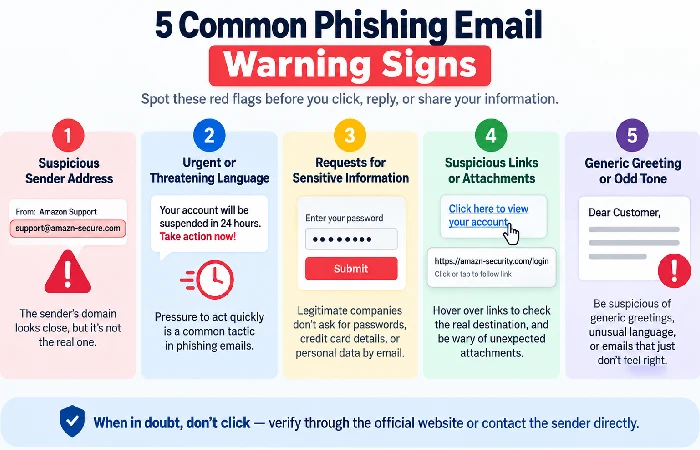
The best indications of phishing emails aren’t spelling mistakes anymore. If you’re looking at sender-domain mismatches, a sense of urgency, and requests for information nobody asked you for, you’re looking in the right place; those tell you more than how well the email is written ever will.
Watch for:
- A sender domain that is close, but not quite right, such as an email supposed to be from Amazon that is actually coming from a free public domain or a slightly changed company domain rather than the real thing.
- Watch for a greeting that’s generic, “Dear Customer” instead of your actual name, especially coming from a company that normally gets your name right.
- And be mindful of the tone. If he seems urgent or aggressive, telling you your account is already being compromised or that they will suspend it, and you have to act now within a limited time period, then consider stopping.
- Unexpectedly received an attachment in particular, an invoice, legal document or shipping notice that you had not requested.
- Requests for sensitive information — passwords, account numbers, or verification codes sent directly through email.
The quality of writing is a less strong indicator than it used to be. CrowdStrike points out that attackers have done in the past, used deliberately bad grammar to screen out the cautious user but generative AI has all but erased that barrier, and a well written email is then just another legitimate indicator.
How to Check Suspicious Links and Email Addresses Safely
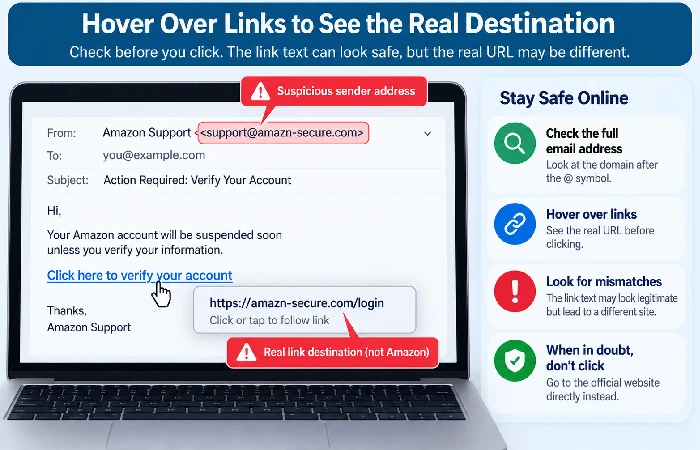
You can further examine a suspicious link or sender address without clicking on anything by examining both prior to actually acting on the message.
For sender addresses:
- Look at the whole domain after the @ not just the display you see when it comes into your inbox.
- Look carefully, character by character, at the domain you know is genuine. That‘s where the counterfeit can sneak in, or put an extra letter somewhere, take one out, switch it at the last moment for a letter that looks similar enough.
For links, Microsoft suggests something simple: rest your cursor on the link, don’t click, and see where it actually goes before you trust it. Link text is just words someone typed, and there’s nothing stopping it from saying one thing while the actual address goes somewhere completely different.
One caveat worth knowing: passing email authentication checks doesn’t guarantee safety. SPF, DKIM, and DMARC confirm that a message was authorized to send from a given domain — they don’t confirm the mailbox itself hasn’t been compromised, so a phishing email sent from a hacked legitimate account can still pass every one of these checks.
What Should You Do If You Receive a Phishing Email?
If you find a phishing e-mail in your inbox. Don‘t be curious. Don’t click the links, don’t open the answer machine, don’t reply… Delete it, then report it.
Here’s the thing about verifying a suspicious request: the FTC’s advice is to call the company yourself, using a number you already know is real, or go to their actual website. Never use whatever phone number or link is sitting in the email. If you can’t confirm it’s legitimate through one of those channels, just leave it alone entirely.
To report it, a few options depending on where it showed up. Most email providers have a “Report phishing” or “Report spam” button somewhere near the sender’s address, that’s usually the fastest route. Landed in your work inbox instead? Send it to IT or your security team so anyone else who got the same message knows to watch for it. And once you’ve reported it, CISA’s guidance is to actually delete it rather than let it sit there. Leaving it around just means there’s a chance you open it again later and click something you shouldn’t.
What to Do If You Clicked a Phishing Link
If you have already clicked on one of these links disconnect from the internet immediately, then change your passwords from another computer that has not been infected in any way.
Take these steps in order:
- Disconnect — turn off Wi-Fi or unplug the Ethernet cable to stop any malware download or data transfer in progress.
- Don’t enter information — if a fake login page is still open, close the tab without typing anything into it.
- Scan for malware — run a full antivirus scan on the affected device before reconnecting it to your network.
- Change passwords — using a different device, update passwords for any account you’re concerned may be exposed, starting with email and banking.
- Report the link — through your email provider’s report tool or to a body like the FTC.
This order matters, says Domininkas Virbickas product director of NordVPN, “because you are using the second secure device to do something; you are not putting your login information on a potentially compromised machine.” If you [believe] a broader set of personal information has been compromised, the best next step after securing your accounts is to learn how to keep your personal information safe online.
Frequently Asked Questions
1. Can a phishing email pass SPF, DKIM, or DMARC checks?
Yes. These checks confirm a message was authorized to send from a domain, not that the mailbox wasn’t compromised — a hacked legitimate account can pass all three while still being malicious.
2. Why don’t phishing emails have obvious grammar mistakes anymore?
The AI generated phishing content has taken over the realm where we once believed bad grammar would always be a tell. An AI generated scam will trick a similar number of people as one well written by a human expert so grammar is no longer a reliable indicator.
3. Is hovering over a link enough to confirm it’s safe?
Hovering over a link shows the correct destination URL before you click. This will reveal most mismatched or look-alike links, but will not reveal a hijacked real domain. Combine this with a sender-domain check for the best result.
4. What’s the difference between phishing and spear phishing?
Phishing is sent to collect information by mass messages disseminated, while spear-phishing seems to be more regarding one person; this is because that person uses personal or work information that they have researched and makes the request more believable.
Check the sender’s domain before you check anything else — it’s the single fastest way to rule an email in or out, and it takes less time than reading the rest of the message.
