Published: September 22, 2026
Last Updated: September 22, 2026
Tasks. Notes. Schedules. Communication. Focused work. That’s what productivity apps for PC are built to handle. Task managers, note-taking apps, calendar software, collaboration platforms, AI assistants, the categories split out from there. The good ones fix one specific problem. They don’t just pile more software onto what you’re already juggling.
Productivity apps for PC are software built for Windows machines. Their job: organize tasks, information, schedules, communication, workflows.
Plenty of people stack up productivity tools and still can’t stay organized. Software isn’t usually the problem. Apps that overlap in features, or just don’t match how you actually work, are. Start with one category instead, the one tied to your biggest productivity headache, and only add more once you’ve solved that.
What are productivity apps for PC?
Work. Study. Planning. Communication. Information. Productivity apps for PC manage all of it. More efficiently than juggling it yourself. Windows ships with built-in productivity tools already. More sit in the Microsoft Store.
| Category |
Main Purpose |
Example Tools |
| Task Management |
Track work and deadlines |
Microsoft To Do |
| Note Taking |
Store information and ideas |
OneNote |
| Calendar Planning |
Schedule work and meetings |
Windows Calendar |
| Focus Tools |
Reduce distractions |
Focus Sessions |
| Collaboration |
Team communication |
Microsoft Teams |
| AI Assistance |
Planning and organization help |
Microsoft Copilot |
Microsoft doesn’t leave these tools scattered. It groups many of them into one connected productivity workflow. Tasks, notes, calendars, communication tools, all of it working together.
What are the most useful productivity apps for PC?
Some categories show up again and again in Microsoft’s own productivity guidance. Task management. Note-taking. Scheduling. Focus. Collaboration. The Microsoft Windows productivity guide lists all five as built into Windows.
Microsoft To Do
Microsoft To Do covers tasks, reminders, recurring activities, and deadlines. Microsoft To Do organizes all of it. My Day handles the daily planning side. Outlook and Microsoft 365 integration keeps commitments organized across both apps.
OneNote
OneNote works like a digital notebook. Information gets organized into notebooks, sections, and pages. Typed notes, voice input, file attachments, collaborative work, OneNote handles all of it.
Windows Calendar
Windows Calendar puts your schedules in one place. View them, search meetings, manage multiple calendar accounts, all from a single interface. Outlook, Google Calendar, other providers, it works with all of them.
Microsoft Copilot
Planning. Summarizing information. Generating ideas. Organizing tasks. Microsoft Copilot brings AI into all four. Not a standalone app, either. Microsoft built it as a productivity assistant woven into Windows workflows itself.
Focus Sessions
Focus Sessions in the Windows Clock app help structure work periods and scheduled breaks. The feature can integrate with Microsoft To Do to connect focus time with planned tasks.
PC apps for tasks, notes and organisation
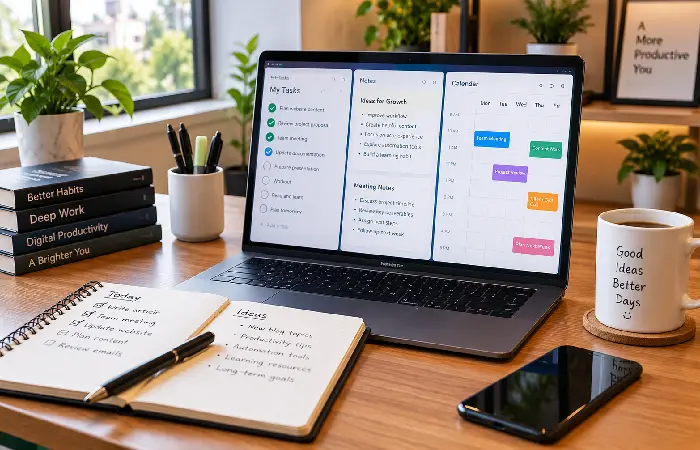
Emails pile up. Documents scatter. Reminders get buried in apps nobody checks twice. Task management and organization tools exist to stop that drift. For many people, three tools cover it: a task manager, a note-taking app, a calendar. Nothing fancier needed.
Students layer it differently. Planning tools paired with note-taking apps, that’s the starting point. Productivity software for students builds on it, covering assignments, deadlines, and study schedules.
A practical setup may include:
- Microsoft To Do for task tracking
- OneNote for research and notes
- Calendar for scheduling
- File Explorer for document organization
Microsoft recommends adopting tools gradually instead of adding multiple apps at once.
Productivity apps for focus and time management
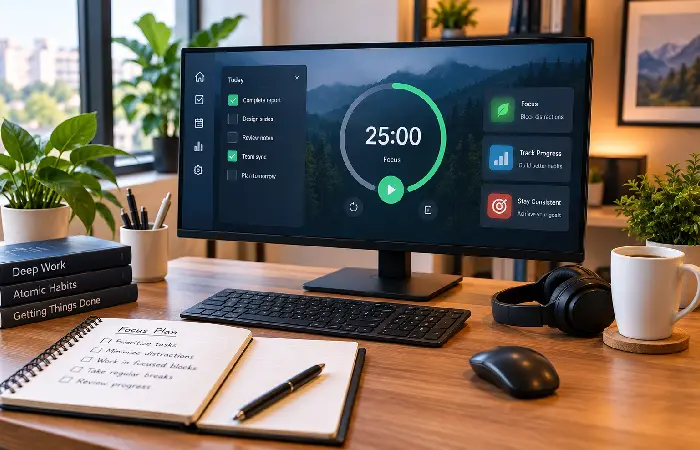
Focus and time-management apps cut distractions. They carve the day into structured work periods instead of one long blur.
Windows already has this built in. Focus Sessions, tucked inside the Clock app. Work intervals, scheduled breaks, tracked focus time, the feature covers all three. Pair it with Microsoft To Do and tasks land inside dedicated work sessions instead of floating separately.
Common focus techniques include:
- Time blocking
- Single-task work sessions
- Scheduled breaks
- Daily task prioritization
These methods often work best when combined with a simple task-management system rather than multiple overlapping productivity tools.
Collaboration and communication apps for PC
Windows collaboration tools mostly trace back to Microsoft 365. According to Microsoft’s Windows app documentation, Outlook, Teams, and OneNote sit among the productivity apps most commonly used on Windows devices.
Teams handles messaging, meetings, document sharing, and team collaboration, four jobs in one app. Outlook’s simpler: email and calendar, combined. OneNote goes a different direction, giving groups shared notebooks they can all edit at once for a shared project. Microsoft counts all three among its primary productivity applications for Windows.
Collaboration tools are especially useful when:
- Working remotely
- Managing group projects
- Sharing documents
- Coordinating schedules
How to choose productivity apps without slowing your PC
The best productivity setup solves problems without creating unnecessary complexity.
Before installing a new tool, figure out the specific task you’re trying to improve. Most people skip this. They end up with several apps that do nearly the same thing.
A practical selection process looks like this:
- Identify the problem.
- Choose one app category.
- Test it for several weeks.
- Add another tool only if a clear gap remains.
Businesses managing multiple workflows may eventually require broader productivity software for small business rather than individual task-management applications.
Microsoft specifically recommends adopting tools one at a time so productive habits can develop naturally.
Common mistakes when using productivity apps
Many productivity problems come from software overload rather than software shortages.
Common mistakes include:
- Installing multiple task-management apps
- Duplicating information across platforms
- Ignoring built-in Windows tools
- Constantly switching systems
- Choosing features instead of solving a workflow problem
Fewer apps, better maintained, beat a pile of overlapping ones almost every time. Microsoft’s own productivity guidance backs this up. Gradual adoption. Sustainable workflows. Not everything installed at once.
FAQ
1. What are the best free productivity apps for PC?
Microsoft To Do. OneNote. Windows Calendar. Sticky Notes. Focus Sessions. All free, and all built directly into the operating system already, no separate download needed for most of them.
2. Do productivity apps slow down a computer?
Some apps eat more resources than others. Most modern productivity apps, though, barely touch performance when you’re using them the way they’re meant to be used. Run several at once and that changes. Memory and processor usage climb.
3. Which productivity apps work best on Windows 11?
Copilot. Focus Sessions. OneNote. Microsoft To Do. Outlook. Windows 11 ships with all five already built in, integrated with the OS instead of bolted on top of it.
4. Are AI productivity tools worth using?
AI productivity tools can help summarize information, organize tasks, and support planning workflows. Their usefulness depends on the type of work being performed and how they fit into existing processes.
5. What productivity apps for PC are useful for students?
Note-taking apps, task-management tools, calendars, and focus applications, students lean on all four for study organization. OneNote, Microsoft To Do, and Focus Sessions show up most often as the actual examples.
6. Can built-in Windows apps replace third-party productivity software?
Task management. Note-taking. Scheduling. Focus management. Basic collaboration. Built-in Windows tools cover all five for most people already. Only when one specific feature is missing does additional software actually become necessary.
Missing deadlines constantly? Start with a task-management app. Drowning in scattered notes and information instead? Note-taking and organization tools come first, before anything else gets added to the pile.
Want the fuller picture, categories, tools, workflows, all of it? See productivity software.
