Published: September 14, 2026
Last Updated: September 14, 2026
Online safety is not something you buy once and then forget about; it is a system of techniques and technologies that need to come together. And in all honesty, most security tips only cover part of the problem. Just for the year 2025 alone, more than 1.1 million reports of identity theft were filed by consumers with the FTC in the United States, and the cost of a data breach per incident is $4.44 million on average.
Quick Answer: Internet security means layering MFA, updated software, and threat awareness — no single tool fully protects you online in 2026.
Definition: “Internet security: the collective measures taken to protect your devices, accounts & personal info from phishing, malware & hacking through a multi-layered set of tools such as MFA, VPNs & updated software.”
Internet security tools at a glance
| Tool/practice |
What it actually protects against |
Effectiveness metric |
When you need it |
| Unique passwords + password manager |
Credential-reuse attacks across accounts |
94% of 19 billion leaked passwords analyzed between April 2024 and April 2025 were reused or duplicated (Cybernews) |
Anyone with more than 3–4 online accounts |
| Multi-factor authentication (MFA) |
Automated and bulk phishing-based account takeover |
Blocks roughly 96% of bulk phishing attacks and 76% of targeted attacks (Microsoft research) |
Email, banking, and any account holding payment data |
| Passkeys |
Phishing-based credential theft specifically |
98% sign-in success rate vs. 32% for passwords; supported by 48% of the world’s top 100 sites in 2026 (FIDO Alliance) |
Any service offering passkey sign-in |
| VPN on public Wi-Fi |
Traffic interception on unencrypted or shared networks |
Encrypts your connection but does not stop phishing or malicious downloads |
Connecting to open hotel, café, or airport networks |
| Antivirus/endpoint protection |
Known malware signatures and behavioral threats |
Detects and blocks malware but doesn’t replace MFA or safe-browsing habits |
Every personal device, regardless of OS |
| Credit freeze |
New-account identity fraud |
Free, reversible, blocks new credit applications at all three bureaus |
Immediately after any personal data exposure |
Methodology: data are from primary and aggregated industry studies published in 2025–2026; individual rows are independently sourced rather than averaged.
What is internet security and why does it matter?
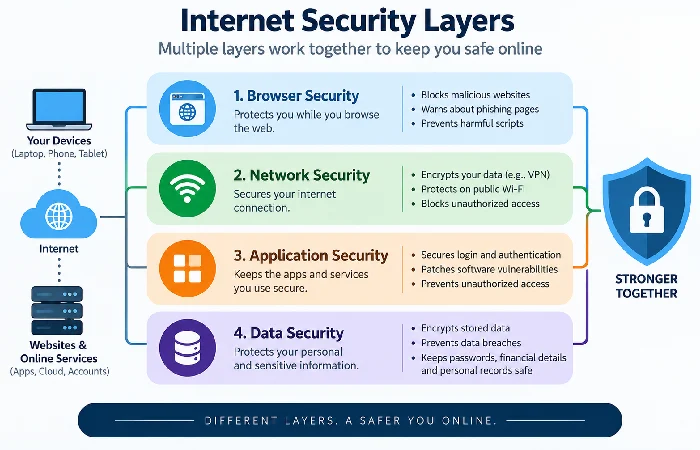
Cybersecurity is the practice of protecting your devices, browser activity and data from unauthorized access. And why it matters: simply put, nearly everything we do in our everyday life now depends on a linked account. It involves aspects of browser security, network security and application security all at once, as opposed to one such thing. The more devices you connect laptops, phones, smart thermostats, doorbell cameras- the more access points an attacker has.
What internet security actually covers:
- Browser security – what occurs when you browse (fake log-in pages, malicious scripts etc)
- Network security – the protection of the connection (such as a home Wi-Fi, a VPN tunnel or a free hotspot)
- Application security — protecting the software and accounts you log into (banking apps, email, social media)
- Data security — protecting the information those accounts and devices store (passwords, financial details, personal records)
Most vendor glossaries use these as synonyms. They’re not. How can you have a strong password if your network isn’t encrypted? How can you have a VPN if you give your password to a phishing web page?
How do I protect my personal information online?
The habits that cut down your attack surface the most are the ones that leave no attack category alive: unique passwords, MFA, knowing where your data is. In 2023 alone, more than 1.1 million reports to the FTC were regarding identity theft, (as found in identity theft statistics) and a majority of these instances come from just stolen login information for an account, not a mass attack.
Habits that actually move the needle:
- Use a unique password for every account, stored in a password manager
- Turn on MFA everywhere it’s offered, prioritizing email first — an attacker with email access can reset everything else
- Check whether your email or passwords appear in a known breach using a reputable breach-lookup tool
- Freeze your credit at all three bureaus if your data has already been exposed — it’s free and reversible
How do I recognize phishing, malware, and other online threats?
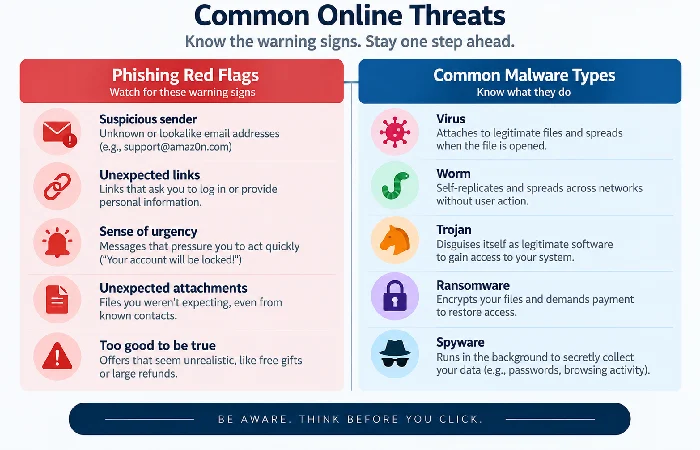
Most account hijacks start with phishing. How do you spot it? Usually there’s urgency involved, or the sender’s email looks slightly off, or someone’s asking for info a real company would never request by email. Fake phishing campaigns are way up too, 341% between 2023 and 2024. Generative AI is a big reason why, it wipes out the grammar mistakes people used to rely on to catch scams.
Red flags in a phishing message:
- Urgent language pushing you to act before you can think (“your account will be suspended today”)
- The sender address appears similar to the genuine company’s domain but is not exact.
- A request for a user to verify a password, PIN, or Social Security number within the message itself.
- A link where the visible text and the actual web page URL are different.
Common malware types to know:
- Ransomware encrypts your data and then extorts money to decrypt it
- Spyware watches activity discreetly and gathers data behind the scenes
- Trojans pretend to be legitimate programs to gain access.
As recommended by CISA’s Secure Our World guidance, instead of replying or opting out, report the suspicious message because even the “unsubscribe” link may be a trap.
Do passwords and two-factor authentication still matter?
Yes, but passwords alone are NOT good enough any longer, and MFA is what bridges the gap. An analysis of over 19 billion leaked passwords by Cybernews in 2025 found that 94% were duplicated or reused, thus a leaked password usually allows access to multiple of your accounts.
Building a stronger password strategy:
- Use a passphrase of four or more unrelated words rather than a short, complex string
- Store passwords in a manager instead of memorizing or reusing them
- Contrary to older advice you may still see (including from some ISP security pages), current NIST guidance no longer recommends forced password changes every 6–12 months — rotate only when there’s evidence of a breach
Why MFA and passkeys matter:
- MFA blocks roughly 96% of bulk phishing attacks and 76% of targeted attacks, according to Microsoft research
- Passkeys succeed on sign-in 98% of the time versus 32% for passwords, and are now supported by 48% of the world’s top 100 websites
- More than 1 billion people have activated at least one passkey as of 2026, per FIDO Alliance data
Is public Wi-Fi actually safe in 2026?
Public Wi-Fi in 2026 is more secure than the public warnings of the 2010 era but it still doesn’t make it quite safe just that the threat has shifted rather than simply gone away. Because most sites now use HTTPS and TLS 1.3, it’s not practical for someone sitting close to you in a cafe to read your email or banking traffic as they would have ten years ago.
For one thing, what has actually changed since 2010: The old favorite, the packet-sniffing attack that made public Wi-Fi history, doesn’t cut it against most recent, encrypted websites. What hasn’t been eradicated is more selective: malicious-twin networks that spoof the storefront Wi-Fi system, and fraudulent captive-portal pages that trick you into giving away your passwords.
A quick public Wi-Fi checklist:
- Confirm the exact network name with staff before connecting — attackers create near-identical look-alikes
- Enable your VPN before opening any app, since some apps send data the instant you join a network
- Avoid logging into banking or highly sensitive accounts on any network you don’t control
- Forget the network on your device after you leave
What does poor internet security actually cost?
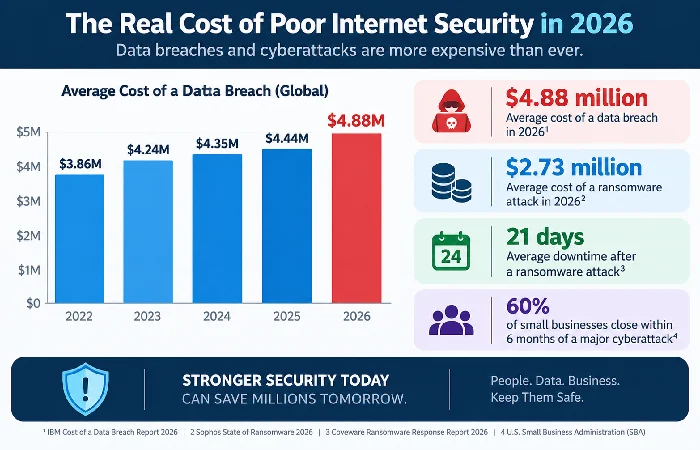
The average cost of a data breach is $4.44 million worldwide, and more than $10 million for United States targets – the “cost” is not theoretical and it filters right down to the individual… As if that figure wasn’t high enough, ransomware has actually driven it up: the average ransomware breach now stands at $5.08 million when costs associated with downtime, recovery and legal fees are factored in, according to IBM’s Cost of a Data Breach research reflected in the Verizon Data Breach Investigations Report.
The numbers behind the stakes:
- Global ransomware damage costs are projected to reach $74 billion in 2026
- 84% of organizations that paid a ransom in late 2024 still failed to fully recover their data
- Early detection through active monitoring cuts financial losses by roughly 47% compared with discovering fraud through a bank notice
Antivirus, VPN, firewall, or password manager — do you need all four?
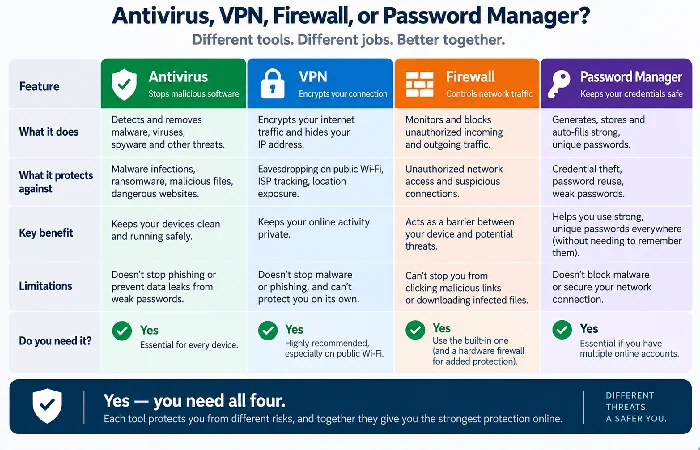
Yes, but they solve different problems, and skipping one leaves a specific gap the others don’t cover. As CISA’s public guidance frames it, no single tool provides complete protection — layered defense is what actually works.
- Antivirus catches known malware signatures and suspicious behavior on your device itself
- VPN encrypts your connection on networks you don’t control, but does nothing once you’ve handed credentials to a fake login page
- Firewall filters unwanted inbound and outbound traffic at the network level
- Password manager removes the reuse problem that lets one leaked password unlock several accounts
None of the four substitutes for MFA, and none of them stops you from clicking a convincing phishing link — that still depends on the habits covered above.
Frequently asked questions
1. How do I know if my personal information has been stolen online?
Watch out for weird charges to your account for services you haven’t purchased, calls from a debt collector about an account you’ve never opened, or a rejection of a loan you didn’t apply for. If a normal supplier sends you an email about a security breach, that too is a warning sign; now change all your passwords.
2. What should I do immediately after clicking a phishing link?
Never provide any info on the page it opened. Update your endpoint security software. Change the password on that account too, the one the link was impersonating, and turn on two-factor authentication if you haven’t already. FTC guidance on this is to just report the message and delete it, don’t reply, and don’t click “unsubscribe” either.
3. Is SMS-based two-factor authentication safe, or should I use an authenticator app?
SMS-based 2FA is still much better than having no MFA at all, but it’s the least strong since phone numbers can be hijacked by means of a SIM-swap attack. An authenticator app or a passkey is significantly stronger where the service supports it.
4. Do I need both antivirus software and a VPN?
Antivirus is about the device, it protects against malware. A VPN’s job is the connection itself; it’s useful when you’re on Wi-Fi you don’t control. One doesn’t cover for the other.
5. How often should I change my passwords?
In the new NIST guidance there is no longer a recommendation to rotate passwords every 90 days. Instead if the password has been part of a breach the password should be changed immediately. A good, unique long passphrase stored in a password manager rather than rotating it periodically is preferable.
6. Is public Wi-Fi safe for online banking?
Don’t even try. HTTPS does shut down most of the typical interception attacks, that part’s true. But captive-portal phishing and evil-twin networks go straight for login pages instead. If you absolutely have to check a banking app on public Wi-Fi, use a VPN, and steer clear of any network whose name looks unfamiliar or shows up twice.
No single tool on this page makes you fully secure — the combination does. Start with the two changes that block the most attacks for the least effort: turn on MFA for your email account today, and check whether your current password shows up in a known breach.
